You installed an SSL certificate, your site loads over HTTPS, but the browser still refuses to show the padlock. Instead, you get a warning like “Not secure” or “Connection is not fully secure”. This is the mixed content error, and it is one of the most common problems after moving a WordPress site to HTTPS. The good news is that it is usually easy to fix once you know where the insecure resources are hiding. This guide shows you how to fix WordPress mixed content error step by step, from finding the culprits to forcing HTTPS across the whole site.
What Is a Mixed Content Error?
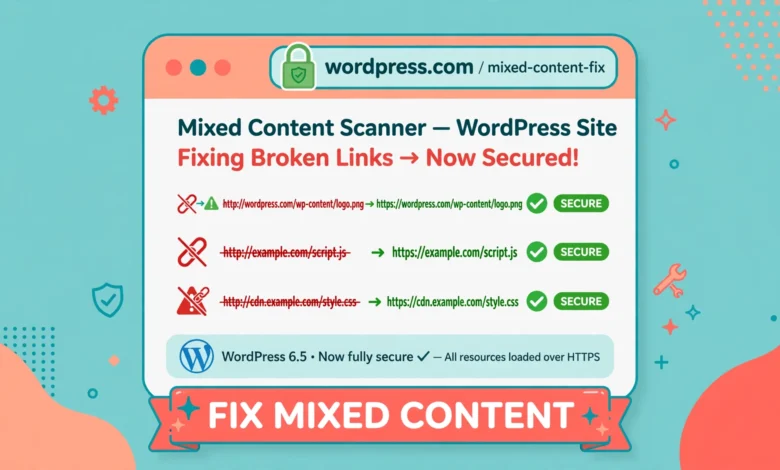
Mixed content happens when a page loaded over HTTPS includes some resources loaded over plain HTTP. A resource can be an image, a stylesheet, a script, a font, a video, or an iframe. The page itself is secure, but those HTTP resources are not encrypted, so the browser cannot call the page fully secure. It downgrades the padlock and warns visitors, which hurts trust and can even hurt conversions on a shop or membership site.
Browsers treat two kinds of mixed content differently. Passive mixed content, such as images and videos, usually triggers a warning but the page still loads. Active mixed content, such as scripts and stylesheets, is blocked outright by modern browsers, which can break layouts and features. Either way, the fix is the same: every resource on the page must load over HTTPS. There is no partial credit here, so even one stray HTTP image keeps the warning alive.
How Do You Find the Insecure Resources?
Before fixing anything, find out exactly what is loading over HTTP. The fastest tool is your browser console. Open the page in Chrome or Firefox, press F12, and click the Console tab. Mixed content warnings appear there with the exact URL of each blocked or insecure resource, usually with a message like “Mixed Content: The page was loaded over HTTPS, but requested an insecure resource”. Make a list of these URLs, because they tell you where to look next.
You can also view the page source and search for http:// to spot insecure links manually. This works for a single page, but for a whole site it is slow. A faster approach is an online SSL checker or a plugin that scans for mixed content, but the browser console is enough for most sites and it shows you the problem on the exact page you are testing. Check your homepage, a post, a page, and, if you run a shop, a product page and the checkout, because different templates load different resources.
How Do You Fix the Site URLs in WordPress Settings?
The most common cause of mixed content is a WordPress Address or Site Address still set to HTTP. Go to Settings, then General, in your WordPress dashboard. Both the WordPress Address (URL) and the Site Address (URL) should start with https://. If either one still says http://, change it to https:// and save. This single change fixes a large share of mixed content warnings, because WordPress then generates HTTPS URLs for most content automatically.
Be careful with this step if your site has no valid SSL certificate yet. Changing these URLs to HTTPS before SSL is installed will lock you out of the dashboard. If that happens, you can fix the URLs through wp-config.php or the database, but it is much easier to confirm SSL is working first. If you have not set up the redirect from HTTP to HTTPS yet, our guide on how to redirect HTTP to HTTPS in WordPress without a plugin covers that part in detail.
How Do You Fix Hardcoded URLs in the Database?
Changing the settings does not fix URLs that were hardcoded into post content, widgets, or theme options while the site ran on HTTP. Old posts often contain image URLs like http://yoursite.com/wp-content/uploads/photo.jpg. These live in the database, so you need a search and replace to update them. Before you touch the database, take a full backup. A bad search and replace can break a site, and a backup turns a disaster into a five minute restore. Practise on a staging copy first if you can, following our guide on how to create a WordPress staging site without a plugin.
The safest tool for most users is the Better Search Replace plugin. Install it, go to Tools, then Better Search Replace, and search for your old HTTP domain, replacing it with the HTTPS version. Select all tables, run a dry run first to preview how many cells will change, and only then run the real replace. The dry run is important: it shows you the scope of the change before anything is written.
If you have server access, WP-CLI does the same job from the command line:
wp search-replace 'http://yoursite.com' 'https://yoursite.com' --all-tables --dry-run
wp search-replace 'http://yoursite.com' 'https://yoursite.com' --all-tables
Run the dry run command first, check the counts, then run the real command without the dry run flag. WP-CLI handles serialized data correctly, which matters because WordPress stores some settings as serialized arrays where the string length is recorded. A plain text find and replace in a database export breaks those lengths and corrupts the setting. Never edit a database export in a text editor for this reason. Use a tool that understands serialization, such as Better Search Replace or WP-CLI. Documentation at wordpress.org covers WP-CLI and database management basics.
How Do You Force HTTPS With .htaccess?
Even after the database is clean, visitors may still arrive over HTTP from old bookmarks or old links. Forcing HTTPS at the server level catches those requests and redirects them before WordPress even loads. On Apache hosting, add this rule to your .htaccess file, above the WordPress rules:
<IfModule mod_rewrite.c>
RewriteEngine On
RewriteCond %{HTTPS} off
RewriteRule ^(.*)$ https://%{HTTP_HOST}%{REQUEST_URI} [L,R=301]
</IfModule>
This sends every HTTP request to the HTTPS version of the same URL with a permanent 301 redirect, so search engines update their indexes too. If your host uses Nginx instead of Apache, there is no .htaccess file. Ask your host to add the equivalent redirect in the server block, or use the redirect option in your hosting control panel. Most managed WordPress hosts offer a one click “force HTTPS” toggle that does the same thing. Good hosting makes this painless, which is why server quality matters so much: our web hosting guide explains what to look for when choosing a host.
How Do You Fix Hardcoded Links in Themes and Plugins?
Sometimes the insecure resource does not come from the database at all. It comes from a theme or plugin file that hardcodes an HTTP URL, often for a font, a script, or an image. The browser console will point at the file, and if the URL belongs to your own theme, you can fix it in a child theme rather than editing the parent theme directly. Editing a parent theme is a bad idea because the next update wipes your fix. If you do not have one yet, our guide on how to create a WordPress child theme shows the setup.
If the insecure URL belongs to a third party service, such as an old font or tracking script, check whether that service supports HTTPS. Almost all do today, so changing http:// to https:// in the plugin settings or the service URL usually fixes it. If a plugin only offers an HTTP option and has not been updated in years, consider replacing it with a maintained alternative. A plugin that cannot load over HTTPS in 2026 is a security risk, not just a padlock problem.
What If Fixing Mixed Content Causes a Redirect Loop?
A redirect loop, where the browser reports “too many redirects”, usually means two redirect rules disagree. A common setup is a .htaccess rule forcing HTTPS while a caching plugin or a Cloudflare setting also redirects, and one of them thinks the request is still HTTP because of how the proxy passes it along. First, clear every cache: your caching plugin, your CDN, and your browser. Then check your redirect rules one at a time and disable any duplicate HTTPS redirect in plugins while the .htaccess rule is active.
If your site sits behind Cloudflare or a load balancer, the server may see HTTP even when the visitor uses HTTPS. In that case, WordPress needs to know the request is secure. Adding the standard HTTPS proxy check to wp-config.php usually resolves it, but only do this if your host confirms you are behind a proxy, because adding it on a normal setup can create the very loop you are trying to fix. When in doubt, ask your host to check the redirect chain for you. They can see the exact hops a request makes.
Why Is the Padlock Still Missing After the Fix?
- Cached pages: your caching plugin or CDN may still serve old HTTP versions. Purge all caches, then test in a private browser window.
- Widgets and menus: custom HTML widgets, footers, and menus often hold old HTTP links that a database search and replace missed because they live in theme options.
- External embeds: an embedded video, map, or social feed loading over HTTP will keep the warning alive until the embed URL is updated to HTTPS.
- Hardcoded theme files: check the theme customizer and any custom code snippets for old HTTP URLs.
- Browser cache: your own browser may show a stale warning. Hard refresh with Ctrl plus F5, or test in a fresh private window.
Work through this list page by page, using the browser console as your guide. Each insecure resource you fix brings the site closer to a clean padlock. When the console is silent and the padlock appears on the homepage, a post, and a product or checkout page, the job is done. If a 404 appears along the way, our guide on how to fix WordPress 404 errors covers the usual causes. Reference material at developer.mozilla.org explains how browsers classify mixed content in full.
Frequently Asked Questions
Will a mixed content error hurt my Google rankings?
Yes, indirectly. Google prefers HTTPS and may warn visitors about insecure pages, which reduces clicks and trust. A fully secure site also avoids the ranking disadvantage of serving HTTP resources alongside HTTPS content. Fixing mixed content is a small job with a real SEO benefit.
Can I fix mixed content with a plugin instead?
Plugins exist that rewrite HTTP URLs to HTTPS on the fly, and they can work as a quick patch. They are not a real fix, though, because the database still holds HTTP URLs and the plugin must run on every page load. Use the manual steps in this guide for a permanent fix, and keep a rewriting plugin only as a temporary safety net.
Is it safe to run a database search and replace on a live site?
It is safe if you take a backup first, run a dry run, and use a tool that handles serialized data, such as Better Search Replace or WP-CLI. Never do a raw text find and replace on a database export, because it corrupts serialized settings. If you are unsure, practise on a staging copy first.
Why does the padlock show on some pages but not others?
Because mixed content is page specific. A page is only fully secure when every resource it loads uses HTTPS. A post with one old HTTP image will warn, while a clean page will not. Check each template type separately: homepage, post, page, and shop pages can each hide a different insecure resource.
Last updated: November 2026.