Elementor makes it easy to build beautiful pages, and also easy to build slow ones. Every extra widget, addon, font weight, and oversized image adds weight, and before you know it, your PageSpeed score is red and visitors are leaving. The good news is that Elementor sites respond very well to optimization: a handful of targeted fixes usually takes a sluggish page from five seconds to under two. In this guide, you will learn nine practical fixes to speed up your Elementor website, from built-in performance settings to hosting upgrades, plus how to measure the improvement properly.
Why Do Elementor Pages Get Slow?
Understanding the causes helps you fix the right things instead of guessing. Elementor pages are slow for a few repeatable reasons.
- Heavy DOM output: old-style Elementor sections and columns generate deeply nested HTML. A complex page can produce thousands of DOM elements, which slows rendering on phones especially.
- Addon and widget bloat: third-party Elementor addon packs load their CSS and JavaScript on every page, even pages that use only one of their widgets.
- Oversized images: uploading a 4000px photo and displaying it at 800px wastes bandwidth on every visit. Image weight is the biggest factor on most slow pages.
- Too many Google Font weights: each weight of each font family is a separate download. Loading four weights of two families multiplies the cost.
- Weak hosting: no frontend optimization survives a slow server. Time to first byte from cheap shared hosting can exceed a full second before anything even renders.
Fix 1: Enable Elementor’s Built-In Performance Features
Elementor ships with performance settings that many users never turn on. Go to Elementor, Settings, Features, and activate Flexbox Containers so new layouts use the leaner container markup instead of legacy sections. Then open Elementor, Settings, Advanced, and enable Optimized Markup Experiment features such as improved CSS loading and optimized DOM output. Also enable lazy loading for background images. These are free, one-click improvements that reduce page weight on every Elementor page you build from now on.
Fix 2: Convert Legacy Sections to Containers
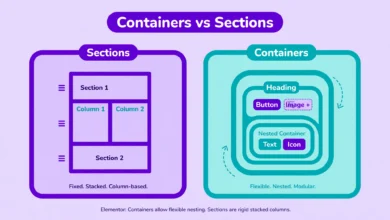
Flexbox Containers are the modern Elementor layout system, and they generate far less HTML than the old section-column-inner-section nesting. In the Elementor editor, right-click a legacy section and choose Convert to Container to upgrade it. Work through your most important pages first: homepage, landing pages, and top-traffic posts. If you are still deciding between the two systems, our comparison of Elementor containers vs sections breaks down exactly why containers win on both flexibility and performance.
Fix 3: Cut Unused Addons and Widgets
Audit your Elementor addons. If you installed a 90-widget addon pack but use three widgets, you are loading dozens of unused assets. Deactivate the pack and check whether the site still looks right. Many addon plugins let you disable individual widgets, which is the next best option. The same discipline applies to WordPress plugins generally: every active plugin adds code to every page load. Keep only what your pages actually use, and your asset list shrinks dramatically.
Fix 4: Optimize Every Image to WebP
Images are usually the heaviest part of an Elementor page, so this fix alone can cut load times in half. Convert images to WebP format, which delivers the same visual quality at roughly 25 to 35 percent smaller file sizes than JPEG or PNG. Resize images to the actual display size before uploading: a full-width hero rarely needs more than 1920px wide, and content images rarely need more than 1200px. Plugins like ShortPixel or Imagify automate the conversion, or you can compress and resize manually with free tools before uploading. Always add descriptive alt text while you are at it.
Fix 5: Limit Google Fonts and Preload Them
Open your Elementor site settings and count your font families and weights. Two families with two weights each is plenty for most designs. Remove anything extra. Then make the remaining fonts load efficiently: preload the most important font files so the browser fetches them early, and use font-display: swap so text appears immediately in a fallback font instead of staying invisible while fonts download. If your design allows it, hosting fonts locally instead of pulling them from Google on every visit removes a third-party request entirely.
Fix 6: Add a Caching Plugin and a CDN
Caching turns your dynamic Elementor pages into fast static HTML files served instantly to visitors. WP Rocket is the most beginner-friendly premium option and handles page caching, browser caching, and basic optimization in one dashboard. LiteSpeed Cache is a powerful free alternative, but only if your host runs LiteSpeed servers. Either way, pair caching with a CDN like Cloudflare so images, CSS, and JavaScript load from servers near your visitors. Together, caching and a CDN are the two highest-impact speed investments after hosting itself. For deeper server-side compression tactics, see our guide on how to enable GZIP compression in WordPress without a plugin.
Fix 7: Upgrade PHP to 8.2 or Newer
Many sites still run PHP 7.4 or 8.0 because nobody changed the default. PHP 8.2 and 8.3 execute WordPress code significantly faster, which directly reduces server response time. Check your current version under Tools, Site Health, Info, Server, then switch versions in your hosting control panel. Test the site thoroughly afterward, because very old plugins can conflict with new PHP. If your host does not offer PHP 8.2+, that is a strong signal to move, which brings us to the next fix.
Fix 8: Move to Faster Hosting
All the frontend optimization in the world cannot fix a server that takes two seconds to respond. If your time to first byte is consistently over 600ms, your hosting is the bottleneck. Look for hosts with LiteSpeed or Nginx servers, server-level caching, PHP 8.2+ by default, and data centers near your audience. Elementor pages are heavier than plain WordPress pages, so they benefit even more from quality hosting. Our web hosting guide explains exactly which server features matter for WordPress speed and how to compare plans.
Fix 9: Measure Properly with PageSpeed Insights
You cannot improve what you do not measure, and you should measure correctly. Test with PageSpeed Insights, focusing on mobile scores and the Core Web Vitals: Largest Contentful Paint, Interaction to Next Paint, and Cumulative Layout Shift. Test the same pages before and after your changes, in similar conditions, because scores vary between runs. Also watch real-user data in Google Search Console’s Core Web Vitals report over the following weeks: lab scores tell you what to fix, field data tells you whether visitors actually feel the difference. If your whole WordPress site feels slow beyond Elementor pages, our guide on why your WordPress site is slow covers the platform-wide causes.
Work through these fixes in order and re-test after each one. Most Elementor sites see the biggest jumps from containers, image optimization, caching, and better hosting, in roughly that order. If you are still weighing Elementor against its paid tier while optimizing, our Elementor Free vs Pro comparison helps you decide whether the upgrade is worth it for your site. Speed is not a one-time project, though: check your scores monthly and keep new pages lean from the start.
Frequently Asked Questions
Does Elementor hurt SEO?
Elementor itself does not hurt SEO. Google ranks pages, not page builders. What hurts SEO is a slow page, broken mobile layout, or messy heading structure, and those are builder-agnostic problems that careless Elementor use can cause. An optimized Elementor page with clean headings, fast load times, and proper meta tags ranks just as well as any hand-coded page.
What is the single biggest speed fix for Elementor?
For most sites, optimizing images delivers the biggest single improvement, because images are usually the largest part of the page weight. Converting to WebP and resizing to display dimensions often cuts total page size in half. After images, adding page caching and moving to faster hosting produce the next largest gains.
Should I use WP Rocket or LiteSpeed Cache with Elementor?
Both work well with Elementor. WP Rocket is the easiest choice: it works on any host, configures itself sensibly, and rarely breaks layouts. LiteSpeed Cache is free and extremely powerful, but it only delivers its full benefit on LiteSpeed servers, so check your hosting first. If you are on LiteSpeed hosting, LiteSpeed Cache is the obvious pick. Otherwise, WP Rocket is worth the price.
Are Elementor containers really faster than sections?
Yes. Flexbox Containers generate significantly less nested HTML than the legacy section and column system, which means a smaller DOM, less CSS, and faster rendering, especially on mobile devices. Converting your key pages from sections to containers is one of the highest-impact free optimizations available, and all new Elementor development uses containers by default.
Last updated: October 2026.