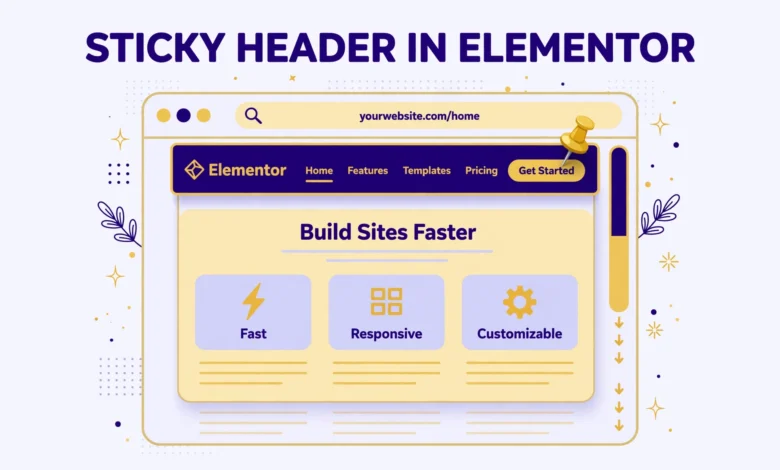
A sticky header stays visible at the top of the screen while a visitor scrolls down the page. It keeps your logo, menu, and call to action within reach at all times, which can improve navigation and conversions. Many Elementor users expect this feature to be built into the free version, but the reality is more limited. This guide gives you the honest truth first, then shows practical free workarounds that actually work.
If you are new to headers in Elementor, start by learning how to edit your header in Elementor free before you try to make it sticky. You need to know which part of your site is controlled by your theme and which part Elementor can change.
Can You Make a Sticky Header in Elementor Free?
The short answer is no, not with the built in Motion Effects panel. In Elementor Pro, you can open a section, go to Advanced, then Motion Effects, and turn on Sticky. That option lets you stick an element to the top, choose devices, and add an offset. Elementor Free does not include Motion Effects, and it does not let you build header templates with the Theme Builder either.
That limitation confuses many beginners because they see sticky options in tutorials and assume the free version works the same way. When you open Advanced settings in Elementor Free, you will find layout, spacing, and responsive controls, but no sticky toggle. Searching for it will waste time. The good news is that a sticky header is mostly a CSS behavior, so you can recreate it with custom CSS, a free plugin, or your theme settings.
What Elementor Free Can and Cannot Do
Elementor Free is excellent for designing page content with sections, containers, columns, text, images, and buttons. It is not a full theme builder. Your site header, footer, and archive layouts usually come from your WordPress theme, not from Elementor Free. That distinction matters because the sticky code must target the real header element on your site, not just an Elementor section inside a page.
Understanding Elementor containers and sections helps here. A section you add to a single page will not appear on every page, so making it sticky will not create a site wide header. For a true site wide sticky header in the free version, you normally style the theme header with CSS or use a plugin that hooks into the theme header. This guide covers both paths.
Method 1: Make Your Theme Header Sticky With Custom CSS
This is the most reliable free method, and it needs no extra plugin. CSS position sticky keeps an element in its normal place until you scroll past it, then it sticks to the top. Unlike position fixed, it does not remove the element from the page flow, so it rarely causes a sudden layout jump.
First, find your header selector. In Chrome, right click your header and choose Inspect. Look for a class like site-header, main-header, or header. Your theme may use a different name, so copy exactly what you see. Then go to Appearance, then Customize, then Additional CSS in WordPress, and add code similar to this example:
.site-header {
  position: sticky;
  top: 0;
  z-index: 999;
}
Replace site-header with your real class if it differs. The top value of zero means the header sticks to the very top of the viewport. The z-index value keeps it above page content, sliders, and images. Publish the Customizer changes, then test on a long page in a private browser window. Scroll slowly and confirm the header stays in place without overlapping content in a broken way.
If your header has a top bar for announcements, you may want to stick only the main header row, not the whole header wrapper. Inspect the inner row, find its class, and apply sticky to that element instead. This small choice makes a big difference on mobile, where screen height is limited.
Method 2: Use a Free Sticky Header Plugin
If you prefer not to write CSS, a free sticky header plugin can do the job. Popular options let you enter your header selector, set a scroll distance, choose a background color, and control which devices show the sticky effect. Install the plugin from Plugins, then Add New, search for a well rated sticky header plugin, and check that it was updated recently and tested with your WordPress version.
After activation, open the plugin settings and enter the same header selector you found with Inspect. Most plugins also offer a top offset, a fade or slide effect, and an option to hide the header until the visitor scrolls up. Start simple. Enable sticky behavior first, test it, and only then add effects. Adding every effect at once makes troubleshooting much harder if something breaks.
A plugin is convenient, but it adds another piece of software to maintain. If your theme already supports a sticky header, or if the CSS method works, you do not need a plugin. Keep your plugin count low for better performance and fewer conflicts. This advice applies to the generic WordPress sticky header method as well, which often uses the same CSS idea without Elementor at all.
Method 3: Check Your Theme Sticky Header Option
Before adding code or plugins, check your theme. Many popular free themes include a sticky header toggle in the Customizer under Header settings. Astra, Kadence, GeneratePress, Hello Elementor with theme options, and similar themes often provide this setting. If your theme has it, use it. A theme native option is usually tested with that theme layout, so it tends to work more smoothly than generic code.
Look for labels like Sticky Header, Fixed Header, or Sticky Primary Menu. Turn it on, choose whether it applies on desktop only or on all devices, and preview the result. If the theme option conflicts with your CSS or plugin, turn off the extra method. Running two sticky systems on the same header is a common cause of flickering and double headers.
How to Add Shrink on Scroll and Hide on Scroll Down Effects
Elementor Pro users get sticky effects in a panel, but free users can still create simple effects with CSS. A shrink effect reduces header padding and logo size after scrolling. A hide on scroll down effect hides the header when scrolling down and shows it again when scrolling up. Both effects need a little JavaScript for the scroll detection, or a plugin that supports them, so keep expectations realistic if you only use CSS.
For a simple CSS only shrink effect, you can reduce the size of the header when a class is present, but WordPress does not add that class by itself. Many sticky plugins add a class like sticky or is-sticky to the header after scrolling. Once that class exists, you can style it like this:
.site-header.is-sticky {
  padding-top: 8px;
  padding-bottom: 8px;
  box-shadow: 0 2px 12px rgba(0, 0, 0, 0.12);
}
This keeps the design clean and readable. Avoid shrinking the header too much. If the menu becomes hard to tap or read, visitors will leave rather than explore. A subtle shadow helps the sticky header stand out from page content without looking heavy.
How to Fix the Anchor Offset Problem
One of the most common sticky header problems is anchor links. When a visitor clicks a menu link to a section lower on the page, the browser jumps to that section, but the sticky header covers the section title. The section looks hidden behind the bar, and the visitor thinks the link is broken.
The fix is scroll margin. Add scroll margin top to your sections or headings so the browser leaves space for the header. For example, if your header is about 80 pixels tall, add a slightly larger margin:
section {
  scroll-margin-top: 100px;
}
You can apply this to specific section IDs instead of every section if you want finer control. Test every anchor link in your menu after adding the fix, including links on mobile. If your header height changes on mobile, you may need a different scroll margin in a mobile media query. The Elementor help docs explain section settings, while WordPress.org is a good starting point for theme and Customizer basics.
Sticky Headers on Mobile: What to Watch
Mobile screens have little vertical space, so a sticky header can hurt more than it helps if it is too tall. A large logo, two menu rows, and an announcement bar can eat a third of the screen. On mobile, consider sticking only the logo and menu button row, or disabling sticky behavior entirely on small screens.
- Keep the mobile sticky header short, with one row only.
- Make sure the menu button and search icon stay easy to tap.
- Test on a real phone, not only in a desktop browser resize.
- Disable sticky on mobile if it covers important content or forms.
To disable sticky on mobile with CSS, wrap your sticky rule in a media query that applies only above a breakpoint, or add a separate rule that resets position on small screens. For example, you can set position to relative below 768 pixels. Always test after the change, because theme breakpoints differ.
Troubleshooting Common Sticky Header Problems
If your sticky header does not work at all, the most likely cause is a parent element with overflow hidden. Position sticky fails when any ancestor has overflow hidden, overflow auto, or overflow scroll in a way that creates a separate scrolling context. This often happens with page builders, sliders, or theme wrappers. Inspect parent elements one by one and look for overflow rules in the computed styles.
- Header disappears behind sliders or images: raise the z-index value.
- Header sticks, then jumps: check for conflicting theme, plugin, and CSS rules.
- Header works on desktop but not mobile: check media queries and theme mobile settings.
- Header overlaps anchor sections: add scroll margin top as shown above.
- Header looks broken after a theme update: recheck the header class name.
Another common issue is caching. If you use a caching plugin or a host cache, clear it after every CSS change, and test in a private window. Otherwise you may think the code failed when the old version is still being served. Clear browser cache too if the change does not appear.
Finally, remember the difference between Elementor Free and the generic approach. The generic approach styles the theme header directly, which is exactly what this guide recommends for free users. Trying to force an Elementor page section to act as a site wide header will only frustrate you. Style the real header, keep the design simple, and test on desktop and mobile before you call it done.
Frequently Asked Questions
Can I make a sticky header in Elementor Free without Elementor Pro?
Yes. You cannot use the Pro Motion Effects sticky toggle, but you can make your theme header sticky with custom CSS, a free plugin, or a theme option. These methods work well and do not require an upgrade.
Why is position sticky not working on my site?
The usual cause is a parent element with overflow hidden, or a wrong header selector. Inspect the header, copy the exact class, check parent overflow rules, and clear your cache before testing again.
Should a sticky header be enabled on mobile?
It depends on header height. A short, single row header works well on mobile. A tall header with multiple rows should be shortened or disabled on small screens so content stays readable.
Will a sticky header slow down my website?
A simple CSS sticky header has almost no performance cost. A heavy plugin with animations, scripts, and extra styles can add load time, so prefer CSS or a theme option when possible.
Last updated: October 2026.