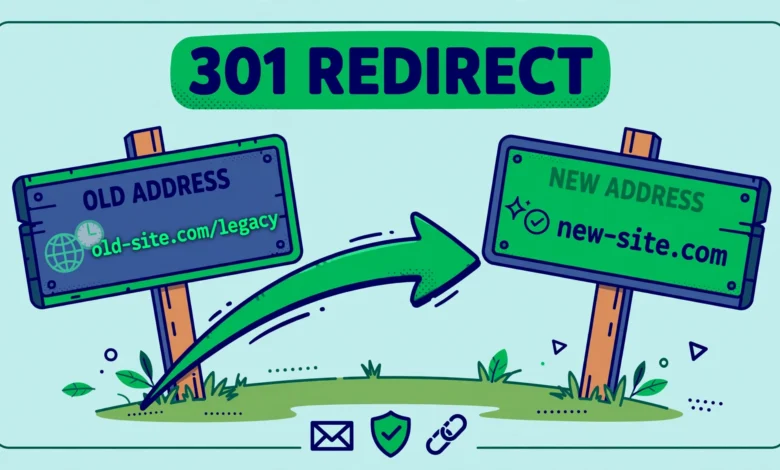
Sooner or later, every WordPress site changes a URL. You rewrite a post slug, merge two pages, or restructure a category, and the old address stops working. Visitors who click the old link get a 404, and search engines that indexed the old page lose the ranking it earned. A 301 redirect fixes both problems by sending the old URL permanently to the new one. This guide shows you how to create a WordPress 301 redirect without plugin code, using .htaccess or a small functions.php snippet, and how to test it properly.
What Is the Difference Between a 301 and a 302 Redirect?
A 301 redirect means “moved permanently”. It tells browsers and search engines that the old URL is gone for good and the new URL is its replacement. Search engines pass most of the old page ranking to the new page, and browsers may cache the redirect. A 302 redirect means “moved temporarily”. It tells search engines to keep indexing the old URL, because the move may be undone. That is the right choice for a short maintenance page or a seasonal offer, but it is the wrong choice for a permanent URL change.
Using a 302 where a 301 belongs is a quiet SEO mistake. The old page keeps its ranking while the new page starts from zero, and visitors may keep landing on the outdated address. When a URL change is permanent, and most WordPress URL changes are, use a 301. When you are unsure whether the change will stick, a 302 buys you time, but revisit it and convert it to a 301 once the change is final.
How Do You Redirect a Single Page With .htaccess?
On Apache hosting, the .htaccess file is the fastest place for redirects, because the server handles them before WordPress even loads. Add your rules above the WordPress block in .htaccess, so WordPress rewrites do not interfere. A single page redirect looks like this:
Redirect 301 /old-post-slug/ https://yoursite.com/new-post-slug/
The first part is the old path relative to your domain, starting with a slash. The second part is the full new URL. Use the full URL for the destination so there is no doubt about where the redirect goes. Save the file, then visit the old URL in a private browser window and confirm it lands on the new page. If you get a 500 error instead, a typo in .htaccess is the likely cause, so restore your backup copy of the file and try again. Always back up .htaccess before editing it, because one bad line can take down the whole site.
Note that Redirect 301 matches the start of the path, so redirecting /old-post-slug/ also redirects anything beneath it, such as /old-post-slug/extra/. For an exact page only, use RedirectMatch with an end anchor instead:
RedirectMatch 301 ^/old-post-slug/$ https://yoursite.com/new-post-slug/
The caret marks the start of the path and the dollar sign marks the end, so only that exact page redirects. If you already handle HTTP to HTTPS at the server level, keep these rules in the same file and test them together. Our guide on how to redirect HTTP to HTTPS in WordPress without a plugin covers the HTTPS rule that usually sits alongside redirect rules.
How Do You Redirect a Whole Section of URLs?
When you rename a category or move a whole section, writing one rule per page is wasteful. A single pattern rule can redirect every URL under the old section to the matching URL under the new section. This RewriteRule captures everything after the old section name and appends it to the new section:
<IfModule mod_rewrite.c>
RewriteEngine On
RewriteRule ^old-category/(.*)$ https://yoursite.com/new-category/$1 [L,R=301]
</IfModule>
Here, (.*) captures the rest of the old URL and $1 reuses it in the destination, so /old-category/my-post/ becomes /new-category/my-post/ automatically. Place this rule above the WordPress block, and test several old URLs, not just one, because a pattern mistake can redirect pages you never meant to move. If the whole section moves to a single landing page instead of matching pages, drop the capture and point the rule at one fixed destination.
How Do You Redirect With functions.php Instead?
Sometimes .htaccess is not available, for example on Nginx hosting, or you want a redirect that depends on WordPress logic, such as redirecting only logged out visitors or only a specific post type. In that case, use wp_redirect on the template_redirect hook in your child theme functions.php file. Never edit a parent theme functions.php, because updates overwrite it. Our guide on how to create a WordPress child theme covers the safe setup.
add_action('template_redirect', function() {
  if (is_page('old-page-slug')) {
    wp_redirect('https://yoursite.com/new-page-slug/', 301);
    exit;
  }
});
The template_redirect hook runs after WordPress knows which page was requested but before anything is sent to the browser, which is the right moment for a redirect. The exit call is essential: without it, WordPress continues loading the old page after sending the redirect header, which produces broken behavior. This method is slower than .htaccess, because WordPress must load first, but it is far more flexible, and it works on any server type, including Nginx, where .htaccess does not exist at all.
What About Redirects on Nginx Hosting?
Nginx does not read .htaccess, so the Apache rules above do nothing there. The Nginx equivalent of a single page redirect goes in the server block of your site configuration:
rewrite ^/old-post-slug/$ https://yoursite.com/new-post-slug/ permanent;
The word permanent makes this a 301. Most site owners on Nginx hosting cannot edit the server block directly, so ask your host to add the rule, or use the functions.php method instead, which works everywhere. Managed WordPress hosts often provide a redirects panel in their dashboard too, which is worth checking before writing code. Good hosting removes this friction, and our web hosting guide explains what to look for when choosing a host. Reference material at developer.mozilla.org documents the 301 and 302 status codes in full.
How Do You Test a Redirect?
Testing a redirect means checking the status code, not just watching the browser land somewhere. A browser hides the chain: it may pass through two or three redirects before showing the final page, and you would never notice. Use a redirect checker tool, a browser extension that shows response headers, or the command line:
curl -I https://yoursite.com/old-post-slug/
Look for a 301 status and a Location header pointing at the new URL. Then follow that new URL and confirm it returns a 200 status, not another redirect. If the old URL returns a 404, the rule is not matching. If it returns a 200, the rule is not running at all, which usually means the rule sits below the WordPress block in .htaccess, or the server is Nginx. If it returns a redirect to itself, you have a loop, covered below. Also test in a private window, because browsers cache 301 redirects aggressively, and a cached bad redirect can fool you into thinking the fix failed.
What Redirect Chains and Loops Should You Avoid?
- Redirect chains: old URL redirects to a middle URL that redirects again to the final URL. Each hop loses a little ranking value and slows the page, so always point old URLs directly at their final destination.
- Redirect loops: URL A redirects to URL B, and URL B redirects back to URL A, or a rule redirects a URL to itself. Browsers stop after too many hops and show an error, so test every new rule immediately.
- Redirecting to a 404: a redirect that lands on a missing page is worse than no redirect, because it looks fixed while still failing visitors. Confirm the destination returns a 200.
- Redirecting everything to the homepage: sending deleted pages to the homepage looks like a fix, but search engines treat it as a soft 404 and visitors get confused. Redirect to the closest matching page, or let genuinely dead pages return a real 404.
- Stale rules: old rules pile up over years. Review your redirect list occasionally and remove rules for URLs nobody visits anymore.
When a redirect chain already exists, fix it by updating the oldest rule to point straight at the final URL, then deleting the middle rule. Keep a simple record of your redirects, even a spreadsheet, so future URL changes do not create new chains by accident. If broken links keep appearing in your reports, our guide on how to fix WordPress 404 errors covers finding and cleaning them up, and the guide on how to add Google Search Console to WordPress shows how to spot crawl errors that point at URLs needing redirects.
Should You Update Internal Links and the Sitemap Too?
Yes. A redirect is a safety net, not a substitute for correct links. Update every internal link that points at the old URL, including links in other posts, menus, and widgets, so visitors and search engines go straight to the new address. Redirects slow down crawling slightly and lose a small amount of ranking value, so direct links are always better. Your sitemap updates automatically when you change a slug in WordPress, but if you manage a manual sitemap or have hardcoded links in a page builder, update those by hand. Then resubmit the sitemap in Search Console so search engines discover the new URLs quickly.
Frequently Asked Questions
Do I need a plugin for WordPress redirects?
No. A single page or section redirect works fine with an .htaccess rule or a small wp_redirect snippet in your child theme, as shown in this guide. Plugins help when you manage hundreds of redirects or need a dashboard to track 404s, but for a handful of redirects, code is lighter and fully under your control.
How long should I keep a 301 redirect in place?
Keep it for at least a year, and ideally permanently. Search engines need time to transfer ranking, and old links on other sites may keep sending visitors for years. Removing a redirect too early turns those visits back into 404s. There is almost no cost to keeping a correct rule, so leave it in place.
Why does my redirect cause a “too many redirects” error?
That is a redirect loop. The usual causes are two rules pointing at each other, a rule redirecting a URL to itself, or an HTTPS redirect fighting with a plugin redirect. Check your rules one at a time, confirm each destination is different from its source, and clear your browser cache before retesting, because browsers cache 301s.
Will a 301 redirect pass all my SEO ranking to the new page?
Almost all of it. Google has said for years that 301 redirects pass full ranking value in most cases, though a small loss can occur in practice. Redirecting to a closely matching page, updating internal links, and keeping the redirect in place long term all help the new page recover the old page ranking as fully as possible.
Last updated: November 2026.