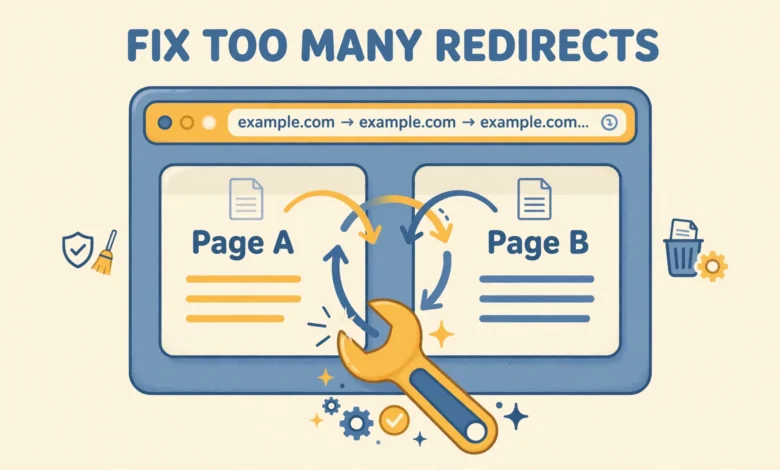
You open your site and instead of your homepage you see ERR_TOO_MANY_REDIRECTS. The browser tried to follow one redirect after another, gave up, and showed an error. Your content is usually still there. The problem is a redirect loop: page A sends visitors to page B, and page B sends them back to page A, or a chain keeps bouncing between HTTP and HTTPS, www and non-www, or two plugins that disagree about where a page should live.
The good news is that most loops have a small number of causes, and you can find them in order. Work through the checks below from the easiest to the deepest. Before you edit wp-config.php or .htaccess, download a backup of both files, plus a database backup if you can reach your hosting panel. A single wrong character in either file can take a site down, and a backup turns a scary edit into a two minute undo.
What Does the Too Many Redirects Error Actually Mean?
A redirect tells a browser to load a different URL instead of the one it requested. That is normal for a moved post, a forced HTTPS upgrade, or a www to non-www cleanup. It becomes an error only when the chain never ends. Browsers stop after about 20 hops and report too many redirects, which is their way of saying the site sent them in circles.
How Can You Confirm Where the Redirect Loop Is Happening?
Start with the simplest checks. Clear your browser cookies and cache for the site, then try a private or incognito window. A stale cookie from an old login session can loop on its own, and this test rules that out in seconds. If the site loads in a private window, clear cookies in your normal browser and move on.
Next, trace the redirect chain. On a computer with a terminal, run a curl command against your homepage and watch the Location headers. A healthy site redirects at most once or twice, usually from HTTP to HTTPS. A looping site shows the same two URLs repeating.
curl -IL https://example.com/Replace example.com with your own domain. If you do not use a terminal, use your browser developer tools, open the Network tab, reload the page, and look at the chain of 301 and 302 responses. Write down the URLs that repeat. Those two URLs are the loop, and every fix below is about making one side of that pair stop redirecting.
Could Cloudflare SSL Settings Be Causing the Loop?
This is the single most common cause on sites behind Cloudflare, so check it early. In Cloudflare, go to SSL/TLS and look at the encryption mode. Flexible means Cloudflare talks to visitors over HTTPS but talks to your server over plain HTTP. If WordPress or your server then forces HTTPS, the server redirects to HTTPS, Cloudflare passes the request back over HTTP, and the loop repeats forever.
The fix is to use Full or Full (strict) instead of Flexible, provided your origin server has a valid SSL certificate. Full (strict) is the best choice when your certificate is valid and trusted, because Cloudflare verifies it. If your server has no valid certificate at all, install one first through your host, since most hosts offer a free certificate, then switch the mode. Do not leave the mode on Flexible and add a plugin to force HTTPS, because that combination is exactly what creates the loop.
Are Your WordPress Address and Site Address Mismatched?
WordPress stores two URLs: the WordPress Address, where core files live, and the Site Address, what visitors type. On most sites they are identical. If one says http://example.com and the other says https://www.example.com, WordPress may redirect to the version it prefers while your server redirects to the other version, and the browser bounces between them.
If you can log in, go to Settings, then General, and make both fields match exactly, including the https part and the www choice. Pick one canonical version and use it everywhere: in these settings, in your SSL setup, and in your redirect rules. A mismatch as small as www versus non-www is enough to loop a site.
define('WP_HOME', 'https://example.com');
define('WP_SITEURL', 'https://example.com');
A related mismatch is covered in our guide to the mixed content error in WordPress, which explains what happens when HTTPS pages still load HTTP resources. Fixing the loop comes first, but a mixed content check is a sensible next step once the site loads over HTTPS cleanly.
Are You Forcing HTTPS in More Than One Place?
HTTPS should be forced in exactly one place. Common places are a security plugin, a caching plugin, Cloudflare page rules, and .htaccess rules added by your host. When two of them disagree, for example one forces www and the other forces non-www, or one forces HTTPS while the server still thinks the request is HTTP behind a proxy, you get a loop.
Pick one method and disable the others. For most sites, a single .htaccess rule or a single Cloudflare setting is enough. If your host or a plugin already handles the redirect, do not add a second plugin just for HTTPS. The same logic applies to www handling: choose www or non-www once, in one place, and remove duplicate rules elsewhere.
How Do You Reset .htaccess to Default WordPress Rules?
The .htaccess file controls server level redirects on Apache hosts. Old plugin rules, manual edits, and migration leftovers can sit in it for years and conflict with your current setup. Resetting it to the WordPress default is a safe test, because WordPress only needs a small set of rewrite rules to serve pretty permalinks.
Connect with FTP or your hosting file manager, download the current .htaccess as a backup, then replace its WordPress section with the default rules. Keep any rules your host explicitly requires outside the WordPress markers, and note them down before you change anything. The default block looks like this:
# BEGIN WordPress
<IfModule mod_rewrite.c>
RewriteEngine On
RewriteBase /
RewriteRule ^index\.php$ - [L]
RewriteCond %{REQUEST_FILENAME} !-f
RewriteCond %{REQUEST_FILENAME} !-d
RewriteRule . /index.php [L]
</IfModule>
# END WordPress
Save the file and test the site immediately. If the loop is gone, the old rules were the cause, and you can re-add any needed custom rules one at a time, testing after each one. If the loop remains, restore your backup and move to plugins, because .htaccess was not the culprit. On Nginx hosts there is no .htaccess file, so check your server block redirect rules with your host instead.
How Do You Deactivate Plugins When You Cannot Log In?
Redirect, security, caching, and SSL plugins are frequent loop sources, especially after an update. If you can log in, deactivate them one at a time and test after each one. Start with redirect and SSL plugins, then caching and security plugins. When the loop stops, you found the plugin, and you can check its settings for a duplicate HTTPS or www rule before turning it back on.
If you cannot log in, use FTP or your hosting file manager. Open the wp-content folder, rename the plugins folder to plugins-old, and test the site. With no plugins active, a plugin caused loop disappears. Then rename the folder back to plugins and rename individual plugin folders inside it one at a time, testing after each rename, until the loop returns. That last plugin is the problem.
Why Does wp-admin Redirect in a Loop While the Front End Works?
A wp-admin only loop usually means a login cookie, a site URL mismatch that only affects the admin area, or a plugin that protects the login page. First, clear cookies for the domain and try a private window, and try the direct login URL rather than a bookmarked admin link. If a security plugin renamed or protected wp-login.php, its rules may conflict with the site URL settings.
Next, check the site URL constants in wp-config.php using the method above, since the admin area is stricter about matching URLs than the front end. Also deactivate security and login plugins via FTP as described above, and test wp-admin after each one. If the front end works and only the admin loops, do not reset the whole .htaccess file first. Focus on cookies, admin URL rules, and login related plugins, and keep a note of which plugin fixed it so you can reconfigure it instead of just leaving it off.
How Can You Prevent This Error From Coming Back?
Prevention is mostly about keeping one source of truth for each redirect decision. Use this checklist after you fix the loop, and again whenever you change hosts, add Cloudflare, install an SSL certificate, or add a redirect plugin:
- Keep WordPress Address and Site Address identical, with the same https and www choice everywhere.
- Force HTTPS in one place only, and force www or non-www in one place only.
- Use Cloudflare Full or Full (strict) when your origin has a valid certificate, never Flexible with a forced HTTPS rule.
- Keep only one redirect manager, one SSL helper, and one caching plugin active at a time.
- Back up wp-config.php and .htaccess before editing, and test in a private window after every change.
- After any host or SSL change, purge every cache: plugin cache, server cache, and Cloudflare cache.
Good hosting also reduces these surprises. A host with clear SSL tooling and sane default redirect rules means fewer manual fixes, which is one reason our web hosting guide stresses support and SSL handling alongside price. Redirect problems are rarely about traffic or content quality. They are configuration disagreements, and a consistent configuration keeps them away.
If you have fixed the loop and now face broken links from old URL changes, our guide to fixing WordPress 404 errors is the right next read. It covers finding the broken URLs and pointing them to the correct pages without creating a fresh set of redirect chains.
For official background on site URLs and configuration, see wordpress.org and the WordPress developer resources at developer.wordpress.org.
Frequently Asked Questions
Does the too many redirects error mean my site is hacked?
Not usually. Most loops come from SSL settings, mismatched site URLs, duplicate HTTPS rules, or a plugin conflict. Check those causes first. If you also see unknown admin users, strange files, or unexpected redirects to unrelated sites, then treat it as a security incident and ask your host to scan the site.
Will clearing my browser cache fix ERR_TOO_MANY_REDIRECTS?
Sometimes, if the loop is only a stale cookie or cached redirect in your own browser. Try a private window first. If the error appears in a private window and on another device, the loop is on the server or in WordPress settings, and clearing your cache alone will not fix it.
Should I use Cloudflare Flexible SSL?
Avoid it when WordPress or your server forces HTTPS, because Flexible plus a forced HTTPS rule is a classic loop. Install a valid certificate on your origin server and use Full or Full (strict) instead. That gives you end to end encryption and a consistent HTTPS signal.
Can a plugin update cause a redirect loop?
Yes. Redirect, security, caching, and SSL plugins can change their rules after an update, and two plugins can start conflicting. Deactivate suspects one at a time, or rename plugin folders via FTP if you cannot log in, and reconfigure the problem plugin before turning it back on.
Last updated: November 2026.