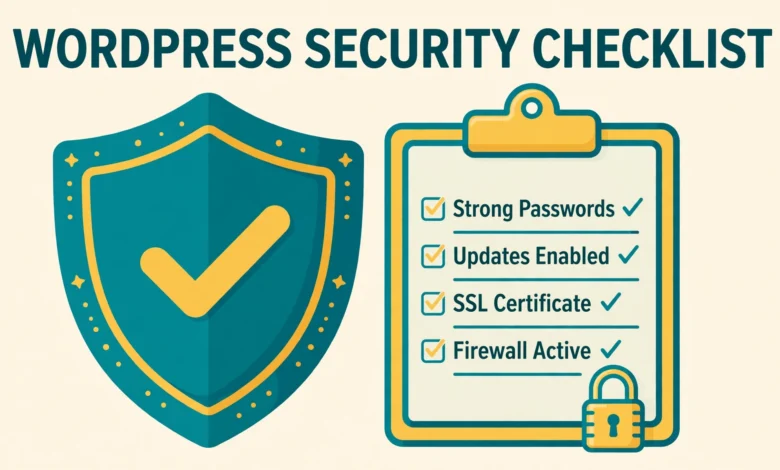
WordPress powers a huge share of the web, and that popularity makes it a frequent target for automated attacks. Most hacked sites are found by bots that scan thousands of sites every hour looking for weak passwords, outdated plugins, and missing basic protections.
The good news is that most attacks fail when a few basics are in place. You do not need to be a security expert or buy an expensive security suite to protect a small blog or business site. This checklist walks you through the steps that matter most, in the order a beginner should do them.
Why Do Hackers Target Beginner WordPress Sites?
Beginner sites are attractive because they often share the same weaknesses. The admin username is still admin, the password is short or reused, automatic updates are off, and backups do not exist. A bot only needs one of those gaps to get in. Once inside, it can add spam links, redirect visitors, or lock you out of your own site.
Attackers also target WordPress because they know the software so well. WordPress core is open source, so flaws are found and fixed quickly, but only if you install the fixes. An outdated site has known flaws that anyone can look up, so keeping everything updated closes most of those doors.
What Should Be on Every Beginner Security Checklist?
Use this list as your starting point. Do the first five items before anything else, because they stop the most common attacks, then set a monthly reminder to repeat the short maintenance checks.
- Update WordPress core, themes, and plugins: install updates promptly and remove anything you no longer use.
- Use a unique admin username: never use admin, and never display your username publicly on posts.
- Use a long, unique password: at least 16 characters, stored in a password manager, never reused on another site.
- Turn on two factor authentication: require a code from your phone as well as your password to log in.
- Limit login attempts: block repeated failed logins so bots cannot guess passwords forever.
- Install an SSL certificate and force HTTPS: encrypt logins and form data between visitors and your server.
- Set up automatic backups: keep a recent copy off your server so you can restore after any problem.
- Use only trusted plugins and themes: install from wordpress.org or a reputable seller, and check reviews and update history first.
- Check file permissions: make sure files and folders are not writable by everyone.
- Review users and site health monthly: remove old accounts, check for unknown admins, and fix warnings in Site Health.
How Do I Keep WordPress Updated Safely?
Updates are the single most effective security step, and the easiest to forget. WordPress core, themes, and plugins all receive updates that fix security flaws, and delaying them leaves those flaws open. Go to Dashboard, then Updates, at least once a week, and install everything listed there. Turn on automatic updates for minor core releases and trusted plugins.
Before a major update, take a backup and check that your theme and key plugins list the new WordPress version as tested. Delete inactive themes and plugins instead of leaving them installed, because an inactive plugin can still contain a flaw a bot can exploit. The hardening guide on WordPress.org explains the same update habit as the foundation of site security.
How Do I Choose a Strong Admin Username and Password?
Your login is the front door, so make it hard to guess. The username admin is the first guess every bot tries. Create a username that is not published anywhere on the site, and set your display name in Users, then Profile, to something different, so visitors never see the real login name on posts or author pages.
Your password should be long, random, and unique to this site. A passphrase of four or five unrelated words plus numbers is easier to remember than a short jumble of symbols, and far harder to crack. Use a password manager to generate and store it, and give each person their own account with only the role they need. For a related step, see our guide on how to change your WordPress username without a plugin.
How Do I Add Two Factor Authentication?
Two factor authentication, often called 2FA, adds a second check after your password. When you log in, WordPress asks for a six digit code from an authenticator app on your phone. Even if someone steals your password, they cannot log in without that code.
Install a reputable 2FA plugin, enable it for administrator accounts first, then for editors and other trusted roles. Scan the setup code with an authenticator app, save the backup codes in a safe place, and test a login in a private browser window before you log out everywhere. Save the backup codes in your password manager as well, so you can recover access if you change phones. Turn on 2FA for every account that can publish or change settings, not just your own.
How Do I Limit Login Attempts and Block Brute Force Attacks?
By default, WordPress lets anyone try to log in as many times as they like. Bots exploit that by trying thousands of common passwords against your admin account. Limiting login attempts changes the math completely. After three to five failed tries, the login form locks that username or IP address for a set time, and the bot moves on to an easier target.
You can add this protection with a lightweight security plugin, or without a plugin through your host or server firewall. Our guide explains how to limit login attempts in WordPress without a plugin if you prefer the code route. Also consider disabling XML RPC if you do not use the mobile app or remote publishing.
How Do I Set Up Backups That Actually Work?
A backup is your safety net, but only if it is complete, recent, and stored away from your site. A backup that lives only on the same server is lost if the server fails or the site is hacked. Set up automatic daily backups for an active site, or weekly backups for a site that rarely changes, and store copies in cloud storage. Your backup should include both the database and the files, including uploads, themes, and plugins.
Test your restore process before you need it. Do one test restore to a staging site, or at least download a backup and check that it contains your uploads folder and a recent database file. Our guide on how to back up your WordPress database without a plugin shows the manual method. Keep at least three recent backups.
How Do I Use SSL and Force HTTPS?
SSL encrypts the connection between your visitors and your server, so passwords and form data cannot be read on public WiFi. Most hosts now include a free SSL certificate, and most hosts activate it automatically. Check for the padlock in your browser after setup. If your site still loads over HTTP, fix that first, because search engines and browsers now warn visitors about insecure sites.
After you install the certificate, force every page to use HTTPS. Go to Settings, then General, and make sure both the WordPress Address and Site Address start with https. Then add a redirect so old HTTP links send visitors to the secure version. Our guide to redirect HTTP to HTTPS in WordPress without a plugin covers the redirect and the common fixes. Our web hosting guide explains what to look for in a host that includes SSL, backups, and malware scanning.
How Do I Manage Plugins and Themes Safely?
Plugins are the most common way malware enters a WordPress site, because every plugin adds code that can contain a flaw. Only install plugins you truly need, and check each one before you install it. Look for a high number of active installs, recent updates, good ratings, and a developer who answers support questions. Avoid nulled or pirated premium plugins, because they often contain hidden backdoors.
Apply the same care to themes. Use a theme from wordpress.org or a well known seller, keep it updated, and use a child theme if you need custom code. Remove any theme you are not using, except for keeping one default theme as a fallback. Audit your plugin list every few months and delete anything you installed for a test and forgot. For deeper detail, the developer documentation at Developer.WordPress.org covers secure coding and plugin standards.
How Do I Set Correct File Permissions?
File permissions control who can read, write, or run each file on your server. If permissions are too open, an attacker who gains limited access can change your files. The standard WordPress recommendation is 644 for files and 755 for folders, with wp-config.php locked down to 600 or 640 where your host allows it.
Never set files or folders to 777, which means anyone can write to them. If an upload fails, fix the ownership or the folder permission properly instead. Our guide to WordPress file permissions in cPanel walks through the correct values. Also protect wp-config.php and disable file editing from the WordPress dashboard unless you need it.
Check Site Health monthly under Tools, then Site Health, and fix critical items first. Also scan your users list and recent posts for anything you did not create, and check Google Search Console for security warnings. Our explainer on the WordPress Site Health check shows what each warning means.
What Should I Do If My WordPress Site Gets Hacked?
Stay calm and work in order. First, put the site in maintenance mode and change every password: WordPress admin, hosting, FTP, and database. Then restore from a clean backup made before the hack, or ask your host to scan and clean the files.
After the cleanup, find how the attacker got in, or it will happen again. Check for outdated plugins and weak passwords, update everything, and reapply this checklist from the top.
Frequently Asked Questions
Do I need a security plugin for WordPress?
A security plugin helps, but it is not a substitute for the basics. Updates, strong logins, 2FA, backups, and SSL stop most attacks on their own. A good security plugin adds a firewall, login limits, and malware scanning on top of those habits.
How often should I update WordPress and plugins?
Check for updates at least once a week, and install security updates the same day they appear. Enable automatic updates for minor core releases and for trusted plugins, and take a backup before any major version update so you can restore quickly if something breaks.
Is free SSL enough for a WordPress site?
Yes, for most blogs and small business sites. A free certificate from your host encrypts traffic just as well as a paid one. Paid certificates add warranty and validation badges that matter mainly for large stores, but the encryption itself is the same, so do not pay extra unless you need those extras.
What is the most common way WordPress sites get hacked?
Weak passwords and outdated plugins cause most hacks. Bots guess common passwords through the login page, and they exploit known flaws in old plugins and themes. Strong unique logins, 2FA, login limits, and prompt updates close both of those doors.
Last updated: November 2026.