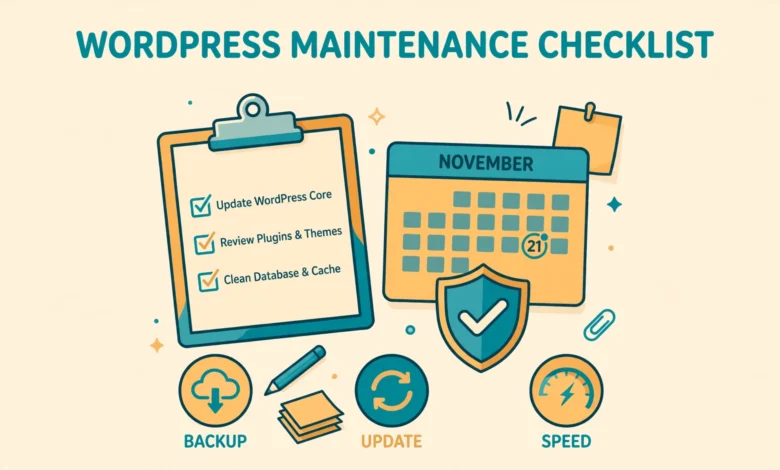
A WordPress site is not a project you finish once and forget. It needs small, regular care to stay fast, secure and reliable. Plugins release updates, comments pile up, databases grow, and links break quietly in the background. Ignore all of that for months and one small problem can turn into a slow site, a broken page, or a security risk you only notice when visitors complain.
The good news is that maintenance does not need to be complicated. A beginner can handle the whole routine with a simple checklist and about one hour per month, plus a few quick weekly checks. This guide gives you that routine: what to check every week, month, quarter and year, why each task matters, and how to do it safely.
Why does WordPress need regular maintenance?
WordPress powers a huge share of the web, which makes it a popular target for automated attacks. Core, theme and plugin updates often include security fixes, so running old versions leaves known holes open. Maintenance closes those holes, and it keeps your site compatible, because a plugin that worked six months ago may conflict with a newer WordPress version if never updated.
Speed is the second reason. Every post revision, spam comment, expired transient and unused image adds weight to your database and media library, and over time that weight slows down the admin area and the front end. Visitors notice slow pages quickly, and search engines notice too, so a regular cleanup protects both your rankings and your readers.
The third reason is trust. A site with broken links, outdated information and a contact form that no longer sends mail looks abandoned. A short routine prevents that slow decay and gives you confidence, because you always know you have a recent backup.
What should you check every week?
Weekly checks are short, usually ten to fifteen minutes, and doing them on the same day each week turns them into a habit. Start by visiting your site as a visitor would: open the homepage and two popular posts on your phone and on a desktop browser, and look for layout problems, missing images and error messages.
Next, open your dashboard and check the Updates screen. Install WordPress core updates promptly, plus plugin and theme updates, but only after confirming you have a recent backup. If an update has a long changelog or a major version jump, read the notes first. Most updates are safe, but a backup turns a rare bad update into a five minute restore.
- Check for WordPress core, plugin and theme updates and install them after a backup.
- Review new comments, approve genuine ones, and delete spam before it piles up.
- Visit the homepage and two popular posts to confirm everything loads correctly.
- Check that your contact form still sends mail by submitting a quick test message.
- Glance at your backup status to confirm the latest backup actually completed.
Comment moderation matters too. Spam comments can link to low quality sites and hurt your credibility. A quick weekly review catches what slips through: delete spam, approve real comments, and reply when you can.
Finally, check your backup. Open your backup tool once a week and confirm the most recent backup is fresh and complete. A backup system that silently stopped working is worse than no backup at all, because it gives you false confidence. For a deeper guide, read our tutorial on how to back up your WordPress database without a plugin.
What belongs on your monthly maintenance list?
Monthly maintenance is where the real cleanup happens. Set aside forty to sixty minutes once a month and work through the list in order. WordPress stores every post revision, auto draft, trashed item and expired transient in the database, and over months that clutter adds up. Delete old revisions, empty the trash, clear spam permanently, and remove expired transients.
Our guide to optimizing your WordPress database without a plugin walks through the manual cleanup steps if you prefer not to install another tool for this job. Whether you clean by hand or with a trusted plugin, the goal is the same: a smaller, faster database with no leftover data from plugins you deleted long ago.
- Clean the database: delete old revisions, empty trash, remove spam and expired transients.
- Review all installed plugins and delete any you no longer use.
- Check the media library for unused images and oversized uploads.
- Run a security scan and review any warnings it reports.
- Check Site Health for new recommendations and fix the critical items first.
- Test your most important pages: homepage, contact page, checkout or signup page.
Plugin review is an important monthly habit. Many sites accumulate plugins installed for one experiment and then forgotten. Every plugin you do not need adds load and risk, so deactivate and delete anything unused in the last month. If you are unsure, deactivate it first and watch the site for a week before deleting it.
Your media library deserves the same attention. Large images uploaded straight from a phone can be several megabytes each and slow down every page that uses them. Compress new images before upload and look monthly for duplicates. Our guide to WordPress image SEO tips explains how to name, compress and add alt text so images load fast and rank better.
Finish the monthly round with Site Health, under Tools in your dashboard. It flags missing PHP updates, inactive plugins, security issues and performance problems in plain language. Fix the critical items first and note the rest for next month. Our explainer on the WordPress Site Health check shows what each message means and which ones you can safely ignore.
What should you do every quarter?
Quarterly maintenance is a bigger review, roughly once every three months. Start with speed: run your homepage and two key posts through a speed test and compare with last quarter. If load time has grown, look for the cause, often a new heavy plugin or unoptimized images. If the admin area feels slow too, our guide on how to fix a slow WordPress admin dashboard covers the most common fixes.
Next, check broken links. Internal links break when you delete or rename a post, and external links break when the site you linked to moves or closes. A broken link checker can scan the whole site in minutes. Fix or remove every broken link you find, because broken links frustrate visitors and waste the authority your pages have earned. While you are there, review your internal linking too. Older posts often deserve links to your newer content, and that keeps visitors reading longer.
- Run a speed test on the homepage and key pages and compare with last quarter.
- Scan the whole site for broken links and fix or remove them.
- Review user accounts and remove old accounts you no longer need.
- Check your forms, checkout and signup flows end to end.
- Review your SEO basics: titles, meta descriptions and missing alt text.
- Confirm your backup restore process by checking a backup file opens correctly.
User accounts are easy to forget. Over time a site collects test accounts and old freelancer accounts, and each one is a possible entry point. Review the Users screen every quarter, remove accounts you do not recognize, downgrade roles that are higher than needed, and make sure every admin uses a strong password and two factor authentication.
Also test the flows that earn you money or messages: submit your contact form, go through checkout if you sell anything, and test your email signup form. These flows break quietly after updates, and a quarterly test takes ten minutes and can save you lost leads and lost sales.
What is the yearly WordPress maintenance routine?
Once a year, step back and review the whole site as a business asset. Read your most visited posts and check whether the information is still accurate, then update statistics, screenshots, prices and links. Updating old content is often more valuable than writing a new post, because the old post already has traffic and links.
Review your theme and hosting plan next. Ask whether your theme still fits your goals, is still supported, and works well with the current WordPress version. If it has not been updated in over a year, plan a replacement. If traffic has grown, your hosting plan may be why pages feel slow. Our web hosting guide explains what to look for in a host and when an upgrade is worth the money.
- Review and update your most visited posts with fresh facts, links and screenshots.
- Check your domain registration and hosting renewal dates and turn on auto renewal.
- Review your theme: confirm it is supported, updated and still fits your goals.
- Audit your hosting plan against your current traffic and storage needs.
- Review your privacy policy, terms and cookie notice for accuracy.
- Export a full backup and store a copy outside your hosting account.
Domain and hosting renewals deserve special care. A missed renewal can take a site offline or lose the domain entirely, so check expiry dates once a year, turn on auto renewal, and make sure renewal emails go to an inbox you read. Store one full backup outside your hosting account too, so a hosting problem can never take your backup with it.
Finally, review your legal pages. Privacy policies, terms pages and cookie notices drift out of date as you add tools, analytics and forms. Read them once a year and update anything that no longer matches what your site does, because regulators and ad networks expect accurate disclosures.
How do you build a maintenance routine you will actually follow?
A checklist only helps if you use it, so keep the system simple enough to survive a busy month. Put repeating reminders on your calendar for the weekly check and the monthly session, and keep a simple log noting the date, what you updated, and anything unusual. That log becomes valuable when something breaks, because you can see exactly what changed and when.
Do the risky tasks in the right order. Always back up before updating and test after updating. If your host offers a staging site, use it for major updates. If not, update plugins one at a time and check the site after each one, so a problem points clearly at the plugin that caused it.
If maintenance feels overwhelming, start with the weekly list only. Do that for a month and the habit will form. Then add the monthly tasks, and later the quarterly and yearly reviews. You do not need to be a developer to maintain a WordPress site well. You need a backup, a checklist, and the discipline to spend a little time on it regularly. That small investment keeps your site fast, secure and ready for every visitor.
For official guidance, see the WordPress Site Health documentation and the WordPress updating guide, which explain the built in tools this checklist relies on.
Frequently asked questions
How often should a beginner maintain a WordPress site?
Check updates and comments weekly, clean the database and review plugins monthly, test speed and links quarterly, and review content, hosting and renewals yearly. That rhythm covers almost every problem before it becomes serious.
Do I need a plugin for WordPress maintenance?
No. You can do every task in this checklist with WordPress core tools, your hosting panel and manual checks. Plugins can help with backups and security scans, but they are optional, not required.
What is the most important maintenance task?
Backups. A fresh, tested backup turns almost any disaster into a quick restore. Keep backups automatic, check them weekly, and store at least one copy outside your hosting account.
Can maintenance break my WordPress site?
It can if you update without a backup or delete database rows you do not understand. Always back up first, update one thing at a time, and test the site after each change. That order keeps the risk very low.
Last updated: November 2026.