Dark mode has gone from a nice extra to something many visitors expect. Readers browse at night and in dim rooms, and a bright white page can feel harsh after a few minutes. If your WordPress site still forces everyone into a light theme, you are missing a simple way to make reading more comfortable.
The good news is that you do not need a plugin to add dark mode to WordPress. A small amount of CSS and a little JavaScript can do the whole job, and the result is faster and more reliable than most dark mode plugins. This guide builds the complete setup with CSS custom properties, the prefers-color-scheme media query, and a toggle button that remembers each visitor choice.
What Is Dark Mode in WordPress and How Does It Work?
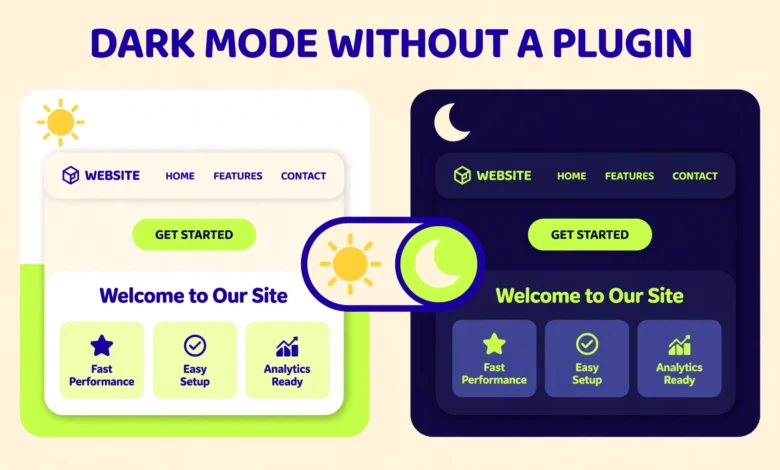
Dark mode flips the colours of your site so the background becomes dark and the text becomes light. The layout, the content, and the images stay exactly the same, only the colour palette changes. A good dark mode keeps contrast high enough to read comfortably and uses muted dark greys instead of pure black.
There are three parts to a complete setup. First, define two colour palettes, one light and one dark, using CSS custom properties, also called CSS variables. Second, use the prefers-color-scheme media query so the browser picks the palette that matches the visitor system setting. Third, add a toggle button so visitors can override the automatic choice, with a small script that saves it in localStorage.
Why Use CSS Instead of a Plugin for Dark Mode?
A plugin feels like the easy route, but dark mode is one of those features where a plugin adds more risk than value. Every plugin adds code to load, settings to manage, and a dependency that can break when WordPress updates. A CSS based dark mode has none of that. It loads with your theme stylesheet, it has no settings screen to learn, and it keeps working through updates because it does not depend on any plugin code.
There is also a practical reason to choose the CSS route right now. The popular WP Dark Mode plugin was closed on WordPress.org in August 2026, so it is no longer available to install from the plugin directory and it no longer receives updates there. When a plugin disappears, every site that relied on it has to rebuild the feature anyway, while the CSS method below stays under your control.
- No extra plugin to install, update, or pay for, which keeps your site lighter and faster.
- No risk of a plugin being closed, abandoned, or breaking after a WordPress update.
- Full control over every colour, so the dark palette matches your brand instead of a plugin default.
- Automatic support for the visitor system setting, with no extra configuration needed.
- Better performance, because the browser applies a few CSS variables instead of loading a plugin stylesheet and script.
Step 1: Define Light and Dark Palettes With CSS Variables
CSS custom properties let you name your colours once and reuse them everywhere. Define the light palette inside a :root block, then use var() to apply those colours to the body, headings, links, cards, and borders. When you switch to dark mode, you only change the values of the variables, and every element that uses them updates at once. That is why the CSS method is so much cleaner than writing separate dark styles for every element.
Start by listing the colours your theme actually uses. Most sites need a page background, a text colour, a card background, a border colour, and a link colour. Pick a dark palette that is easy on the eyes. Pure black backgrounds with pure white text can feel harsh, so use a very dark grey for the background and a soft off white for the text. The code below shows a simple starting palette you can adjust to match your theme.
:root {
    --vtg-bg: #ffffff;
    --vtg-text: #1a1a1a;
    --vtg-muted: #555555;
    --vtg-card: #f4f4f5;
    --vtg-border: #e4e4e7;
    --vtg-link: #1d4ed8;
}

body {
    background-color: var(--vtg-bg);
    color: var(--vtg-text);
}

a {
    color: var(--vtg-link);
}
Step 2: Let the Browser Pick the Theme With prefers-color-scheme
The prefers-color-scheme media query asks the browser which colour scheme the visitor has chosen in their operating system. If they use dark mode on Windows, macOS, Android, or iOS, the browser reports dark, and if they use light mode it reports light. You can respond to that value in CSS without any JavaScript, so the automatic part of dark mode works even before any script loads.
Add a media query block that redefines the same variables with dark values. Because the variables keep the same names, every element that uses var() switches automatically. Place this block after the :root block in your stylesheet so it can override the light values when the media query matches. The browser handles the switch instantly when the visitor changes their system setting, even while your site is open.
@media (prefers-color-scheme: dark) {
    :root {
        --vtg-bg: #121212;
        --vtg-text: #f1f1f1;
        --vtg-muted: #b0b0b0;
        --vtg-card: #1e1e1e;
        --vtg-border: #333333;
        --vtg-link: #7aa7ff;
    }
}
Step 3: Add a Manual Toggle Button With localStorage
Automatic detection is a good start, but many visitors want to choose for themselves. Someone may use dark mode on their phone yet prefer your site in light mode, or the other way round. A toggle button gives them that choice, and saving it in localStorage means the site remembers it on the next visit.
First, add a button to your header or your site footer. A simple button with a clear label works well, and you should give it an accessible name so screen reader users understand what it does. The button below uses an id of dark-mode-toggle, which the script will use to find it. Place it where visitors can see it on every page, usually in the header next to the menu or in the footer.
<button id="dark-mode-toggle" type="button" aria-label="Toggle dark mode">Dark mode</button>Next, add the toggle script. It reads the saved choice from localStorage when the page loads, applies it by setting a data-theme attribute on the html element, and flips that attribute each time the visitor clicks the button. It also writes the new choice back to localStorage so the preference survives the next visit. Put this script in your child theme JavaScript file or in the footer so it runs after the button exists on the page.
var toggle = document.querySelector('#dark-mode-toggle');
var savedTheme = localStorage.getItem('vtg-theme');

if (savedTheme) {
    document.documentElement.setAttribute('data-theme', savedTheme);
}

if (toggle) {
    toggle.addEventListener('click', function () {
        var current = document.documentElement.getAttribute('data-theme');
        var next = (current === 'dark') ? 'light' : 'dark';
        document.documentElement.setAttribute('data-theme', next);
        localStorage.setItem('vtg-theme', next);
    });
}
Finally, add CSS rules for the data-theme attribute so the manual choice wins over the system setting. The html element with data-theme set to dark gets the dark palette, and the same element with data-theme set to light gets the light palette. Place these rules after the prefers-color-scheme block, because later rules with equal specificity win when both could apply.
html[data-theme="dark"] {
    --vtg-bg: #121212;
    --vtg-text: #f1f1f1;
    --vtg-muted: #b0b0b0;
    --vtg-card: #1e1e1e;
    --vtg-border: #333333;
    --vtg-link: #7aa7ff;
}

html[data-theme="light"] {
    --vtg-bg: #ffffff;
    --vtg-text: #1a1a1a;
    --vtg-muted: #555555;
    --vtg-card: #f4f4f5;
    --vtg-border: #e4e4e7;
    --vtg-link: #1d4ed8;
}
Step 4: Stop the Flash by Applying the Saved Theme Before Paint
There is one flaw in the setup so far. If the toggle script sits in the footer, the browser paints the page in the default light palette first and only switches to dark mode when the script runs. Visitors who saved dark mode will see a bright white flash on every page load, which defeats the purpose of dark mode. The fix is a tiny inline script in the head of the document that applies the saved theme before the browser paints anything.
This script must run as early as possible, so it belongs in the head section, before the stylesheet loads if you can manage it. It does one small job only. It reads localStorage, and if a theme is saved it sets the data-theme attribute on the html element. It is wrapped in a try and catch block so that a browser with storage disabled does not throw an error.
<script>
(function () {
    try {
        var saved = localStorage.getItem('vtg-theme');
        if (saved) {
            document.documentElement.setAttribute('data-theme', saved);
        }
    } catch (e) {}
})();
</script>
With this script in place, a returning visitor who chose dark mode will see the dark palette from the very first paint. A new visitor with no saved choice will still get the automatic palette from prefers-color-scheme, because the media query handles their case. If you want a deeper look at this media query, the reference at developer.mozilla.org explains the syntax and the supported values in detail.
How to Add the Code to Your WordPress Site
You have three safe places to put the CSS and the JavaScript, and the right choice depends on how much control you need. The Customizer is the quickest route for the CSS alone. Go to Appearance, then Customize, then Additional CSS, paste the variable definitions and the media query, and publish. That works well for a first test, but it is not the best home for the full setup because the toggle script and the head script need a different home.
For the full setup, use a child theme. The CSS goes in the child theme style.css file, the toggle script goes in a JavaScript file that you enqueue from functions.php, and the small head script goes in header.php or in a wp_head hook. A child theme keeps your dark mode code safe when the parent theme updates. Our guide on how to create a WordPress child theme walks through the setup step by step, and our guide on how to add custom CSS in WordPress covers the Customizer route in detail.
Common Dark Mode Mistakes to Avoid
- Using pure black and pure white together, which creates a harsh glare instead of a comfortable dark theme.
- Forgetting images, because logos and screenshots with white backgrounds look like bright rectangles on a dark page.
- Hard coding colours in a few templates while the rest of the site uses variables, so parts of the page never switch.
- Skipping the before paint script, so returning dark mode visitors see a white flash on every page load.
- Letting the toggle fight the system setting, because the data-theme rules must come after the media query in the stylesheet.
- Ignoring contrast, because a grey that looks fine on white can become unreadable on dark grey.
Make it a habit to check new content in both modes before you publish it, because every new section or plugin can introduce hard coded colours that never switch. A quick run through the WordPress Site Health check after your changes will confirm the extra script has not introduced any obvious problem. If your hosting plan limits your ability to edit theme files, our web hosting guide explains how the right host gives you full file access and daily backups.
Frequently Asked Questions
Can I add dark mode to WordPress without a plugin?
Yes, you can add dark mode without any plugin. Define light and dark palettes with CSS custom properties, use the prefers-color-scheme media query for automatic detection, add a toggle button with localStorage to remember the choice, and add a small head script so the saved theme applies before the page paints.
How does prefers-color-scheme work in WordPress?
prefers-color-scheme is a CSS media query that reads the visitor operating system setting. When it matches dark, the browser applies the CSS inside the media query block. It works in every modern browser and it needs no plugin or JavaScript. You can read the full specification and browser support notes at developer.wordpress.org and in the Mozilla CSS reference linked earlier in this guide.
Why did my dark mode toggle stop working after a plugin update?
That is the exact risk of relying on a dark mode plugin. When a plugin is closed, abandoned, or changed, its toggle and its styles can break without warning. The CSS method in this guide has no plugin dependency, so it keeps working through WordPress and theme updates. If your old toggle broke, remove the plugin completely and rebuild with the CSS and JavaScript shown here.
Will dark mode slow down my WordPress site?
No, a CSS based dark mode adds almost nothing to your page weight. The variables and the media query live in your existing stylesheet, the toggle script is a few lines long, and the head script runs before paint in a fraction of a millisecond. A dark mode plugin is usually heavier, because it loads its own stylesheet and script on every page.
Last updated: November 2026.