Most WordPress sites use a plugin for their contact form, and for good reason: plugins add spam filtering, file uploads, stored entries and integrations in a few clicks. But a contact form is also one of the simplest features you can build yourself. With a small HTML form, a secure handler, and the built in wp_mail function, you can collect messages without installing anything, and you will understand exactly how form submissions work in WordPress.
This tutorial shows you how to build that form from scratch. You will create an HTML form that posts to admin-post.php, write a handler that checks a nonce, blocks bots with a honeypot field, sanitizes every input, sends the message with wp_mail, and redirects the visitor back with a success or error flag. You will also learn what the code version cannot do, so you can decide honestly whether it fits your site or whether a plugin is the better choice.
You need basic comfort with copying code into your theme or a snippets plugin, and you need an email setup that already works. If your site cannot send mail at all, fix that first. Our guide on how to fix WordPress not sending emails covers the diagnosis, and our guide on how to understand WordPress user roles shows who receives which notification.
How does a plugin-free contact form work?
WordPress provides a built in endpoint for custom form submissions called admin-post.php. When a form posts to that file with a hidden action field, WordPress fires a hook named after your action, and your handler function runs. Logged in users trigger the admin_post_your_action hook, and logged out visitors trigger admin_post_nopriv_your_action. A public contact form needs both hooks, because most visitors are not logged in.
The flow has four steps. First, the visitor fills in the form and submits it. Second, WordPress routes the request to your handler through admin-post.php. Third, your handler verifies the security nonce, checks the honeypot field, sanitizes the inputs, and sends the email. Fourth, your handler redirects the visitor back to the contact page with a status flag in the URL, and the page shows a success or error message based on that flag.
This design keeps the form simple and secure. The nonce proves the submission came from your form and not from a forged request on another site. The honeypot catches simple bots without annoying real visitors with a captcha. Sanitization strips dangerous input before it is used. The redirect prevents duplicate submissions when a visitor refreshes the thank you page.
How do you build the HTML form?
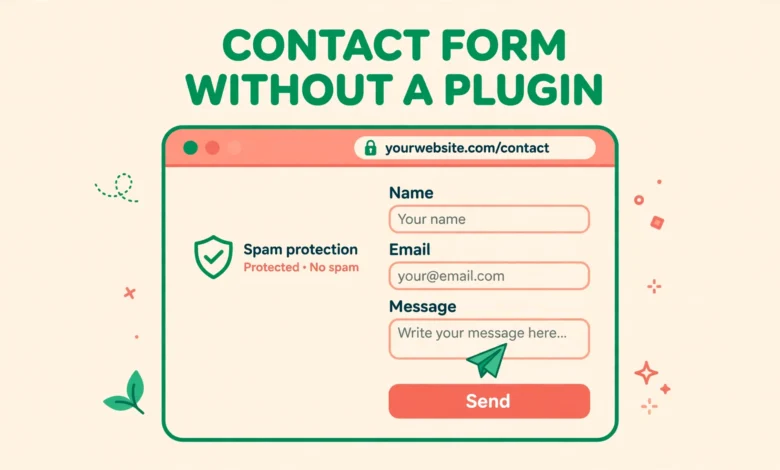
Put this form on your contact page using a Custom HTML block. It uses the standard fields every contact form needs: name, email and message, plus two hidden fields. The action field tells WordPress which handler to run, and the nonce field proves the form is genuine. The honeypot field is a text input hidden with CSS. Real visitors never see it and never fill it, but simple bots fill every field they find, which exposes them.
<form action="/wp-admin/admin-post.php" method="post">
  <input type="hidden" name="action" value="vutg_contact_form">
  <input type="hidden" name="vutg_contact_nonce" value="">
  <p>
    <label for="vutg_name">Your name</label>
    <input type="text" id="vutg_name" name="vutg_name" required>
  </p>
  <p>
    <label for="vutg_email">Your email</label>
    <input type="email" id="vutg_email" name="vutg_email" required>
  </p>
  <p style="display:none;">
    <label for="vutg_website">Leave this field empty</label>
    <input type="text" id="vutg_website" name="vutg_website" value="">
  </p>
  <p>
    <label for="vutg_message">Your message</label>
    <textarea id="vutg_message" name="vutg_message" rows="5" required></textarea>
  </p>
  <p>
    <button type="submit">Send message</button>
  </p>
</form>
One detail needs attention. The nonce field above is shown with an empty value as a placeholder so the markup is easy to read. In a real page, the nonce must be generated by WordPress with the wp_nonce_field function inside a template or a shortcode. If you paste the form as plain HTML in the block editor, you cannot generate a nonce that way. The practical options are to render the form from a small shortcode in your child theme, or to build the form in a page template. Both approaches let PHP generate a fresh nonce on every page load.
If you are new to child themes, read our guide to create a WordPress child theme first. It shows the safe place to keep custom code so theme updates never delete it. If you prefer to style the form, our guide to add custom CSS in WordPress shows how to target the form fields without editing theme files.
How do you handle the submission safely?
The handler is where security lives, so do not skip any of its checks. It verifies the nonce first, rejects the submission if the honeypot field has a value, checks that all required fields are present, sanitizes each value with the right WordPress function, validates the email address, sends the message with wp_mail, and then redirects with a status flag. Every step has a purpose, and removing one opens a hole.
add_action( 'admin_post_vutg_contact_form', 'vutg_handle_contact_form' );
add_action( 'admin_post_nopriv_vutg_contact_form', 'vutg_handle_contact_form' );

function vutg_handle_contact_form() {
    $redirect = home_url( '/contact/' );

    if ( ! isset( $_POST['vutg_contact_nonce'] ) || ! wp_verify_nonce( sanitize_text_field( wp_unslash( $_POST['vutg_contact_nonce'] ) ), 'vutg_contact_form' ) ) {
        wp_safe_redirect( add_query_arg( 'vutg_status', 'error', $redirect ) );
        exit;
    }

    if ( ! empty( $_POST['vutg_website'] ) ) {
        wp_safe_redirect( add_query_arg( 'vutg_status', 'error', $redirect ) );
        exit;
    }

    $name = isset( $_POST['vutg_name'] ) ? sanitize_text_field( wp_unslash( $_POST['vutg_name'] ) ) : '';
    $email = isset( $_POST['vutg_email'] ) ? sanitize_email( wp_unslash( $_POST['vutg_email'] ) ) : '';
    $message = isset( $_POST['vutg_message'] ) ? sanitize_textarea_field( wp_unslash( $_POST['vutg_message'] ) ) : '';

    if ( '' === $name || '' === $email || '' === $message || ! is_email( $email ) ) {
        wp_safe_redirect( add_query_arg( 'vutg_status', 'error', $redirect ) );
        exit;
    }

    $to = get_option( 'admin_email' );
    $subject = 'New contact form message from ' . $name;
    $body = "Name: " . $name . "\nEmail: " . $email . "\n\n" . $message;
    $headers = array( 'Reply-To: ' . $name . ' <' . $email . '>' );

    $sent = wp_mail( $to, $subject, $body, $headers );

    if ( $sent ) {
        wp_safe_redirect( add_query_arg( 'vutg_status', 'sent', $redirect ) );
    } else {
        wp_safe_redirect( add_query_arg( 'vutg_status', 'error', $redirect ) );
    }
    exit;
}
Read the handler line by line and you will see the safety pattern. The nonce check uses wp_verify_nonce with the same action string used when the nonce was created. The honeypot check rejects any submission where the hidden field has content, because only a bot would fill it. Each input is unslashed and then sanitized: sanitize_text_field for the name, sanitize_email for the email, and sanitize_textarea_field for the message, which preserves line breaks while stripping harmful markup. The is_email check rejects malformed addresses before wp_mail ever runs.
The Reply-To header deserves a note. The email is sent to your admin address, but the Reply-To header carries the visitor address. That way, when you click reply in your inbox, your reply goes to the visitor, not to yourself. Never put the visitor address in the From header. That is a classic deliverability mistake, and our sender email guide explains why it hurts inbox placement.
Notice also that the handler always ends with wp_safe_redirect followed by exit. The exit is not optional. Without it, WordPress would keep running after the redirect header and could output extra content or run more code. The redirect itself uses add_query_arg to attach a status flag, either sent or error, so the contact page knows which message to show.
How do you show success and error messages?
After the redirect, the visitor lands back on the contact page with a URL like yoursite.com/contact/?vutg_status=sent. Your page needs to read that flag and show the right message. The simplest approach is a small snippet in your child theme that checks the query value with sanitize_text_field and prints a short notice above the form. Keep the message plain and friendly, and never echo the raw query value without sanitizing it.
Show a clear success message when the status is sent, for example thanking the visitor and saying when you usually reply. Show a short error message when the status is error, and invite the visitor to try again or to email you directly. Test both paths before you publish the page. Submit the form once with valid details and confirm the success message appears, then submit it with an empty field and confirm the error message appears.
Also test the page on your phone. Contact forms get heavy mobile use, and a form that looks fine on desktop can have cramped fields or a tiny submit button on a small screen. Check that every label is readable, every field is easy to tap, and the button is large enough to press without zooming. Our WordPress website launch checklist includes form testing as a prelaunch step, and it is worth running through it before you announce the new contact page.
What can the code version not do?
Honesty matters here. The code version is a good learning project and a fine form for a small site, but it cannot do what a mature form plugin does. It has no real spam filtering beyond the honeypot, so a determined bot or a manual spammer can still get through. It has no captcha, no IP blocking, and no integration with spam databases. If your site starts receiving a lot of spam, you will need stronger protection.
- No spam filtering beyond the honeypot, so determined bots can still submit.
- No stored entries: if the email fails, the message is lost unless you add storage.
- No file uploads: adding uploads safely needs validation, size limits and type checks.
- No conditional logic, multi page forms, or payment fields.
- No built in integrations with email marketing tools or CRMs.
- No entry management screen in the admin area.
The missing storage is the most important limit. In this code, wp_mail is the only record of the message. If mail fails silently, or if the message lands in spam and you never see it, the visitor message is gone. A plugin stores every entry in the database so you can recover it. If you keep the code version, consider adding storage yourself by saving each submission as a custom post type, or at least logging failures so you notice when mail breaks.
File uploads are another limit. Allowing visitors to upload files is risky: an attacker can upload a script disguised as an image, or a huge file that fills your disk. Safe uploads need strict type checks, size limits, random filenames, and storage outside the web root. Do not add uploads to this handler unless you understand those risks. Use a plugin for uploads, because plugins have already solved those problems.
When should you use a plugin instead?
Use a plugin when your form needs anything beyond a simple message: file uploads, spam filtering, stored entries, conditional fields, payments, or integrations with other tools. Use a plugin when several people manage the site and need an entries screen, or when the form is business critical and a lost message costs money. In those cases the plugin pays for itself in reliability.
Use the code version when you want a light, fast form on a small site, when you want to learn how WordPress handles submissions, or when you want full control over the markup and the emails. It has no plugin overhead, no extra database tables, and no third party service in the middle. For a personal blog or a small business site with modest traffic, that simplicity is a genuine advantage.
Whichever route you choose, keep the form maintained. Test it after every major WordPress update, confirm test messages still arrive, and review the honeypot and nonce logic if you ever change themes. A contact form that silently stops working is worse than no form at all, because visitors think you are ignoring them. Add form testing to your regular routine, and see our guide to optimizing your WordPress database without a plugin for a weekly and monthly schedule that includes it. For a staging first approach to testing changes safely, read our guide to a WordPress staging site without a plugin and our web hosting guide for hosting that supports staging.
For the official references used in this tutorial, see the wp_mail function reference and the wp_verify_nonce function reference on developer.wordpress.org. If you ever need a form that looks like [contact-form] in a tutorial, remember to escape the brackets the same way, or WordPress will try to run it as a shortcode.
Frequently asked questions
Can I build a WordPress contact form without a plugin?
Yes. Build an HTML form that posts to admin-post.php, add a handler with a nonce check and sanitization, and send the message with wp_mail. The form works well for simple contact pages on small sites.
Is a code based contact form secure?
It is secure for basic use when you include a nonce check, a honeypot field, and proper sanitization. It has no advanced spam filtering, so it is not the right choice for a high traffic site that attracts heavy spam.
Why is my contact form not sending emails?
Most failures come from mail delivery, not from the form code. Check that wp_mail works with a test, confirm your From address uses your own domain, and move to SMTP if messages land in spam or never arrive.
Where are form messages stored without a plugin?
They are not stored anywhere. The handler sends each message by email only. If the email fails, the message is lost. Add database storage yourself or use a plugin if you need a record of every submission.
Last updated: November 2026.