WordPress speaks more than 200 languages, and switching your site to your own language takes less than a minute. A dashboard in Urdu, Spanish, Arabic, or French makes WordPress far easier to use, especially if you manage the site every day and English is not your first language.
Changing the language is simple, but it is also easy to misunderstand what it does. It changes the WordPress dashboard and the default text that WordPress itself produces, such as dates and system messages. It does not translate your posts, your pages, or your own content, and it does not turn your site into a multilingual site. This guide shows you how to change the site language, how to set a different language for one user only, and how to install a language pack when your language is missing.
What Does the Site Language Setting Control?
The Site Language setting controls the language of the WordPress admin area and of the default strings that WordPress generates. When you switch it to Urdu, the dashboard menus, buttons, and settings screens appear in Urdu. The same applies to system messages, date formats, and the default text on the login screen. Your content stays exactly as you wrote it.
The setting also affects new users. Anyone who creates an account after the change will see the dashboard in the new site language by default, unless they set a personal language in their own profile. Themes and plugins that ship with translations for the new language will also switch to it, while themes and plugins with no translation for that language will keep showing their English strings.
How to Change the WordPress Site Language in Settings
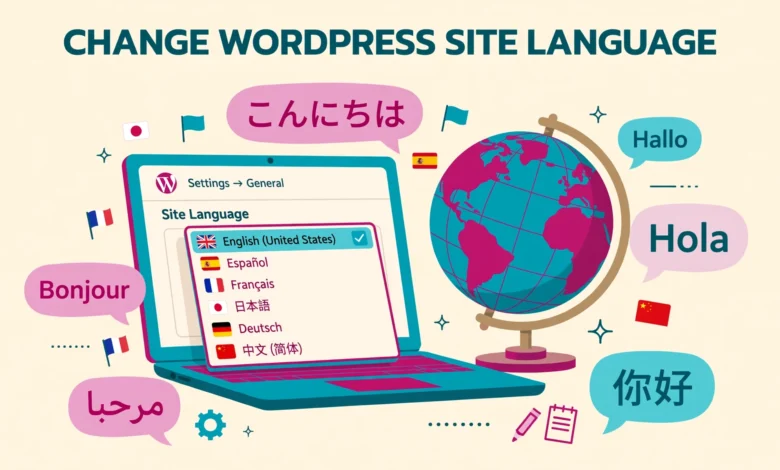
The Site Language dropdown lives on the General Settings screen, and you only need administrator access to change it. The whole process takes under a minute, and WordPress applies the change the moment you save. For most languages you do not need to install anything first, because WordPress downloads the language pack automatically.
- Log in to your WordPress dashboard as an administrator.
- Go to Settings, then General, from the left sidebar menu.
- Find the Site Language dropdown near the top of the page.
- Pick your language from the list, for example Urdu, Spanish, French, or Arabic.
- Scroll to the bottom and click Save Changes.
- Wait a few seconds while WordPress downloads and installs the language pack, then reload the page to see the dashboard in the new language.
If the page reloads in the new language, the change worked. If parts of the dashboard still show English, do not worry yet. Some strings come from your theme or from a plugin, and those will only translate if that theme or plugin includes a translation for your language. The WordPress core strings should switch immediately.
How to Change the Language for One User Only
WordPress lets each user pick their own dashboard language, separate from the site language. This is useful on a team site where one person prefers Urdu and another prefers English, or on a client site where you want the admin area in English while the client sees it in their own language. The personal language only changes what that user sees in the dashboard.
- Go to Users, then Profile, to change your own language, or go to Users, then All Users, and click Edit under the user you want to change.
- Scroll down to the Language dropdown in the profile settings.
- Pick the language that user should see in the dashboard.
- Click Update Profile at the bottom of the page.
The change applies the next time that user loads a dashboard page. If the Language dropdown is missing from the profile screen, it usually means only one language is installed on the site, so install another language first and the dropdown will appear. The personal language always wins over the site language for that user, which also makes it the safest way to test a new language before switching the whole site. If you manage user accounts for a team, our guide to WordPress user roles explained will help you decide who should be able to change their own profile.
What If Your Language Is Missing From the List?
Most common languages appear in the Site Language dropdown, but some smaller languages may be missing, or the automatic download may fail on a host that blocks outgoing connections. When that happens, you can install the language pack manually. A language pack is a set of translation files that WordPress reads from a specific folder, and you only need FTP or hosting file manager access to install one.
Start by finding the correct locale code for your language. The locale code is a short label such as ur for Urdu, es_ES for Spanish as used in Spain, fr_FR for French, ar for Arabic, and pt_BR for Brazilian Portuguese. You can find the full list of locale codes at translate.wordpress.org, the official home of WordPress translations. Pick the locale that matches your region, because Spanish for Spain and Spanish for Mexico can use different codes and translations.
- Open translate.wordpress.org and find your language in the list.
- Download the .mo file for your locale, for example ur.mo for Urdu, from the language pack export for the current WordPress version.
- Connect to your site with FTP or open the File Manager in your hosting control panel.
- Open the wp-content/languages folder. Create it if it does not exist yet.
- Upload the .mo file into wp-content/languages, keeping the exact file name, for example ur.mo.
- Go back to Settings, then General, and pick your language from the Site Language dropdown, which should now list it.
- Click Save Changes and reload the dashboard to confirm the new language is active.
The .mo file is the compiled translation that WordPress actually reads. The matching .po file is the human readable source that translators edit, and you do not need to upload it for the translation to work. Theme and plugin translations use the same idea but live in their own folders: themes in wp-content/languages/themes, and plugins in wp-content/languages/plugins. After uploading any language file, clear your cache, because a cached dashboard page can still show the old language for a few minutes. To practise safely, use a local test site first. Our guide on how to install WordPress on localhost with XAMPP shows you how.
How to Enable RTL Support for Arabic, Urdu, Hebrew, and Persian
Arabic, Urdu, Hebrew, and Persian read from right to left, so switching to one of these languages changes more than the words on screen. WordPress detects a right to left language automatically when you save the new site language, and it loads the right to left stylesheet for the admin area and for any theme that supports it.
Most modern themes support right to left layouts by shipping an rtl.css file or by generating the flipped styles automatically. If your theme does not support it, the layout may look broken after the switch, with menus overlapping or text running off the edge of the screen. The official WordPress site at wordpress.org explains how core handles right to left languages.
What Changing the Language Does NOT Do
This is the part that causes the most confusion, so it is worth stating clearly. Changing the site language does not translate your content. Your posts, pages, product descriptions, menu labels, and widget text will stay in the language you wrote them in. WordPress only translates its own interface strings and the strings of themes and plugins that ship translations.
- It does not translate your posts or pages, because those are your content, not WordPress interface text.
- It does not translate menu labels, widget titles, or custom text you typed into the Customizer, because those are also your content.
- It does not create a multilingual site with a language switcher for visitors, because that needs a multilingual plugin and translated copies of each page.
- It does not translate plugin or theme strings that have no translation for your language, because the translation simply does not exist yet.
- It does not change your site URL, your permalinks, or your search engine settings, though you may want to review those separately for a new audience.
If your goal is a site that visitors can read in two or more languages, you need a different approach. A multilingual plugin lets you write a translated copy of each post and page and adds a language switcher so visitors can pick their language. That is a content project, not a settings change. For a single page in another language, write it in that language, publish it as a normal page, and link to it from your menu. Our guide to WordPress categories vs tags explains how to keep regional content easy to find.
Troubleshooting: Language Change Not Working
A language change that seems to do nothing usually has a simple cause. Work through the list below in order, because the first two items fix most cases. Start with the cache, then check whether your own profile language is overriding the site language.
- Clear your browser cache and your caching plugin cache, then reload the dashboard, because a cached page can show the old language for hours.
- Check Users, then Profile, and make sure your personal Language setting is not set to the old language, because it overrides the site language.
- Confirm the language pack downloaded correctly by checking that the .mo file exists in wp-content/languages with the right locale name.
- Check whether the untranslated text comes from your theme or a plugin, and look for a translation update under Dashboard, then Updates.
- Confirm your hosting allows outgoing connections, because a blocked connection stops the automatic download and forces a manual install.
- Log out and log back in, because some admin screens cache the language for the current session.
If the dashboard switched but the login screen or a few settings pages still show English, that is usually a theme or plugin gap rather than a failed install. Update the theme and plugins to their latest versions, because newer versions often ship newer translations. If your hosting setup blocks file uploads or outgoing downloads, our web hosting guide explains what to look for in a host that gives you full control over your WordPress files.
Frequently Asked Questions
How do I change the WordPress site language?
Go to Settings, then General, pick your language from the Site Language dropdown, and click Save Changes. WordPress downloads the language pack automatically for most languages. The dashboard switches to the new language as soon as you reload the page.
Will changing the site language translate my posts and pages?
No, changing the site language never translates your posts or pages. It only changes the WordPress dashboard and the default strings that WordPress itself produces. Your content stays in the language you wrote it in. To offer your content in another language, write translated copies of the pages yourself or use a multilingual plugin.
How do I install a WordPress language pack manually?
Download the .mo file for your locale from translate.wordpress.org, then upload it to the wp-content/languages folder using FTP or your hosting file manager. Keep the exact file name, such as ur.mo for Urdu. Then go to Settings, then General, pick the language from the Site Language dropdown, and save your changes.
Can different users see the WordPress dashboard in different languages?
Yes, each user can set a personal dashboard language under Users, then Profile, using the Language dropdown. That personal choice overrides the site language for that user only, so a team can work in different languages on the same site. The site language still applies to anyone who has not set a personal language.
Last updated: November 2026.