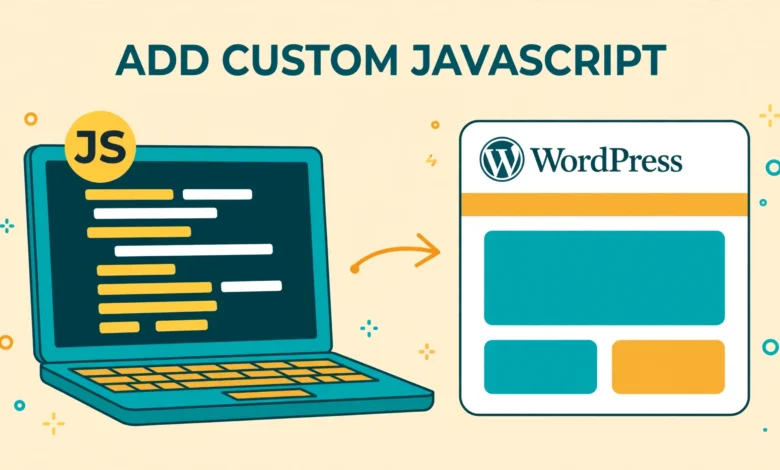
Sooner or later, almost every WordPress site owner needs a small piece of JavaScript: a simple toggle button, a form submission tracker, a popup after a few seconds, or a third party widget. The first instinct is to search for a plugin, but that is often overkill for a few lines of code. You can add custom JavaScript to WordPress without a plugin, and it is safer than most people think if you use the right method.
This guide shows you three safe methods. The first enqueues a separate JavaScript file through your child theme, the official WordPress way. The second adds a short inline script through a hook, which is handy for tiny snippets. The third uses a Custom HTML block, which is perfect when the script belongs on one page only. You will also learn the mistakes to avoid and how to test your code.
Why Add JavaScript Without a Plugin?
Every plugin adds code, settings, and update duties, so a plugin that only inserts a few lines of JavaScript adds all of that weight for almost no benefit. When you add the code yourself, you know exactly what runs on your site and you can change it in seconds, with no dependence on a plugin author for updates. For a small snippet, the manual route is cleaner, faster, and easier to debug.
There is one condition, though: you must add the code in the right place. Pasting JavaScript into the wrong file can break your theme, vanish after an update, or slow your site down. The methods below keep your code safe, survive theme updates, and follow WordPress coding standards. If you also want to style your site with custom code, read our guide on how to add custom CSS to WordPress.
Before You Start: Back Up and Use a Child Theme
Before you touch any theme file, make a full backup of your site, including the database. A single typo in functions.php can lock you out of the admin area, and a backup is the fastest way back. If you have no backup routine yet, follow our guide to back up your WordPress database without a plugin first.
Second, never edit your parent theme directly. Theme updates overwrite every file in the parent theme, so any code you add there will disappear at the next update. Use a child theme instead to keep your changes separate and safe. If you do not have one yet, our tutorial on how to create a WordPress child theme walks you through it. Every method below assumes you are working in a child theme.
Method 1: Enqueue a JavaScript File with wp_enqueue_script
Enqueuing is the official WordPress way to load JavaScript, and the method to use for any script longer than a few lines. Instead of hardcoding a script tag into your theme, you tell WordPress about your file with wp_enqueue_script, and WordPress loads it in the right order, with the right dependencies, and only once, even if two pieces of code ask for the same file.
First, create custom.js inside a js folder in your child theme, and write your JavaScript in that file. Then open your child theme functions.php file and add this code at the end:
function my_theme_custom_script() {
    wp_enqueue_script(
        'my-custom-script',
        get_stylesheet_directory_uri() . '/js/custom.js',
        array( 'jquery' ),
        '1.0.0',
        true
    );
}
add_action( 'wp_enqueue_scripts', 'my_theme_custom_script' );
Each part of that function has a job. The first value is a unique handle WordPress uses to track your script. The second value is the file location, built with get_stylesheet_directory_uri so it points to your child theme. The third value lists dependencies: here your script needs jQuery, so WordPress loads jQuery first. The fourth value is a version number, which you can raise whenever you change the file so browsers fetch the fresh copy. The final true value loads the script in the footer, which is faster for visitors.
If your script does not need jQuery, replace array( ‘jquery’ ) with array() so WordPress does not load jQuery just for your code. The wp_enqueue_script documentation on developer.wordpress.org has the full function reference.
Method 2: Add a Short Inline Script with a Hook
For a tiny snippet, such as a few lines that hide an element or log a message to the console, a separate file is more setup than you need. In that case, print a short inline script with the wp_footer hook, which runs just before the closing body tag. Add this code to your child theme functions.php file:
function my_inline_script() {
    ?>
    <script>
        document.addEventListener( 'DOMContentLoaded', function() {
            console.log( 'Custom script is running.' );
        } );
    </script>
    <?php
}
add_action( 'wp_footer', 'my_inline_script' );
The wp_footer hook is the right choice because the page content is already loaded when it runs, so your code can find the elements it needs. The wp_head hook also exists, but scripts printed there can block the page from rendering, so save it for code that must run early, such as a tracking snippet a service tells you to place in the head. Keep inline scripts short: past twenty lines, move the code into a separate file and use Method 1 instead.
One warning applies to both methods so far: the dollar sign shortcut, $, only works if jQuery is loaded and your code runs after it. If you see an error saying $ is not defined, your script is running before jQuery, or jQuery is not loaded at all. Use jQuery(document).ready or list jQuery as a dependency, and the error goes away. If errors keep appearing, turn on debugging with our guide to enable WordPress debug mode.
Method 3: Use a Custom HTML Block on One Page
Sometimes a script belongs on one page only, for example a calculator on a pricing page or a small animation on a landing page. Loading it on every page would waste resources, and editing functions.php would be the wrong tool. For a page specific script, use a Custom HTML block in the block editor: open the page, add a Custom HTML block, and paste your script tag inside it. WordPress saves it with the page, and it loads only when someone visits that page.
- Open the page in the block editor and click the plus icon.
- Search for Custom HTML and add the block.
- Paste your script tag with the JavaScript inside it, then save the page.
- Visit the page in a private browser window to check that the script runs.
This method is the easiest of the three, and also the most limited. The script lives inside one page, so you cannot reuse it elsewhere, and if you delete the page, the script goes with it. It suits one off page features, but for anything site wide, use Method 1 or Method 2. A Custom HTML block only works for scripts that do not need to run before the page loads.
Should You Load JavaScript in the Header or the Footer?
Load JavaScript in the footer whenever you can. Scripts in the header block the page from showing until they finish downloading, which makes your site feel slow. Scripts in the footer let the content appear first, then the code runs. That is why the example above passes true as the last value. Most custom scripts, such as toggles and form helpers, work fine in the footer because they only need to run after the page exists.
The defer attribute tells the browser to download the script in the background and run it after the page is parsed. Modern WordPress supports this through the strategy argument in wp_enqueue_script, so you can load a non critical script with defer and keep it out of the way of your content. Only scripts that must run before the page renders belong in the header. For everything else, footer plus defer is the fastest combination. If speed matters to you, our web hosting guide also explains how server quality affects load times: even perfect code cannot fix a slow host.
Common Mistakes to Avoid
- Editing the parent theme directly, so your code disappears at the next update.
- Pasting script tags into header.php or footer.php instead of using the enqueue system, which can load a script twice or in the wrong order.
- Loading jQuery a second time from a CDN when WordPress already includes it, which causes conflicts.
- Using the $ shortcut before jQuery is loaded, which throws a not defined error.
- Skipping the backup before editing functions.php.
- Adding every script to every page instead of loading page specific code only where needed.
How to Test That Your Script Works
After adding your script, open your site and press F12 to open developer tools, then click the Console tab. A clean console with no red errors means your script loaded without problems. Add a temporary console.log line, such as console.log( ‘Custom script is running.’ ), and if that message appears, you know the file is loading. Remove the test line once you are sure everything works.
If nothing happens, work through a short checklist. First, clear your cache and any caching plugin, because browsers often serve the old version of a JavaScript file. Second, check that the file path in your code matches the real file location. Third, check the Network tab in developer tools for your file name to confirm the browser requested it. Fourth, read the console error message: it usually names the exact line. Most JavaScript problems are one of these four issues. The JavaScript guide on MDN is a good place to learn the basics if you are new to the language.
Which Method Should You Choose?
Use Method 1, enqueueing a file, for anything site wide or longer than a few lines. It is the WordPress standard, it handles dependencies and caching, and it keeps your code organized. Use Method 2, an inline script through wp_footer, for a short snippet that runs everywhere but is too small for its own file. Use Method 3, a Custom HTML block, for a script that belongs on one page only. Whichever method you pick, back up first, keep the code in a child theme, and test in the console.
Frequently Asked Questions
Can I add JavaScript to WordPress without a child theme?
Yes, you can use a Custom HTML block on a single page, which needs no child theme at all. For site wide code, though, a child theme is the safe option, because parent theme code disappears at the next update. If you are not ready to build a child theme, use the Custom HTML block method for now.
Will custom JavaScript slow down my website?
A small, well written script has almost no effect on speed, especially when you load it in the footer with defer. Problems come from large libraries, scripts loaded on every page when they are only needed on one, and heavy code that runs on every page load. Keep scripts small, load them only where needed, and test your speed.
Why is my JavaScript not working in WordPress?
The most common causes are a cached old file, a wrong file path, a script running before jQuery loads, or a syntax error. Clear your cache, open the browser console with F12, and read the error message: it usually points to the exact line. Also check that your code is in the right file and that the enqueue function is hooked to wp_enqueue_scripts.
Where do I put JavaScript in WordPress?
Put site wide JavaScript in a .js file inside your child theme and load it with wp_enqueue_script in functions.php. Put a short inline snippet in functions.php using the wp_footer hook. Put page specific JavaScript in a Custom HTML block on that page. Never paste code into the parent theme files: updates will delete it.
Last updated: November 2026.