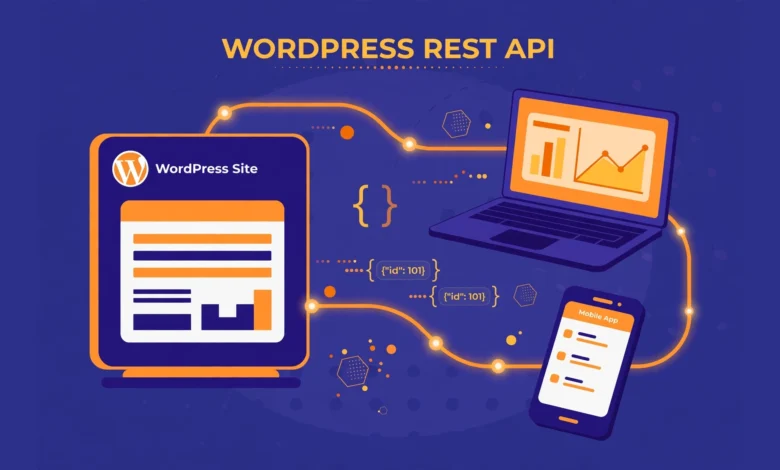
If you have ever met the phrase REST API in a WordPress tutorial, you may have closed the tab. The name sounds technical, and many explanations jump straight into code, endpoints, and JSON without first saying what those words mean.
This guide explains the WordPress REST API in plain language: what it is, where to find it, and when it helps you. You will learn how to read posts with a single request, why the block editor depends on it, how authentication works, and how to fix common errors.
What Is an API?
An API, short for Application Programming Interface, is a set of rules that lets two pieces of software talk to each other. When a weather app shows the forecast for your city, it asks a weather service for that data through an API. The app only needs to know how to ask, and what shape the answer will take.
Picture an API as a waiter in a restaurant. You are the app, and the kitchen is the system that holds the data. You tell the waiter what you want, and the waiter brings back exactly what you asked for. In WordPress, the menu is the list of endpoints.
What Does REST Mean?
REST, short for Representational State Transfer, is a style for building APIs that use the normal rules of the web. A REST API treats every piece of data as a resource with its own address, and uses standard HTTP methods to work with it. GET reads, POST creates, PUT or PATCH updates, and DELETE removes.
- GET: read a post, a page, a list of posts, or a media item.
- POST: create a new post, page, comment, or media item.
- PUT or PATCH: update an existing post or page.
- DELETE: move a post to the trash or delete it permanently.
REST APIs are also stateless, which means each request carries everything the server needs to answer it. GET plus the posts address means read posts, while POST plus the same address means create a post.
What Is the WordPress REST API?
The WordPress REST API is the built in REST interface that ships with WordPress core since version 4.7. It exposes your posts, pages, comments, and media through URLs any app or website can call. You do not need a plugin to turn it on: if your site runs a modern version of WordPress with pretty permalinks, the API is already there.
The API returns data as JSON, short for JavaScript Object Notation: a lightweight text format of named fields and values that almost every programming language can read. A post returned as JSON includes its ID, title, content, date, and author, each under a clear field name. It is part of WordPress itself, documented in the official WordPress REST API Handbook on developer.wordpress.org.
How to Find Endpoints at /wp-json/
Every WordPress REST API request starts at the same base address: your site address followed by /wp-json/. Open that address in your browser, for example https://example.com/wp-json/, and WordPress returns a JSON document listing the API version and the namespaces it supports. A namespace groups related endpoints, and the main one is called wp/v2.
A route is the URL pattern, such as /wp/v2/posts, while an endpoint is that route combined with one HTTP method, such as GET /wp/v2/posts. One route can support several endpoints: GET reads posts, POST creates a post, and the same pattern with an ID reads, updates, or deletes one post depending on the method.
- /wp-json/: the API index, with namespaces, site info, and authentication details.
- /wp-json/wp/v2/posts: the posts collection, for reading and creating posts.
- /wp-json/wp/v2/pages: the pages collection, for reading and creating pages.
- /wp-json/wp/v2/media: the media library, for reading and uploading media items.
- /wp-json/wp/v2/categories: the categories collection, for reading post categories.
- /wp-json/wp/v2/comments: the comments collection, for reading and creating comments.
Open the index in your browser now, on your own site or a test site. You will see raw JSON, which looks messy in a normal tab, but a JSON viewer extension formats it neatly. That index shows what is actually available on your site.
How to Read Posts with a GET Request
Reading posts is the simplest use of the WordPress REST API, and it needs no login for published posts. Open this address in your browser, replacing example.com with your own domain: https://example.com/wp-json/wp/v2/posts. WordPress returns the latest posts as JSON, newest first, each with its ID, date, slug, link, title, content, and author.
You can shape the answer with query parameters, small additions after a question mark in the URL. The per_page parameter controls how many posts come back, up to one hundred. The search parameter filters by a keyword, and _fields asks for only the fields you name. One endpoint can power a latest posts widget, a search box, or an archive page.
GET /wp-json/wp/v2/posts?per_page=3
GET /wp-json/wp/v2/posts?search=wordpress
GET /wp-json/wp/v2/posts?_fields=id,title,link
GET /wp-json/wp/v2/posts/123
Those four lines show the pattern in action. The first asks for the three latest posts, the second searches for posts that mention WordPress, and the third asks for only the ID, title, and link of each post. The fourth asks for one post, the one with ID 123.
curl https://example.com/wp-json/wp/v2/posts?per_page=3If you write PHP inside WordPress, call the same endpoint with wp_remote_get(), the WordPress function for safe HTTP requests. The example below fetches the three latest posts from another site into a variable for your template. This kind of read only returns published posts to anonymous visitors. Drafts and private posts stay hidden unless the request includes valid authentication.
<?php
// Fetch the three latest posts from another WordPress site.
$response = wp_remote_get( 'https://example.com/wp-json/wp/v2/posts?per_page=3' );
$body = wp_remote_retrieve_body( $response );
$posts = json_decode( $body );
?>
Why the Block Editor Itself Uses the REST API
The block editor you use every day is itself a REST API client. When you open a post, it sends a GET request to /wp-json/wp/v2/posts/123, receives the post as JSON, and renders the blocks from that data. When you press Update, it sends a PUT or POST request back with your new content.
That is why a broken REST API breaks the editor first. If the API returns an error, the editor may fail to save or refuse to load the preview, even though the front end still looks fine. Check permalinks, check for a plugin conflict, or check the site health screen in our guide to the WordPress Site Health check explained.
Authentication Basics and Common Uses
Reading published posts needs no login, but creating, updating, or deleting anything needs proof that you are allowed. Inside WordPress, code uses cookie authentication with a nonce, a one time token proving the request came from a logged in user. Outside WordPress, the simplest safe method is Application Passwords: create one from your user profile screen and use it only for API requests. You can revoke it at any time.
- Cookie plus nonce: for code running inside WordPress, including the block editor and admin screens.
- Application Passwords: for outside apps, scripts, and services that need to read private content or publish posts.
- Never share credentials: keep application passwords private, revoke any password you no longer use, and use a fresh password per app.
The uses become easy to imagine. A headless site uses WordPress only as a content store, and builds its front end with a JavaScript framework or a mobile app. The visitor never sees a WordPress theme, but every article still comes from WordPress through the API. A mobile app can fetch posts for its readers, and a company blog can pull its latest posts into a separate marketing site.
When NOT to Use It, and How to Limit It Safely
The REST API is powerful, but it is not the right tool for every job. For a feature inside a theme or plugin on the same server, use the normal WordPress functions instead. Functions such as get_posts() and WP_Query are faster and simpler, because they do not need an HTTP request. Reserve the API for a separate app, a separate site, a headless front end, or an outside service.
Some site owners worry that an open API exposes too much, such as user names. In practice, the API only shows what a visitor could already see on the front end. The safest limit is to require authentication for endpoints that reveal user data, rather than disabling the whole API, which can break the block editor, plugins, and the Site Health screen. Learn how to disable XML-RPC in WordPress too, but do not confuse the two systems.
How to Fix Common 404 and Auth Errors
The most common REST API error is a 404 Not Found when you open /wp-json/. The fix is usually simple: go to Settings, then Permalinks, and press Save Changes without changing anything. That step, called resaving permalinks, rebuilds the rewrite rules for the /wp-json/ address. If your site uses the Plain permalink setting, the API lives at /?rest_route=/wp/v2/posts, so switch to Post Name if you can. See our guide to the WordPress permalink structure for the options.
- 404 on /wp-json/: resave permalinks under Settings, then Permalinks, and test the address again.
- 401 Unauthorized: the request needs authentication. Check your application password and permissions.
- 403 Forbidden: the user is logged in but lacks the capability to do that action. Check the user role.
- Editor cannot save: check Site Health for a REST API error, then test for a plugin conflict on staging.
- Slow or empty response: check your host, caching, and security plugin settings. A good host matters here, so read our web hosting guide if your server is slow to answer API requests.
If resaving permalinks does not help, enable debugging with our guide to enable WordPress debug mode and read the error log. Look for a fatal error from a plugin or theme on the rest_api_init hook, and test with a default theme and all plugins off on staging. The Mozilla documentation on HTTP methods at developer.mozilla.org helps when an error names a method you do not recognise.
Frequently Asked Questions
Is the WordPress REST API free to use?
Yes, the WordPress REST API is free. It ships with WordPress core since version 4.7, and there is no fee, licence, or plugin needed to use it for reading published posts. You can call it from a browser, a script, a mobile app, or another website.
Do I need to enable the WordPress REST API?
No. The REST API is already active if your site runs WordPress 4.7 or later and uses pretty permalinks. Test it by opening your site address followed by /wp-json/ in a browser. If you see a JSON document with site information and routes, the API is working.
Is the WordPress REST API safe?
Yes, when you use it as WordPress intends. Published posts are public by design, and drafts, private posts, and user data stay protected by authentication and capabilities. Creating or changing content always needs a logged in user with the right permission, or a valid application password.
Can I use the WordPress REST API without coding?
Yes. Open an endpoint in your browser to read posts, use a no code tool to fetch posts into another app, or use a plugin that reads from the API for you. You only need code for a custom app or a headless front end.
Last updated: November 2026.