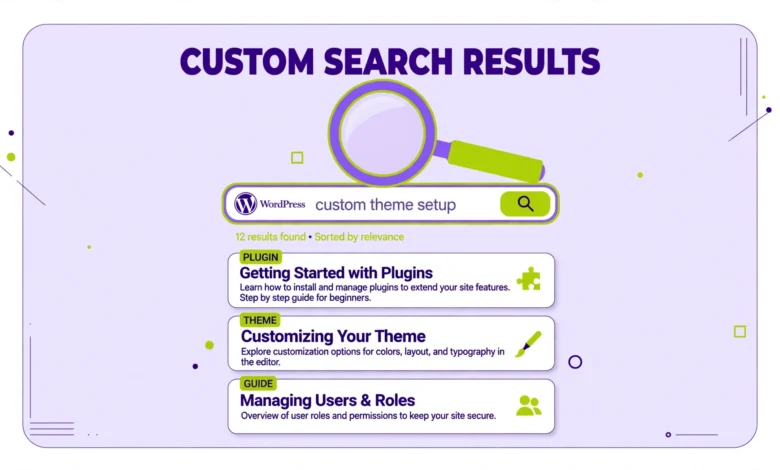
The default WordPress search results page is plain and often unhelpful. Visitors type a query, get a list of titles with little context, and leave if nothing looks relevant. That is a missed chance, because a visitor who searches is telling you exactly what they want. A customized search results page can show better information, guide visitors to the right content, and turn a dead end search into another page view. This guide shows you how to customize the WordPress search results page without a plugin, using a child theme template, a simple filter, and some styling.
You will learn how the search template works, how to build your own search.php file from your theme, how to control which post types appear in results, how to write a helpful no results message, and how to handle the same job in a block theme through the Site Editor. No plugin is needed for any of it, only a child theme and a little code. If you have never made a child theme, start with our guide on how to create a WordPress child theme, because every step below assumes you have one.
How Does the WordPress Search Results Page Work?
When a visitor submits the search form, WordPress runs a query for posts and pages that contain the search terms, then loads the search.php template from the active theme to display the results. If your theme has no search.php file, WordPress falls back to archive.php, and then to index.php. That fallback is why many sites show search results that look exactly like a blog archive, with the same layout and the same amount of information, even though a search visitor needs something different from a casual reader browsing the blog.
The template has access to a set of useful template tags. The get_search_query function returns the words the visitor typed, so you can print a heading like Results for your search term. Inside the loop, the_title prints the post title, the_permalink prints its link, the_excerpt prints a short summary, and the_post_thumbnail prints the featured image. These four tags are the building blocks of a good results page, and you will use all of them below. For a deeper look at how search works under the hood, the WordPress template hierarchy documentation explains which file WordPress picks for each type of page.
Step 1: Create a search.php Template in Your Child Theme
Start by copying the closest template from your parent theme into your child theme. If the parent theme has a search.php file, copy that one. If it does not, copy archive.php, and if that is missing too, copy index.php. Rename the copy to search.php and place it in your child theme folder. WordPress automatically prefers the child theme file, so your version will be used, and the parent theme file stays untouched for future updates.
Open your new search.php file and look for the loop, the part that starts with while ( have_posts() ) and ends with endwhile. That loop prints each result. A basic customized loop can look like this, with a clear heading above it that shows the search term:
<h2>Search results for: <?php echo get_search_query(); ?></h2>

<?php if ( have_posts() ) : ?>
    <?php while ( have_posts() ) : the_post(); ?>
        <article>
            <h3><a href="<?php the_permalink(); ?>"><?php the_title(); ?></a></h3>
            <?php the_post_thumbnail( 'medium' ); ?>
            <p><?php the_excerpt(); ?></p>
        </article>
    <?php endwhile; ?>
<?php endif; ?>
This small template does a lot. The heading tells the visitor what they searched for, which builds trust, because they can see at a glance whether WordPress understood the query. Each result shows a linked title, a thumbnail, and an excerpt, so visitors can judge relevance without opening every post. The excerpt is especially important, because a title alone rarely says enough. If you want more control over how excerpts look, our guide to WordPress categories vs tags is not about excerpts, but the same idea applies, since clear labels help visitors scan faster.
Step 2: Filter the Results with pre_get_posts
By default, WordPress search includes posts and pages, and on some sites it also includes custom post types or media attachments. That can fill the results with pages and files your visitors never wanted, such as privacy policy pages or old attachment pages. The pre_get_posts hook lets you change the search query before it runs, without touching the template at all. Add this code to your child theme functions.php file to limit search results to posts only:
function my_limit_search_to_posts( $query ) {
    if ( $query->is_search() && ! is_admin() && $query->is_main_query() ) {
        $query->set( 'post_type', 'post' );
    }
}
add_action( 'pre_get_posts', 'my_limit_search_to_posts' );
The three conditions in that if statement matter. The is_search check makes sure the filter only runs on search pages, the ! is_admin check keeps it out of the dashboard search, and the is_main_query check stops it from changing other queries on the same page, such as a sidebar widget. Without those checks, the filter could accidentally change queries you never meant to touch. That is one of the most common pre_get_posts mistakes, so keep the conditions in every filter you write.
You can adapt the same filter for other goals. To exclude pages but keep posts and a custom post type, set post_type to array( ‘post’, ‘product’ ). To show more results per page, set posts_per_page to 20. To sort results by date instead of relevance, set orderby to date and order to DESC. Each change is one line inside the same function, which makes pre_get_posts the most useful tool for search customization. If you want to learn the full list of query options, the WP_Query documentation lists every parameter you can set.
Step 3: Write a Helpful No Results Message
Every search ends with no results sometimes, and that moment decides whether the visitor stays or leaves. A bare line saying Nothing found is a dead end. A good no results message explains what happened, suggests what to try next, and offers another way forward. In your search.php template, the else branch of the if ( have_posts() ) check is where this message lives. Replace the default text with something genuinely helpful.
- Repeat the search term back to the visitor, so they can spot a typo at a glance.
- Suggest shorter or simpler words, because long phrases rarely match anything.
- Show a fresh search form so the visitor can try again without going back.
- Link to your most popular posts or main categories as a way forward.
- Offer a contact link for visitors who cannot find what they need.
Here is a simple no results block you can paste into your template, using get_search_form to print a fresh search box right where the visitor needs it:
<?php else : ?>
    <h2>No results found for: <?php echo get_search_query(); ?></h2>
    <p>Try shorter words, check the spelling, or browse the links below.</p>
    <?php get_search_form(); ?>
A thoughtful no results page also helps your site in a quiet way. Visitors who find a next step stay longer and view more pages, while visitors who hit a dead end leave immediately. If you track which terms return no results, you also learn what content your audience wants but cannot find, which is a ready made list of topics to write about. Our guide to WordPress internal linking strategy explains how to connect those new posts to the rest of your site once you write them.
How to Customize Search in a Block Theme
If your site uses a block theme, such as Twenty Twenty-Four, there is no search.php file to edit, because block themes use templates stored in the database instead of PHP files. The good news is that customization is even easier. Open Appearance, then Editor, then Templates, and look for the Search Results template. Click it, and you can rearrange the page with blocks, add a heading that shows the search term, change the query loop to show excerpts and thumbnails, and add a search block for visitors who want to try again.
The Site Editor also lets you edit the Search Results template without touching code, which means your changes survive theme updates, since templates live in the database. The trade off is control. You cannot run a pre_get_posts filter from the editor, so if you need to limit post types or change the sort order, you still need a small code snippet in functions.php or a child theme. For layout and content changes, the Site Editor is enough, and for query changes, code is still the way. Use whichever tool fits the job.
Styling Tips for Better Search Results
A customized template with no styling still looks plain, so give the results page a little visual structure. Use a card layout, with each result in its own bordered box, a thumbnail on the left, and the title and excerpt on the right. Add generous spacing between results, because a cramped list is hard to scan. Make the search term stand out in the heading, for example by wrapping it in a strong tag, so visitors can confirm the query at a glance. Keep the search form visible at the top of the page, not only at the bottom, because visitors who want to refine a query should not have to scroll for it.
Highlighting the search term inside each excerpt is a nice extra touch, and you can do it with a small filter that wraps matching words in a mark tag. It helps visitors see why each result matched, which makes scanning much faster. Keep the styling light, though. The search page should load fast and stay readable, so a few well chosen CSS rules beat a heavy redesign. If you want to add those rules, our guide on how to add custom CSS to WordPress shows the safe places to put them.
Frequently Asked Questions
Can I customize the WordPress search results page without a plugin?
Yes. In a classic theme, copy search.php into a child theme and edit the loop, the heading, and the no results message. In a block theme, edit the Search Results template in the Site Editor. To change which post types appear or how results are sorted, add a pre_get_posts filter to functions.php. No plugin is needed for any of these steps.
Why does my search.php file not change the results page?
The most common cause is that the file is in the parent theme instead of the child theme, or the child theme is not the active theme. Check that search.php sits in the active child theme folder and that the file name is spelled exactly search.php. Also clear your cache, because a caching plugin can serve the old page. If the file is in the right place and still ignored, your theme may use a different template, so check the template hierarchy for your theme.
How do I exclude pages from WordPress search results?
Add a pre_get_posts filter in functions.php that sets post_type to post on search queries. The filter must check is_search, is_main_query, and ! is_admin, so it only affects the main search query on the front end. Once the filter is active, pages and other post types stop appearing in results, and only posts are shown.
How can I improve WordPress search without a plugin?
Start with the template, because showing excerpts, thumbnails, and the search term makes results far easier to scan. Then filter the query so only useful post types appear, and write a helpful no results message with a fresh search form. Finally, check your search logs in a tool like Google Search Console to find the terms visitors use, and write content that answers them. If search quality still falls short after that, a dedicated search plugin becomes worth considering, but most sites never need one.
Last updated: November 2026.