WordPress sends a lot of emails behind the scenes. New users get a welcome message, admins get a note when a comment waits for approval, users get password reset links, and site owners get reports about automatic updates. Most of these emails work fine out of the box, but they all look the same: plain text, a generic sender name, and a from address that often looks like wordpress@yoursite.com. That is not a great look for a professional site, and some of those emails are simply not wanted at all. This guide shows you how to customize WordPress email notifications without a plugin, using a few small filters in your child theme.
You will learn which emails WordPress sends by default, how to change the sender name and address, how to send HTML emails instead of plain text, how to turn off specific emails you do not want, and how to test that your changes actually work. You will also learn why some WordPress emails never arrive, and what to do about it. If you have never edited a theme file, start with our guide on how to create a WordPress child theme, because all the code in this guide belongs in a child theme functions.php file, never in the parent theme.
Which Emails Does WordPress Send by Default?
WordPress sends emails for many everyday events, and most site owners only notice them when something goes wrong. A new user registration sends a notification to the admin and a welcome email with login details to the new user. A password reset request sends a link to the user who asked for it. A comment that waits for moderation sends a notification to the admin, and a reply to a comment can notify the original commenter. Automatic updates send a report after WordPress, a theme, or a plugin updates itself. A critical error, such as a fatal PHP error, sends a recovery mode email to the admin with a link to fix the site.
Some of these emails are essential, and some are noise. The password reset email must arrive, or users get locked out. The new user notification is useful on a small site, but on a membership site with hundreds of signups a day, it floods the inbox. The auto update report is handy, but if you already check updates yourself, it is just clutter. Before you change anything, make a list of the emails your site actually sends, and decide which ones to keep, which ones to restyle, and which ones to turn off. That list becomes your plan for the rest of this guide.
Change the Sender Name and Address
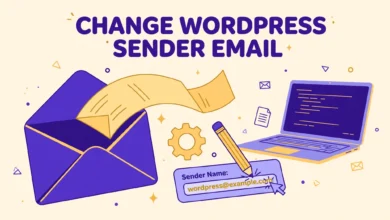
By default, WordPress sends email from the name WordPress and the address wordpress@yoursite.com. That address often fails spam checks, because the domain does not match a real mailbox, and recipients see a generic sender they do not recognize. Changing the sender to your site name and a real address, such as hello@yoursite.com, makes your emails look professional and improves the chance they land in the inbox instead of the spam folder.
Two filters control the sender. The wp_mail_from filter sets the email address, and the wp_mail_from_name filter sets the display name. Add both to your child theme functions.php file:
function my_custom_mail_from( $email ) {
    return 'hello@yoursite.com';
}
add_filter( 'wp_mail_from', 'my_custom_mail_from' );

function my_custom_mail_from_name( $name ) {
    return 'Your Site Name';
}
add_filter( 'wp_mail_from_name', 'my_custom_mail_from_name' );
Replace hello@yoursite.com with an address that uses your own domain, and replace Your Site Name with your brand name. Use an address that actually exists, because replies go there, and some hosts reject mail from addresses that do not exist on the server. If you run a WooCommerce store, note that WooCommerce uses its own email settings for order emails, so these filters change the WordPress core emails, while store emails are set in the WooCommerce settings page. For a full look at the mail function behind all of this, see the wp_mail documentation on developer.wordpress.org.
Send HTML Emails Instead of Plain Text
WordPress sends plain text emails by default. Plain text is reliable, but it cannot carry a logo, a styled button, or even bold text. If you want your password reset email or your new user welcome email to look like it came from your brand, you need HTML email. The wp_mail_content_type filter switches the content type for every email WordPress sends, and one short function does the whole job:
function my_html_mail_content_type() {
    return 'text/html';
}
add_filter( 'wp_mail_content_type', 'my_html_mail_content_type' );
Once this filter is active, you can include HTML tags in any email you send through wp_mail, such as a heading, a link styled as a button, or a short footer with your site name. Keep the HTML simple, though. Email clients are far pickier than browsers, so table based layouts and inline styles work better than modern CSS. Avoid background images, web fonts, and JavaScript in emails, because most email clients strip them out. A clean layout with a logo, a short message, and one clear button is all you need.
One caution is worth remembering. Switching to HTML affects every email WordPress sends, including emails from plugins that expect plain text. If a plugin email suddenly looks broken, with raw HTML tags showing in the message, the content type filter is the likely cause. In that case, you can apply the filter only around your own wp_mail calls instead of globally, or remove the filter for specific emails. Test every email your site sends after making this change, not just the one you were working on.
Turn Off Emails You Do Not Want
Some WordPress emails are easy to turn off with a filter, and the new user notification is the most common one. On a site where users register freely, the admin gets an email for every signup, which quickly becomes unmanageable. You can stop those admin notifications while still sending the welcome email to the new user. Add this code to functions.php:
function my_stop_new_user_admin_email( $send, $user, $blogname ) {
    return false;
}
add_filter( 'send_new_user_notification_to_admin', 'my_stop_new_user_admin_email', 10, 3 );
Automatic update emails can also be silenced. WordPress sends a report after every automatic update, and on a site with many plugins, that can mean several emails a week. These two filters stop the update emails and the core update notifications:
add_filter( 'auto_core_update_send_email', '__return_false' );
add_filter( 'auto_plugin_update_send_email', '__return_false' );
add_filter( 'auto_theme_update_send_email', '__return_false' );
Be careful with what you turn off. Never disable the password reset email, the critical error email, or the comment moderation email unless you have a better way to handle those events. The password reset email is the only way a locked out user gets back in. The critical error email contains the recovery mode link that lets you fix a broken site. The comment moderation email is how you learn about spam before it goes live. Turn off notifications only when you are sure nobody needs them, and keep a backup way to stay informed, such as checking the dashboard regularly. If you manage comments closely, our guide to customize the WordPress comments form without a plugin pairs well with this one.
How to Test WordPress Emails
After changing any email setting, test before you trust it. The simplest test is to trigger the email yourself: request a password reset for your own account, register a test user, or submit a comment that needs approval. Check that the email arrives, that the sender name and address look right, and that any links inside it work. If an email does not arrive, check the spam folder first, because a new sender address is the most common reason for a missed email.
For a direct test, you can send a test email with a tiny snippet. Add a temporary page template or use a code runner to call wp_mail with your own address, a subject, and a short message. If the test email arrives, your sender settings and content type are working, and the problem lies with the specific email you were testing. If the test email never arrives, the problem is with mail delivery itself, not with your filters. Remove the test snippet as soon as you are done, so it does not sit in your theme.
If emails still do not arrive after testing, the cause is usually the server. WordPress sends mail through the PHP mail function by default, which many hosts limit or block, and which has no authentication, so receiving servers often treat it as spam. That is where SMTP comes in. An SMTP setup routes your mail through a real mail service with proper authentication, which dramatically improves deliverability. You can set up SMTP with a plugin, or with a small code snippet that points wp_mail at your mail server. Either way, test again after the change, because a working SMTP setup is the single biggest fix for WordPress emails that never arrive.
Common Email Problems and Fixes
- Emails land in spam: use a real sender address on your own domain, add SPF and DKIM records for the domain, and avoid spam trigger words in the subject line.
- Password reset emails never arrive: check that wp_mail works with a test email, then set up SMTP, because PHP mail is the usual cause.
- New user emails go to the admin but not the user: check that the user filter is still active and that the user email address is spelled correctly.
- HTML tags show as raw text: a plugin may be forcing plain text, or the content type filter may be missing, so check for conflicts.
- Too many admin emails: turn off the new user admin notification and the auto update reports with the filters above.
- Emails arrive late: shared hosting mail queues can delay delivery by minutes, so SMTP or a transactional mail service is the fix.
Deliverability also depends on your host. A cheap shared host with a poor mail reputation can hurt even perfectly written emails, so if email matters to your business, your host matters too. Our web hosting guide explains what to look for in a host, including mail reliability. For the technical details of email authentication, the WordPress email documentation covers SPF, DKIM, and common delivery problems in more depth.
Frequently Asked Questions
Can I customize WordPress emails without a plugin?
Yes. The wp_mail_from and wp_mail_from_name filters change the sender, the wp_mail_content_type filter switches emails to HTML, and several filters turn off specific emails, such as new user notifications and auto update reports. All of these go in your child theme functions.php file, and no plugin is needed.
Why are my WordPress emails going to spam?
The most common cause is that WordPress sends from wordpress@yoursite.com through PHP mail, which has no authentication and looks suspicious to spam filters. Change the sender to a real address on your domain, add SPF and DKIM records, and set up SMTP through a real mail service. Those three steps fix the majority of spam folder problems.
How do I stop WordPress from sending new user emails to the admin?
Add a filter on send_new_user_notification_to_admin that returns false. That stops the admin notification while still sending the welcome email to the new user. Keep the filter in your child theme functions.php file, and test by registering a test account to confirm the admin inbox stays quiet.
How do I send HTML emails in WordPress?
Add a filter on wp_mail_content_type that returns text/html, and WordPress will send HTML emails instead of plain text. Keep the HTML simple, with inline styles and a table based layout, because email clients ignore most modern CSS. Test every email your site sends after the change, since the filter affects all emails, including plugin emails.
Last updated: November 2026.