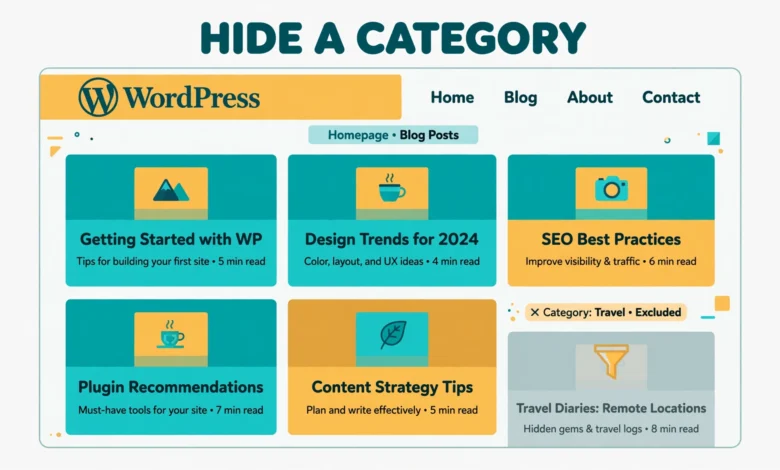
Not every post belongs on your WordPress homepage. Internal announcements, sponsored posts, test posts, and members only updates are easier to manage inside a category, yet they look out of place next to your best articles. Hiding the category keeps the posts published and reachable while your homepage stays focused on the content that matters to new visitors.
You can hide a category from your WordPress homepage without installing a plugin. This guide covers three reliable methods: the Query Loop block filter for block themes, a small pre_get_posts snippet that works on almost any theme, and a custom WP_Query for hand built templates. You will also learn how to find a category ID and why CSS is not a real fix.
Why Would You Hide a Category From Your Homepage?
A category is a filing system, not a display rule. WordPress puts every new post on the homepage unless you tell it otherwise, so a category created for housekeeping quickly leaks onto your most visited page. Hiding it solves that without deleting anything or changing how the posts work. If you are still deciding how to organise your content, read our guide to WordPress categories vs tags first.
- Internal news and announcements: staff updates, changelog notes, and internal memos that your team needs but your readers do not.
- Sponsored posts: paid content that you want indexed and shareable, but not mixed in with your editorial articles on the homepage.
- Test posts: formatting tests, demo posts, and placeholder content that must stay published for a plugin or a client review.
- Members only or seasonal content: posts aimed at a small audience, such as event recaps, that would clutter the homepage after the moment passes.
First, Find Out What Powers Your Homepage
Before you pick a method, check how your homepage is set up. Go to Settings, then Reading, in your WordPress dashboard. If “Your latest posts” is selected, your homepage is the blog index, and WordPress builds it from the main post query. If “A static page” is selected, your front page is a fixed page, and your posts live on a separate Posts page that you chose in the same screen.
This matters because the methods below target the blog index, wherever it lives. On a site using latest posts, the blog index is the homepage itself. On a site with a static front page, the blog index is the Posts page. The code method uses is_home(), which is true on the blog index in both setups.
How to Find a Category ID
Methods 2 and 3 need the numeric ID of the category you want to hide, not its name. Go to Posts, then Categories, in your dashboard. Hover over the category name and look at the link preview in the bottom corner of your browser, or click Edit and read the address bar. The URL ends with something like tag_ID=12, and that number is the category ID. Write it down, because you will paste it into the code below.
- Go to Posts, then Categories, in the WordPress dashboard.
- Hover over the category and click Edit, or just hover and read the link preview.
- Find tag_ID= in the URL. The number after the equals sign is the category ID.
- Write the number down. You will paste it into the code in the methods below.
Method 1: Hide a Category With the Query Loop Block (No Code)
If your site uses a block theme, this is the simplest method. The Query Loop block has a built in filter that can exclude a category, and you set it with clicks, not code. Open the Site Editor from Appearance, then Editor, and open the template that powers your blog index, usually the Home template or the Blog Home template, depending on your theme.
- Open Appearance, then Editor, and select the Home template (or the template used by your Posts page).
- Click the Query Loop block that lists your posts.
- In the block settings sidebar, open the Filters section.
- Under Categories, choose the category you want to hide and set it to exclude it from the query.
- Save the template and check the homepage in a private browser window.
This method has one clear limit: it only affects that one Query Loop block. If your homepage has two post lists, you must filter both, and it does nothing for your RSS feed or search results. If you want the category gone everywhere, use Method 2. If you are editing templates for the first time, practice on a copy first: our guide to setting up a WordPress staging site without a plugin shows how.
Method 2: Hide a Category With pre_get_posts (Best for Most Sites)
The pre_get_posts method is the most reliable option for most sites. It hooks into the main WordPress query before it runs and removes the category from it, so the posts never reach the page at all. It works on block themes and classic themes, on the homepage and on a separate Posts page, and it keeps pagination correct. The official pre_get_posts documentation on developer.wordpress.org explains the hook in full.
Add this snippet to your child theme functions.php file, or better, add it with the Code Snippets plugin so it survives theme updates. Replace 12 with your own category ID from the steps above.
function vutg_hide_category_from_home( $query ) {
    if ( $query->is_home() && $query->is_main_query() ) {
        $query->set( 'category__not_in', array( 12 ) );
    }
}
add_action( 'pre_get_posts', 'vutg_hide_category_from_home' );
Three parts of this snippet do the important work. The is_home() check limits the change to the blog index, so your category archive, search results, and single posts are untouched. The is_main_query() check makes sure only the main post list is changed, not widgets or secondary loops. And category__not_in tells WordPress to exclude every post in category 12. To hide two categories at once, pass both IDs like this: array( 12, 15 ).
Never paste this into your parent theme functions.php file, because the next theme update will wipe it out. Use a child theme or the Code Snippets plugin, which also lets you turn the snippet off with one click if something looks wrong. After saving, clear your caching plugin and visit the homepage in a private window to confirm the posts are gone.
Method 3: Hide a Category With a Custom WP_Query
Method 3 is for a homepage or template section that you built yourself with a custom loop. If your front page template runs its own WP_Query to list posts, the main query filters above will not touch it, because the template asks WordPress for posts directly.
$args = array(
    'category__not_in' => array( 12 ),
    'posts_per_page'   => 5,
);
$custom_query = new WP_Query( $args );
if ( $custom_query->have_posts() ) {
    while ( $custom_query->have_posts() ) {
        $custom_query->the_post();
        the_title();
        the_excerpt();
    }
    wp_reset_postdata();
}
The category__not_in argument does the same job here as it did in Method 2, but inside this one query only. The wp_reset_postdata() call at the end is not optional: it restores the global post data after your custom loop, so anything else on the page, such as the sidebar or footer, still works with the right post. Forgetting it is one of the most common causes of broken sidebars on custom templates.
What Is the Difference Between is_home() and is_front_page()?
This is the detail that trips up most people who write the snippet themselves. The two conditional tags sound alike but answer different questions, and the conditional tags reference on developer.wordpress.org lists both.
- is_home(): true on the blog posts index, wherever it lives. If your homepage shows latest posts, it is true on the homepage. If you use a static front page, it is true on your separate Posts page.
- is_front_page(): true on the front page of the site, whatever that page is. If your homepage shows latest posts, it is true on the homepage. If you use a static front page, it is true on that static page only.
Method 2 uses is_home() on purpose. You want to filter the post list, and the post list is the blog index. If you used is_front_page() instead on a site with a static front page, the snippet would run on the static page, which has no post query to filter, and your Posts page would keep showing the category. On a latest posts homepage both tags are true, but is_home() is the correct choice.
Why Hiding a Category With CSS Does Not Work
When people search for this problem, one suggestion appears again and again: add display:none to the category posts with CSS. It looks like it works, because the posts vanish from the screen. But it is not a fix, and it creates problems that are hard to notice until they hurt.
CSS only changes what the browser shows. The posts are still in the query, still loaded into the page, and still counted toward pagination. If your homepage shows ten posts per page and three of them belong to the hidden category, visitors see seven posts and a page that ends early, while WordPress still thinks the page is full. Your RSS feed still includes the posts, search engines still find them in the page source, and anyone viewing the page source can see them. CSS is a styling tool, not a content filter, so use it for looks, as our guide to adding custom CSS to WordPress shows, and use a query method to remove posts.
How to Test That the Category Is Really Gone
WordPress shows logged in users a different view than visitors see, and caching can serve an old copy of the homepage, so work through this checklist after applying any method.
- Log out, or open the homepage in a private or incognito window, so you see it as a visitor does.
- Confirm no post from the hidden category appears on the homepage or on later pages of the post list.
- Visit the category archive and confirm the posts are still listed there.
- Open one hidden post directly and confirm it still loads normally.
- Check page 2 of the homepage list and confirm it shows a full set of posts with no gaps.
If the posts are still visible after you added the snippet, clear your caching plugin, your host cache, and your CDN cache before assuming the code is wrong. Some hosts cache the homepage aggressively, which is one reason our web hosting guide covers caching behaviour when comparing hosts.
Frequently Asked Questions
Will hiding a category from the homepage delete the posts?
No. Hiding a category only changes which posts appear in the homepage query. The posts stay published, keep their URLs, and stay listed in their category archive. You can undo the change at any time by removing the filter or the snippet.
Can I hide more than one category from the homepage?
Yes. In the pre_get_posts snippet, pass every category ID in the array, for example array( 12, 15 ). In the Query Loop block, exclude each category in the Filters section, and in a custom WP_Query use the same array format.
Will hidden posts still show up in Google search results?
Yes. Hiding a category from the homepage does not noindex the posts or block search engines. Google can still find them through the category archive and the sitemap. If you want a post out of Google entirely, use a noindex setting or unpublish it instead.
Do I need a plugin to hide a category from the homepage?
No. The Query Loop filter needs no plugin at all on a block theme, and the pre_get_posts snippet needs only the free Code Snippets plugin or a child theme to hold the code. Category hiding plugins exist, but they add a settings screen for a job that takes a few clicks.
Last updated: November 2026.