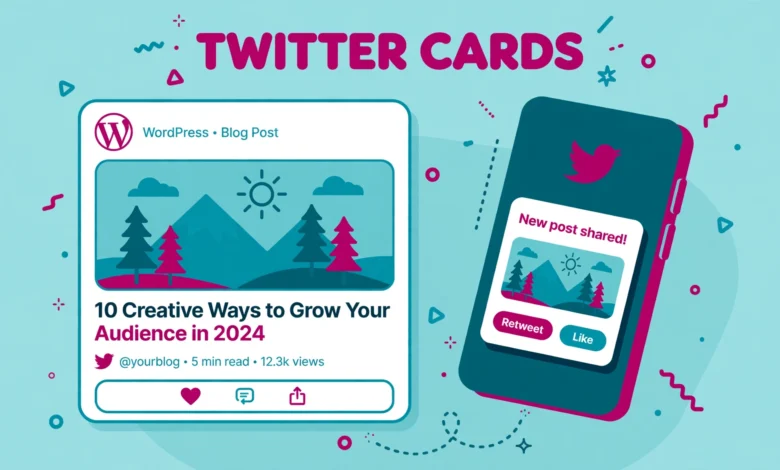
When someone shares your WordPress post on X, the platform builds a preview card from your page: a title, a short description, and an image. That card decides whether anyone clicks, because most people judge a link by its preview first. If the card shows the wrong image or no image at all, the share loses most of its value.
Twitter Cards are the meta tags that control that preview. You can add them to WordPress without a plugin, using a small snippet hooked into wp_head that prints the tags on every post. This guide explains what the tags do, shows the full snippet, covers image sizes and per post images, and explains how Twitter Cards relate to Open Graph tags. If you already use an SEO plugin, read the plugin section first.
What Are Twitter Cards?
Twitter Cards are meta tags in your page head that tell X how to render a link preview when someone shares your URL. Without them, X guesses, picking a title, description, and image from anywhere on the page. That guess is often wrong, and it produces blank previews, tiny thumbnails, and random sidebar images next to your post.
Two card types matter for blog posts. The summary card shows a small square thumbnail beside the title and description, which suits short updates and link lists. The summary large image card shows a wide image above the title and description, which suits articles and guides where the image carries the story. For most WordPress blogs, summary_large_image earns more clicks, so this guide uses it as the default.
- Summary card: small square thumbnail beside the text. Best for short posts and link roundups where the image is not the focus.
- Summary large image card: wide image above the text. Best for articles and guides, because the image dominates the preview and earns more clicks.
- No card at all: X shows a plain text link when the tags are missing and no Open Graph fallback exists, and it performs worst of all.
The Twitter Card Tags You Need
Five tags cover almost every blog post:
- twitter:card: the card type, usually summary or summary_large_image. X will not guess this one for you, so always set it.
- twitter:title: the headline shown on the card, kept under 70 characters so X does not cut it off.
- twitter:description: the short text under the title, under 200 characters, with the most useful words first.
- twitter:image: the image URL for the card. Use an absolute URL, not a relative path, so X can fetch it.
- twitter:site: your X handle, such as @yourname. Optional, but it links the card to your account.
X reads these tags from your page head every time a link is shared. If a tag is missing, X falls back to the matching Open Graph tag: og:title for the title, og:description for the description, and og:image for the image. That fallback is the reason many sites appear to have cards without ever setting twitter: tags, but the fallback image is often the wrong crop, so setting the tags yourself removes the guesswork. Our guide to adding Open Graph tags to WordPress without a plugin covers the other half of this setup if you want both sets in place.
How to Add Twitter Cards Without a Plugin
The manual method is one function hooked into wp_head. It runs only on single posts, pulls the featured image for twitter:image and the excerpt for twitter:description, and falls back to a default image when a post has no featured image. Add it with the Code Snippets plugin or in your child theme functions.php file. The official Cards overview on developer.x.com documents the tag set.
function vutg_twitter_cards() {
    if ( ! is_single() ) {
        return;
    }
    $image = get_the_post_thumbnail_url( get_the_ID(), 'large' );
    if ( ! $image ) {
        $image = 'https://vutechgeek.com/wp-content/uploads/2026/11/default-card-image.jpg';
    }
    $description = get_the_excerpt();
    if ( ! $description ) {
        $description = get_bloginfo( 'description' );
    }
    echo '<meta name="twitter:card" content="summary_large_image">' . "\n";
    echo '<meta name="twitter:title" content="' . esc_attr( get_the_title() ) . '">' . "\n";
    echo '<meta name="twitter:description" content="' . esc_attr( $description ) . '">' . "\n";
    echo '<meta name="twitter:image" content="' . esc_url( $image ) . '">' . "\n";
}
add_action( 'wp_head', 'vutg_twitter_cards' );
Each part of the snippet has a job. The is_single() check stops the tags from printing on your homepage, archives, and category pages, where they would be wrong. The get_the_post_thumbnail_url() call reads the featured image of the current post at the large size, and the fallback line replaces it with your default card image when a post has no featured image. The get_the_excerpt() call reads the post excerpt for the description, falling back to your site tagline when no excerpt exists.
Change the fallback image URL to one on your own site before you save the snippet. Upload a branded 1200×628 image to your Media Library and paste its URL in place of the example URL. Then save the snippet, clear your cache, and test a post with the Card Validator below.
How to Set a Fallback Image for Posts Without a Featured Image
The fallback image is the safety net for your whole site. Every post without a featured image will show it, so it should look deliberate. Make it a simple branded graphic with your site name, a short tagline, and a clean background. Avoid small text, because X crops the image in the feed.
Upload the image at 1200×628 pixels, the size X uses for large image cards, and store it in your Media Library so its URL stays stable. Then paste that URL into the fallback line of the snippet. Better still, set a featured image on every post, because a post specific image always beats a generic fallback. Our guide to WordPress image SEO tips covers featured image sizes, alt text, and file naming.
Can I Use a Different Card Image for One Post?
Yes, with no extra code. The snippet reads the featured image of the current post, so changing a post card image is as simple as changing that post featured image. Replace the featured image in the post sidebar, update the post, and the next share will use the new image after the cache clears. For a card image that differs from the featured image, add a custom field for a card image URL and read it in the snippet first.
What If You Already Use an SEO Plugin?
Check before you add the snippet: this is the most common mistake in Twitter Card setup. Yoast SEO, Rank Math, and AIOSEO already output Twitter Card tags automatically, using your featured image and excerpt, and their social settings let you pick the card type and default image. If your site runs one of these plugins, view the source of any post and search for twitter:card. If the tag is already there, adding the snippet would create a second set of tags.
Duplicate tags are a real problem. When a page has two twitter:image tags, X picks one of them, and it may not pick yours, so the same URL shows different images to different people. The rule is simple: one source of Twitter Card tags per site. If your SEO plugin outputs them, configure the card type and default image inside the plugin and skip the code. Use the manual snippet only when no plugin outputs the tags. Find them under Social in Yoast, Titles and Meta then Social Meta in Rank Math, or Social Networks then the X tab in AIOSEO.
Image Size and Cropping Rules
Image size is where most broken cards come from. X is strict about minimums and crops aggressively, so an image that looks fine on your site can look terrible in a card. Follow these rules and your cards will render cleanly.
- Large image cards: use 1200×628 pixels or larger, at a 2:1 ratio. X displays it at about 1200×600 in the feed, cropping a small strip from the top and bottom.
- Summary cards: use at least 144×144 pixels at a 1:1 ratio, and centre your subject, because X crops the image to a square.
- Safe zone: keep faces, logos, and text in the centre, because edges can be cropped.
- File size: keep the image under 5 MB. JPG works best for photos, PNG for graphics with flat colours and text.
- Absolute URLs: the twitter:image value must be a full URL starting with https, not a relative path, and publicly reachable without a login.
How to Validate Your Cards With the X Card Validator
Never trust a card until you have seen it rendered. The X Card Validator shows exactly what X sees when it fetches your URL, including the title, description, and image it picked. Paste a post URL into the validator and run the check. If the preview looks right, your setup is done. If it shows the wrong image or no image, the validator tells you which tag is missing or broken.
The most common validator problem is an old card that will not update. X caches card data for about a week, so a changed featured image does not update the preview at once, but running the URL through the validator refreshes the cached card. If the validator still shows the old image after that, purge your page cache, your host cache, and your CDN cache, then run it again. A cached page serves the old tags to X. Slow hosting makes this worse, so our web hosting guide treats response time as a buying factor.
Keep your sitemap fresh too. Our guide to adding an HTML sitemap to WordPress without a plugin helps visitors and crawlers find new posts, and a matching XML sitemap does the same job for search engines.
How Twitter Cards Relate to Open Graph Tags
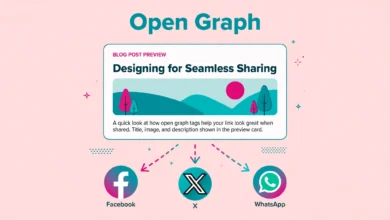
Twitter Cards and Open Graph tags are cousins, not rivals. Open Graph is the older and wider standard, defined at ogp.me, and it is used by Facebook, LinkedIn, WhatsApp, and most other platforms. Twitter Cards were built on top of it for X. Both sets cover title, description, and image, but use different tag names.
The practical rule is to output both sets. Open Graph tags cover every platform except X, and Twitter Card tags cover X with the card type that Open Graph cannot express. When only Open Graph is present, X falls back to it but picks the card type itself. When only Twitter Card tags are present, Facebook and LinkedIn ignore them and show a plain link, so never rely on twitter: tags alone. Keep the two sets consistent: same title, same description, same image.
Frequently Asked Questions
Do Twitter Cards still work after the Twitter to X rebrand?
Yes. X still reads the same twitter:card, twitter:title, twitter:description, and twitter:image meta tags. The rebrand changed the platform name and logo, not the markup.
Why does my card show the wrong image?
The usual causes are a missing featured image, a duplicate set of tags from an SEO plugin, or a stale cache. Check the page source for two twitter:image tags, set a featured image on the post, clear every cache layer, and run the URL through the Card Validator again.
Do I need the twitter:site tag?
No, it is optional. The twitter:site tag adds your X handle to the card. The card renders correctly without it, so skip it if you do not have an X account for the site.
Will Twitter Cards work if I do not use a plugin?
Yes. The snippet in this guide adds the tags with plain WordPress code, and it needs no plugin beyond Code Snippets to hold it, or a child theme if you prefer. A plugin only adds a settings screen, so the manual method gives you full control and one less plugin to maintain.
Last updated: November 2026.