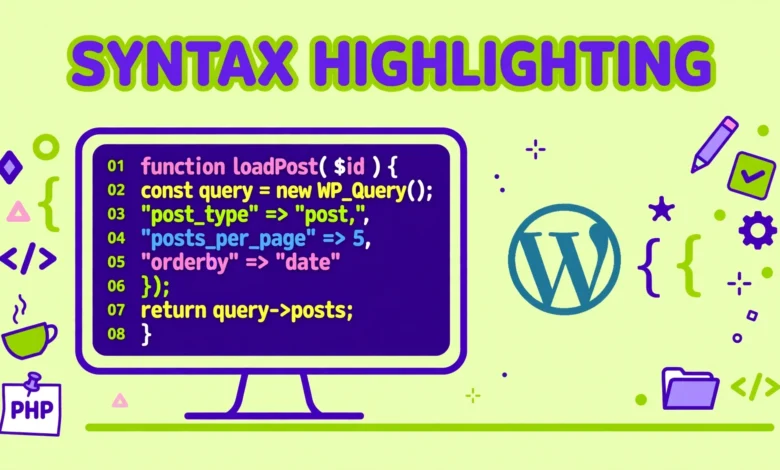
If you publish tutorials, code snippets, or development notes on your WordPress site, you know the problem. You paste code into a code block, publish the post, and the result looks flat and grey. Keywords, strings, comments, and function names all blend into one dull wall of text, and your readers have to work hard to follow even a short example.
Syntax highlighting fixes that. It colours each part of the code by its role, so keywords stand out in one colour, strings in another, and comments fade into the background. Readers can scan a snippet in seconds, spot the important lines, and copy the code with confidence. It makes a tutorial feel professional instead of thrown together.
You do not need a plugin to get this. Two small JavaScript libraries, Highlight.js and Prism.js, do the whole job from a CDN, and you can load either one with a few lines of code in your theme. This guide compares both libraries, shows you the exact code to add, explains where to put it safely, and covers styling, a copy button, and performance.
Why Do Plain Code Blocks Look So Dull?
The default WordPress code block uses a monospace font and a light grey background, but it applies no colour at all. Every character looks the same, so the structure of the code disappears. A missing bracket or a wrong variable name is hard to spot, and a long snippet becomes tiring to read. For a tutorial site, that is a real problem, because the code is the whole point of the article.
Good highlighting works like good typography. It creates a visual hierarchy that guides the eye. A reader sees the shape of a function before reading a single word, notices a string at a glance, and skips comments without losing the thread. That small change makes readers stay longer, trust your content more, and come back for the next tutorial.
Highlight.js vs Prism.js: Which One Should You Choose?
Highlight.js and Prism.js are the two most popular highlighting libraries, and both are free and open source. They work in a similar way, but they differ in how they detect languages and how much control they give you.
Highlight.js detects the language automatically. You load the library, call one function, and it guesses whether a block is PHP, JavaScript, CSS, or something else. That makes it the easiest option, especially if your posts mix several languages. It supports almost two hundred languages, it has many ready made themes, and it needs almost no setup. The downside is that automatic detection can occasionally guess wrong on very short snippets.
Prism.js takes the opposite approach. It reads a language class on each code block, such as language-php or language-javascript, and highlights the block with that language. That gives you precise control, and it never guesses wrong, but you must add the right class to every block. Prism also has a plugin system, so you can add features like line numbers, a copy button, or an autoloader that fetches language files on demand.
For most WordPress sites, Highlight.js is the quicker win, because you set it up once and it works on every code block. Choose Prism if you want exact control over each block or you plan to use its extra plugins. Both libraries are tiny, both load from a CDN, and either one is a big upgrade over plain grey code.
How to Add Highlight.js to WordPress
The correct way to load a script in WordPress is to enqueue it from your functions.php file. Never paste script tags directly into your theme header, because that bypasses dependency handling and can break other scripts. The snippet below loads Highlight.js and a theme from the cdnjs CDN, then runs the highlighter on every code block.
function vtg_add_highlight_js() {
    wp_enqueue_style( 'highlight-style', 'https://cdnjs.cloudflare.com/ajax/libs/highlight.js/11.9.0/styles/github-dark.min.css' );
    wp_enqueue_script( 'highlight-script', 'https://cdnjs.cloudflare.com/ajax/libs/highlight.js/11.9.0/highlight.min.js', array(), '11.9.0', true );
    wp_add_inline_script( 'highlight-script', 'hljs.highlightAll();' );
}
add_action( 'wp_enqueue_scripts', 'vtg_add_highlight_js' );
Let us break that down. The wp_enqueue_style call loads the colour theme, and github-dark is just one of many choices. Other popular themes include atom-one-dark, vs2015, and stackoverflow-light, and you can swap the file name to try them. The wp_enqueue_script call loads the library itself, with the final true argument placing it in the footer so it does not block the page. The wp_add_inline_script call runs hljs.highlightAll() after the library loads, which scans the page for code blocks and highlights them.
How to Add Prism.js to WordPress
Prism needs a language class on each block, so the setup has two parts: load the library, and make sure your code blocks carry the right class. The snippet below loads Prism core, its default theme, and the autoloader plugin, which fetches language files on demand instead of loading them all at once.
function vtg_add_prism_js() {
    wp_enqueue_style( 'prism-style', 'https://cdnjs.cloudflare.com/ajax/libs/prism/1.29.0/themes/prism-tomorrow.min.css' );
    wp_enqueue_script( 'prism-script', 'https://cdnjs.cloudflare.com/ajax/libs/prism/1.29.0/prism.min.js', array(), '1.29.0', true );
    wp_enqueue_script( 'prism-autoloader', 'https://cdnjs.cloudflare.com/ajax/libs/prism/1.29.0/plugins/autoloader/prism-autoloader.min.js', array( 'prism-script' ), '1.29.0', true );
}
add_action( 'wp_enqueue_scripts', 'vtg_add_prism_js' );
The autoloader is the key part. Without it, you must load every language file yourself, which wastes bandwidth. With it, Prism downloads only the languages your page actually uses. The theme file prism-tomorrow gives you a dark editor style, and you can switch it to prism, prism-coy, or prism-okaidia to change the look.
To use Prism in the block editor, add a language class to your code block. Select the block, open the Advanced panel in the sidebar, and type language-php or language-javascript in the additional CSS class field. Prism reads that class and highlights the block with the matching language. For more detail on how Prism reads classes, the official Prism documentation explains the full list of supported languages.
Where Should You Add the Code Safely?
Never add code directly to your parent theme files. The next theme update will overwrite your changes, and your highlighting will vanish without warning. You have two safe options: a child theme or the Code Snippets plugin.
A child theme is the classic choice. It inherits everything from the parent theme, and your custom functions.php survives updates. If you already use a child theme, add the snippet to its functions.php file and you are done. Our guide on how to add custom CSS in WordPress explains the child theme idea in more detail, and the same principle applies to custom PHP.
The Code Snippets plugin is the easier choice if you do not want to manage a child theme. It lets you save PHP snippets from the dashboard, turn them on and off with a toggle, and export them for another site. Paste the enqueue function into a new snippet, set it to run on the front end only, and activate it. If anything goes wrong, you can deactivate the snippet in one click instead of editing files. Either route works, so pick the one that fits how you manage your site.
How to Style Your Code Blocks
Both libraries ship with themes, but a little custom CSS makes the blocks match your site. Common tweaks include a larger font size, more padding, rounded corners, and a scroll bar for long lines. Add your CSS in the Customizer under Additional CSS, or in your child theme stylesheet, so it survives updates.
pre.wp-block-code {
    border-radius: 8px;
    padding: 20px;
    font-size: 15px;
    line-height: 1.6;
    overflow-x: auto;
}
Test your styles on a real post, not just in the editor. Colours that look good in the editor can be hard to read on the live site, especially on mobile screens. Check that long lines scroll sideways instead of breaking the layout, and that the text is large enough to read on a phone. If you also add custom JavaScript to your site, our guide on how to add custom JavaScript in WordPress without a plugin shows the same safe enqueue pattern used in this guide.
How to Add a Copy Button to Code Blocks
Readers love a copy button. It lets them grab a snippet in one click instead of selecting text by hand, which is awkward on mobile and error prone on long blocks. Prism has a copy to clipboard plugin that adds the button for you, while Highlight.js needs a small custom script.
For Prism, load the toolbar plugin and the copy to clipboard plugin from the same CDN, then add the matching CSS file. The button appears in the top right corner of every code block. For Highlight.js, a short script can create a button for each pre element, attach a click handler, and use the browser clipboard API to copy the block text. Keep the script small and load it in the footer, next to the library itself, so it runs after the code blocks exist on the page.
How to Keep Syntax Highlighting Fast
Highlighting libraries are small, but loading them on every page still costs something. Most of your pages probably contain no code at all, so there is no reason to load the library there. The fix is conditional loading: wrap your enqueue function in a check that runs only on single posts.
function vtg_add_highlight_js() {
    if ( ! is_single() ) {
        return;
    }
    wp_enqueue_style( 'highlight-style', 'https://cdnjs.cloudflare.com/ajax/libs/highlight.js/11.9.0/styles/github-dark.min.css' );
    wp_enqueue_script( 'highlight-script', 'https://cdnjs.cloudflare.com/ajax/libs/highlight.js/11.9.0/highlight.min.js', array(), '11.9.0', true );
    wp_add_inline_script( 'highlight-script', 'hljs.highlightAll();' );
}
add_action( 'wp_enqueue_scripts', 'vtg_add_highlight_js' );
The is_single() check means the library loads only on individual post pages, not on your homepage, archive pages, or contact page. That keeps the rest of your site fast while your tutorials still look great. If you also publish code on pages rather than posts, extend the condition with is_page(), or check for a specific category instead.
Two more habits are worth keeping. Always load the library in the footer, using true as the last argument of wp_enqueue_script, so it never blocks the first paint of the page. Use the minified files from the CDN, and avoid loading both Highlight.js and Prism.js at the same time. Pick one library and stick with it. For background on how WordPress loads scripts, the official documentation on including CSS and JavaScript explains the enqueue system in depth.
Frequently Asked Questions
Do I need a plugin for syntax highlighting in WordPress?
No, you do not need a plugin. Highlight.js or Prism.js loaded from a CDN with a short enqueue snippet gives you full syntax highlighting. A plugin only wraps the same libraries, so doing it yourself saves overhead and keeps you in control of the code.
Which is better, Highlight.js or Prism.js?
Highlight.js is better if you want the easiest setup, because it detects languages automatically and works on every code block at once. Prism.js is better if you want exact control per block and extra features like line numbers or a copy button through its plugins. Both are free, fast, and widely used.
Will syntax highlighting slow down my site?
It adds very little weight if you load it well. Use the minified files, load them in the footer, and load them only on single posts with the is_single() check shown above. Your homepage and archive pages will not load the library at all, so most visitors will never download it.
Does syntax highlighting work with the Gutenberg code block?
Yes, it works with the standard Gutenberg code block. Highlight.js scans the page and highlights every code block automatically. Prism reads the language class on each block, so you add a class like language-php in the block Advanced settings. Both libraries also work with the classic editor and with code pasted into custom HTML blocks. If you build tutorials that pull live data, our guide to the WordPress REST API explained for beginners shows how to fetch content without extra plugins.
Last updated: November 2026.