The footer sits at the bottom of every page on your WordPress site, which makes it one of the most seen parts of your website. A custom footer lets you add useful links, a short about blurb, social icons, a newsletter signup, and a copyright line that actually matches your brand.
The good news is that you do not need a plugin to build one. WordPress gives you several built in ways to customize the footer, and the right method depends on the theme you use. This guide walks through every option, from the beginner friendly Full Site Editor and Customizer to the code based child theme and hook methods, so you can pick the one that fits your comfort level and get a professional footer live today. If you already use Elementor Pro, its Theme Builder can also design a footer visually, though the free methods below need no paid upgrade.
What Is the WordPress Footer and What Should It Contain?
The footer is the area at the bottom of your site that appears on every page and post. Most themes ship with a default footer that shows a copyright line, a link to WordPress, and maybe a widget area. That default is functional, but it says nothing about your business, and it sends visitors to WordPress.org instead of to your own pages.
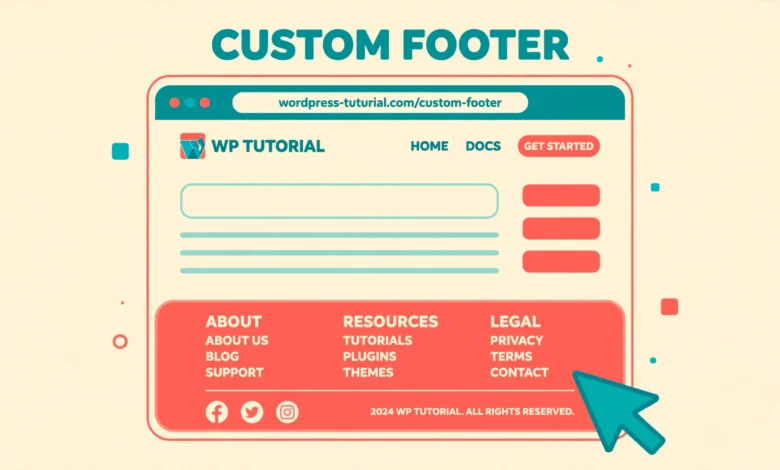
A good custom footer usually contains a short description of your site, links to your most important pages, social media icons, contact information, and a copyright notice with the current year. The key is to keep it useful and uncluttered, because a footer stuffed with dozens of links helps nobody.
Which Footer Method Should You Use?
WordPress themes fall into two groups, and the method you choose depends on which group your theme belongs to. Block themes, such as Twenty Twenty Four, use the Full Site Editor, and you can edit the footer visually like any other part of the site. Classic themes, such as Astra or GeneratePress, use the Customizer and widget areas, and deeper changes need a child theme. If you are not sure which type you have, go to Appearance in your dashboard. If you see an Editor menu item, you have a block theme. If you see Customize instead, you have a classic theme.
- Block theme: use the Full Site Editor, the fastest visual method with no code at all.
- Classic theme: use the Customizer and footer widgets for layout and content changes.
- Full control: edit footer.php in a child theme when you want a completely custom layout.
- Small additions: use the wp_footer hook to inject a line of text, a script, or a small block without touching template files.
Method 1: How to Customize the Footer With the Full Site Editor
If your theme is a block theme, the Full Site Editor is the easiest way to add a custom footer in WordPress without a plugin. Everything happens in a visual editor, and your changes apply site wide the moment you save. Open your dashboard, go to Appearance, then Editor, and click the footer area at the bottom of the preview. You can also open the Template Parts panel and select Footer to edit it directly.
Inside the footer template part, you can add the same blocks you use in posts and pages. A Columns block gives you the classic multi column footer layout, with one column for an about blurb, one for quick links, and one for contact details. Add a Paragraph block for your copyright text, a Social Icons block for your profiles, and a Navigation block for your important pages. Set the background color and padding in the block settings sidebar until the design matches your brand, then click Save.
Method 2: How to Customize the Footer With the Customizer and Widgets
Classic themes do not have the Full Site Editor, but they usually ship with footer widget areas and Customizer controls. Go to Appearance, then Customize, and look for a Footer or Footer Widgets section. Many themes let you pick the number of footer columns, the background color, and the text color from here.
To add content, go to Appearance, then Widgets, and find the widget areas named Footer 1, Footer 2, Footer 3, or similar. Drag a Text widget into each area for a short blurb, a Navigation Menu widget for a link list, or a Custom HTML widget for social icons or a small piece of markup. If your theme also offers a footer menu location, create a menu under Appearance, then Menus, assign it to the footer location, and those links will appear in your footer automatically.
The widget method is simple, but it has limits. You cannot build complex multi column layouts with it, and the design depends heavily on what your theme supports. If you want full control over the layout in a classic theme, the child theme method below is the better choice. Before you start editing theme files, read our guide on how to create a WordPress child theme, because every code change in this guide belongs in a child theme, never in the parent theme.
Method 3: How to Edit footer.php in a Child Theme
Editing footer.php gives you complete control over the footer markup. This method is best when you want a custom layout that widgets and the Customizer cannot produce, such as a footer with a logo, four link columns, and a bottom bar with a copyright line and social icons all in one row. First, make sure you have an active child theme, then copy footer.php from the parent theme into the child theme folder. WordPress will use the child theme copy automatically, and your changes will survive parent theme updates.
Open the copied footer.php in the Theme File Editor or your code editor and find the footer element. You can replace its contents with your own HTML, using standard WordPress template tags to keep things dynamic. The snippet below shows a simple custom footer that prints the site name and the current year automatically, with a link to the privacy policy page. Replace the page link with your own URL before you save.
<footer id=”colophon” class=”site-footer”>
<div class=”footer-inner”>
<p>© <?php echo date( ‘Y’ ); ?> <?php bloginfo( ‘name’ ); ?>. All rights reserved.</p>
<p><a href=”/privacy-policy/”>Privacy Policy</a> | <a href=”/contact/”>Contact</a></p>
</div>
</footer>
Method 4: How to Add Footer Content With the wp_footer Hook
Sometimes you do not need a whole new footer, only a small addition such as a disclaimer line, a tracking script, or a back to top button. The wp_footer hook is the clean way to add it. Add the snippet below to the functions.php file of your child theme, and WordPress will output your content just before the closing body tag on every page. This method keeps your template files untouched, which makes it easy to remove the addition later.
function my_custom_footer_note() {
echo ‘<p class=”footer-note”>Questions? Email us at hello@example.com and we will reply within one working day.</p>’;
}
add_action( ‘wp_footer’, ‘my_custom_footer_note’ );
How to Change the Footer Copyright Text
The copyright line is the most commonly changed part of a footer, and the method depends on your theme. In a block theme, click the footer in the Full Site Editor and edit the paragraph that holds the copyright text. In a classic theme, check the Customizer first, because many themes include a Footer Copyright or Footer Text field where you can type your own line. Some themes hide it under Theme Options or a dedicated footer settings page instead, so check your theme documentation if the Customizer shows nothing.
If your theme hard codes the copyright text with no setting to change it, the child theme footer.php edit is the fix. Find the line that prints the copyright or the “Proudly powered by WordPress” text, replace it with your own line, and use the date function shown above so the year updates itself. We have a dedicated guide on how to remove the Powered by WordPress footer text if that is the only change you need, and it covers the Customizer, hook, and child theme routes in detail.
How to Add Links and Social Icons to Your Footer
Footer links help visitors find your key pages and help search engines understand your site structure, so choose them with care. Link to your About page, Contact page, Privacy Policy, Terms page, and your most important service or category pages. Avoid linking to every page you own, because a footer with fifty links looks like spam and helps nobody.
Social icons are just as simple. In a block theme, add the Social Icons block and enter the URL of each profile. In a classic theme, add a Custom HTML widget with linked icons, or use a Navigation Menu with social profile links if your theme styles social menus. A dead social profile in the footer is worse than no link at all.
If you run a site that depends on good hosting, remember that footer changes are only part of the picture. A slow host makes even the best designed footer feel broken, so it is worth reading our web hosting guide if your site still loads slowly after your design work is done. Good hosting also keeps your footer edits safe, because a reliable host with daily backups lets you roll back instantly if a template edit goes wrong.
Common Footer Mistakes to Avoid
- Editing the parent theme directly, so your footer disappears at the next theme update.
- Deleting the wp_footer() call, which breaks plugins and scripts that depend on it.
- Stuffing the footer with dozens of links, which looks spammy and helps neither visitors nor SEO.
- Forgetting the mobile view, because a four column footer can turn into a long cramped stack on phones.
- Leaving a wrong year or a dead social link, which makes the site look abandoned.
Frequently Asked Questions
Can I customize the WordPress footer without a plugin?
Yes, you can customize the footer without any plugin. Block themes use the Full Site Editor, classic themes use the Customizer and footer widgets, and advanced users can edit footer.php in a child theme or add content with the wp_footer hook. All four methods are built into WordPress and need no extra plugin at all.
How do I change the copyright text in my WordPress footer?
Check the Customizer first, because many themes include a footer text field. In a block theme, edit the footer template part in the Full Site Editor. If your theme offers no setting, edit footer.php in a child theme and replace the hard coded copyright line with your own text, using the PHP date function so the year updates automatically.
Where is the footer.php file in WordPress?
footer.php lives in your active theme folder, under wp-content/themes/your-theme-name/. Copy it into your child theme folder before editing, and WordPress will use the child theme copy. You can reach it through Appearance, then Theme File Editor in the dashboard, or through FTP and your hosting file manager.
Will changing my footer affect my SEO?
A footer change can help SEO when it adds useful internal links to important pages, because those links appear site wide and pass authority to the pages they point to. It can hurt SEO if you stuff it with keyword rich links or link to low quality pages. Keep footer links few, relevant, and genuinely useful, and your footer will support your SEO instead of harming it. You can learn more about the official template system in the WordPress theme template files documentation.
Last updated: November 2026.