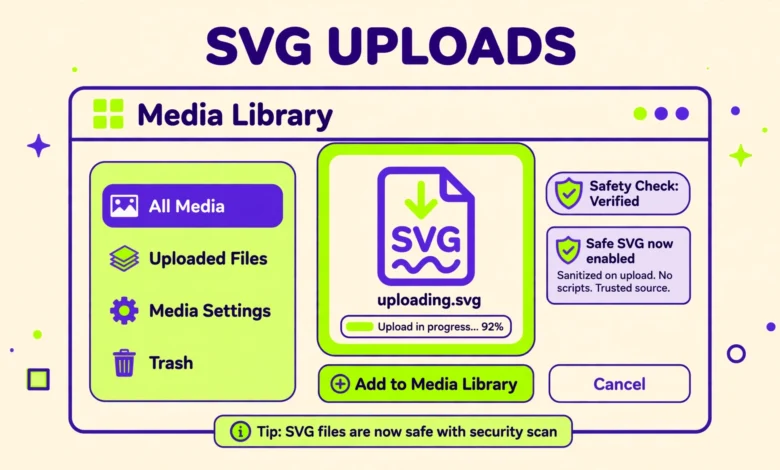
SVG files are the best format for logos, icons, and simple illustrations on the web. They stay sharp at any size, they are tiny compared to PNG files, and you can style them with CSS. Yet when you try to upload one to WordPress, the media library rejects it with a message that says the file type is not permitted for security reasons. That block is deliberate, and before you remove it, you should understand why it exists.
This guide shows how to allow SVG uploads in WordPress without a plugin, using a small code snippet in your child theme. It also explains the security risk that makes SVG different from other image formats, why one popular shortcut is dangerous and must never be used, and why most site owners are better off with a sanitizing plugin instead of the code method. Read the security section before you paste any code.
Why Does WordPress Block SVG Uploads by Default?
WordPress blocks SVG uploads because an SVG file is not just an image. It is an XML document, and XML can contain JavaScript and links to outside resources. A malicious SVG uploaded by a low trust user could run a script in the browser of anyone who views it, which is a classic stored cross site scripting attack. PNG and JPG files cannot carry executable code in this way, so WordPress allows them freely, but SVG gets special treatment because the risk is real.
That risk is manageable when only a trusted site administrator uploads SVG files, because an administrator can already run code on the site anyway. The danger appears when authors, contributors, or shop customers can upload media. If any of those roles can upload SVG files, a compromised account can plant a malicious file that attacks every visitor who sees it. Keep that distinction in mind for the rest of this guide, because every safe method below depends on it.
How to Allow SVG Uploads With the upload_mimes Snippet
The code method adds SVG to the list of file types WordPress accepts. Add the snippet below to the functions.php file of your child theme, never to the parent theme, because a theme update would wipe it out. If you do not have a child theme yet, follow our guide on how to create a WordPress child theme first. It takes a few minutes and protects every customization you make from updates.
function my_allow_svg_uploads( $mimes ) {
$mimes[’svg’] = ‘image/svg+xml’;
return $mimes;
}
add_filter( ‘upload_mimes’, ‘my_allow_svg_uploads’ );
Save the file, then test it right away. Go to Media, then Add New, and upload a simple SVG file such as your logo. If the upload succeeds, the snippet works. If WordPress still rejects the file, your host may have a server level block on SVG uploads, or a security plugin may be enforcing its own allowed file list. Check your security plugin settings first, then ask your host whether SVG uploads are restricted at the server level.
One quirk to expect is that SVG files show no thumbnail preview in the media library, because WordPress does not generate image sizes for SVG files the way it does for JPG and PNG. Your logo will still display correctly on the front end, but the media library will show a generic icon instead of a preview. If you need previews, the Safe SVG plugin mentioned below adds them, and it also adds the sanitization that the raw code snippet does not provide.
How to Restrict SVG Uploads to Administrators Only
The snippet above allows SVG uploads for every user role that can upload media, which is too broad for most sites. The safer version checks the current user role and only adds SVG support for administrators. Replace the snippet above with this version if anyone other than you can upload files to your site, including authors, editors, shop managers, or customers with upload access.
function my_allow_svg_admin_only( $mimes ) {
if ( current_user_can( ‘manage_options’ ) ) {
$mimes[’svg’] = ‘image/svg+xml’;
}
return $mimes;
}
add_filter( ‘upload_mimes’, ‘my_allow_svg_admin_only’ );
The manage_options capability belongs to administrators only, so authors and contributors will still see the usual rejection message while you can upload SVG files freely. This one change turns a risky snippet into a reasonably safe one for single author sites. On a site with several administrators, remember that any of them can now upload SVG files, so the rule only protects you from lower roles, not from a compromised admin account. Keep your admin accounts few and protected with strong passwords and two factor authentication, as part of general good hosting and site security practice.
Why You Must Never Use ALLOW_UNFILTERED_UPLOADS
If you search for this topic online, you will find tutorials that recommend adding a line to wp-config.php that sets ALLOW_UNFILTERED_UPLOADS to true. Do not do this. That constant removes all file type restrictions for administrators, which means any file type can be uploaded, including PHP scripts that can take over your entire site. It is the equivalent of removing the locks from every door because you want to let one guest inside.
The constant exists for rare cases such as a multisite network administrator who genuinely needs to upload unusual file types, and even there it is a last resort. For allowing SVG uploads, the upload_mimes snippet is the correct tool, because it adds one file type and nothing else. If a tutorial tells you to enable ALLOW_UNFILTERED_UPLOADS for SVG uploads, that tutorial is giving dangerous advice, and you should ignore it completely.
What Is SVG Sanitization and Why Does It Matter?
Even an administrator uploaded SVG can be risky if the file came from an untrusted source, such as a free icon pack downloaded from a random website. Sanitization means scanning the SVG file and removing any scripts, event handlers, and outside references before the file is stored. The raw upload_mimes snippet does no sanitization at all, so a malicious SVG uploaded through it stays malicious. That is the main weakness of the code only approach.
A proper sanitizer strips dangerous elements from the SVG while keeping the shapes, colors, and paths that make up the image. It runs automatically on every upload, so you do not need to inspect files by hand. Building your own sanitizer in a snippet is not practical, which is why the plugin route exists. If you download SVG files from the internet and upload them to your site, sanitization is not optional, it is the only thing standing between a pretty icon and a stored script attack.
The Safer Alternative: Use the Safe SVG Plugin
Here is the honest note this guide promised. For most site owners, the Safe SVG plugin is the better choice than the code snippet. It enables SVG uploads, sanitizes every file on upload, adds thumbnail previews in the media library, and lets you choose which user roles may upload SVG files, all from a settings page. It does in one install what the snippet cannot do at all, and it is maintained by developers who track SVG security issues as their job.
The code method in this guide is still useful when you want zero extra plugins, you are the only person who uploads files, and you only use SVG files you created yourself or got from a source you trust completely. In every other case, install Safe SVG and skip the snippet. A small well maintained plugin that closes a real security hole is worth far more than the satisfaction of doing it with code alone. This is one of those cases where the plugin free route is possible but not the smartest choice for most people.
If you do use the plugin, install it from the WordPress plugin directory, activate it, and test an SVG upload right away. The plugin enables uploads immediately with no settings to configure, though you can open Settings, then Safe SVG to adjust which roles are allowed. Remove the upload_mimes snippet from your child theme if you switch to the plugin, because running both at once is redundant and can cause confusion about which method is actually in control.
How to Test SVG Uploads and Use Them on Your Site
After you enable SVG support, upload a test file and confirm it appears in the media library without an error. Then add it to a page using the Image block or your theme logo setting, and view the page in a private browser window to confirm it renders. SVG files scale perfectly, so a logo uploaded as SVG will look sharp on retina screens and large monitors without any extra work. For more on getting the most from your images, read our WordPress image SEO tips, which cover file naming, alt text, and compression for the rest of your media.
Keep SVG for logos, icons, and simple graphics. Photographs and detailed illustrations still belong in JPG or WebP, because converting a photo to SVG produces a huge file with no benefit. If you want to style an SVG with your theme colors, you can add custom CSS rules that target it, and our guide on how to add custom CSS in WordPress shows how. Custom fonts pair well with SVG logos too, and our guide on how to add custom fonts in WordPress without a plugin covers loading font files that match your new logo.
How to Remove SVG Support Again
If you change your mind, removing SVG support is simple. Delete the upload_mimes snippet from your child theme functions.php file and save. Existing SVG files already uploaded will stay on the site and keep working, but nobody will be able to upload new ones. To remove the files themselves, open the media library, delete each SVG attachment, and check your pages for broken image references where those files were used.
If you used the Safe SVG plugin instead, deactivate and delete the plugin, which removes SVG support immediately. The same rule applies: already uploaded files stay in place until you delete them manually. Before you remove support entirely, make sure no logo or icon on your live site depends on an SVG file, or you will trade a security decision for a broken header.
Frequently Asked Questions
Why is SVG not allowed in WordPress by default?
WordPress blocks SVG by default because SVG files are XML documents that can contain JavaScript. A malicious SVG uploaded by an untrusted user could run a script in the browsers of visitors who view it. PNG and JPG files cannot carry code this way, so they are allowed, while SVG stays blocked until a site owner deliberately enables it.
Is it safe to allow SVG uploads in WordPress?
It is reasonably safe when only administrators can upload SVG files and the files are sanitized on upload. The Safe SVG plugin provides that sanitization automatically. The raw upload_mimes snippet with no role restriction and no sanitization is not safe on a site where lower roles can upload media. Never enable ALLOW_UNFILTERED_UPLOADS, because it removes all upload restrictions at once.
Can I allow SVG uploads in WordPress without a plugin?
Yes, add an upload_mimes filter to your child theme functions.php that maps the svg extension to the image/svg+xml mime type, and restrict it to administrators with a current_user_can check. The official upload_mimes hook documentation lists the filter signature and the mime types WordPress accepts. Test the upload in Media, then Add New, to confirm it works.
Why does my SVG show no preview in the media library?
WordPress does not generate thumbnail sizes for SVG files, so the media library shows a generic file icon instead of a preview. The image still displays correctly on the front end. The Safe SVG plugin adds proper previews in the media library, which is one more reason many site owners prefer it over the code snippet. You can read the official list of allowed file types in the WordPress media upload documentation.
Last updated: November 2026.