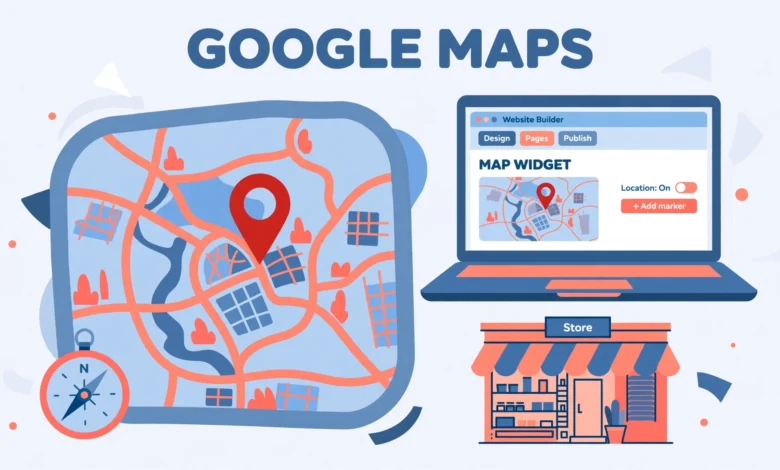
A map on your contact page answers the one question every visitor asks before they visit you: where exactly are you? A plain street address forces visitors to copy it into another app, and many will not bother. An interactive map lets them zoom, drag, and open directions in one tap. If your business has a physical location, a map is one of the highest value additions you can make to a page.
Elementor Free includes a Google Maps widget, so you do not need Elementor Pro or a paid addon. There is one catch: the widget needs a Google Maps API key before it will show anything. The key is free to create, and most small sites stay inside the free usage tier, but you do need a Google Cloud project with billing enabled to get one. If that sounds like too much work, a second route needs no key at all, and this guide covers both, plus fixes for the most common problems.
Does Elementor Free have a Google Maps widget?
Yes. The Google Maps widget is part of Elementor Free, and you will find it in the widget panel under the Basic section. Drag it onto any section and it shows a map centred on a default location. The widget lets you set the address or coordinates, the zoom level, the map height, and the map type, with satellite and street views available. You can also turn off scroll wheel zoom so the map does not hijack the page scroll when a visitor scrolls past it.
One detail confuses many beginners: the widget is free, but the map data is not free of setup. Elementor loads the map through the Google Maps JavaScript API, and Google only serves that API to requests that carry a valid API key. Without a key, the widget shows a grey box or an error message instead of a map. That is expected behaviour, not a bug in Elementor. The next sections walk through the setup in order. If you are new to Elementor overall, our Elementor Free vs Pro comparison explains which widgets are free and which need the paid version.
What do I need before I add a map?
Get these ready before you touch Elementor. Most failed map setups fail because one of them was skipped.
- A Google account. Any normal Gmail account works, and the same account can hold the Cloud project.
- A Google Cloud project with the Maps Embed API and Maps JavaScript API enabled. The next section shows how to create both.
- A billing account attached to that Cloud project. Google requires a card on file even for free usage, and charges only apply past the free monthly allowance.
- The exact address or coordinates of the place you want to show. Coordinates are more reliable for businesses in new developments or rural areas.
- Administrator access to your WordPress dashboard, so you can open Elementor settings and save the key.
How do I create a Google Maps API key?
Creating the key takes about ten minutes. Work through the steps in order, and do not skip the restrictions step at the end, because an unrestricted key is a security risk.
- Go to the Google Cloud Console and sign in with your Google account, then create a new project and give it a clear name such as your site name.
- Open the billing section and attach a billing account to the project. A card is required, but Google gives a recurring monthly credit for Maps usage, and a single embedded map on a normal site stays well inside that credit.
- Open APIs and Services, then Library, and enable the Maps JavaScript API and Maps Embed API for the project.
- Open APIs and Services, then Credentials, and click Create Credentials, then API key. Google shows the new key once.
- Click Restrict key before you use it anywhere. Under API restrictions, allow only the Maps JavaScript API and Maps Embed API. Under website restrictions, add your domain as an HTTP referrer, so the key cannot be used on other sites.
- Copy the key and store it somewhere safe, such as a password manager, until you paste it into Elementor.
The billing requirement worries a lot of site owners, so it is worth stating plainly. Google Maps Platform gives every billing account a monthly credit, and one map on a contact page generates a tiny number of map loads compared with that credit. You can also set a daily budget cap in the Cloud Console so usage can never run away. The official documentation at Google Maps Platform lists the current pricing and the free monthly credit.
Where do I paste the API key in Elementor?
Open your WordPress dashboard and go to Elementor, then Settings, then the Integrations tab. Scroll to the Google Maps section and paste your API key into the field. Save the changes. That is the whole step. Every Google Maps widget on your site will now use this key, so you only do this once, no matter how many pages carry a map.
Test the key straight away. Open a page in the editor, drag the Google Maps widget onto a section, and see whether a real map appears. If it does, the key is working and you can move on to styling. If it shows a grey box or an error, check the troubleshooting section at the end of this guide before you regenerate the key, because the most common cause is a restriction set too tightly, not a bad key. If you ever need to change the key, return to the same Integrations tab, replace it, and save.
How do I add a map with the Elementor Google Maps widget?
With the key saved, the widget takes a minute. Open the page in the editor and drag the Google Maps widget into the section where the map should appear. A default map shows immediately, and you change it from the Content tab.
- In the Location field, type your business address and pick the correct result from the suggestions, or paste latitude and longitude coordinates for an exact pin.
- Set the zoom level. A zoom of 14 to 16 works for a single shop or office, while 12 or 13 is better if you want visitors to see the surrounding neighbourhood.
- Set the height. A height of 350 to 450 pixels works well on desktop and still looks fine on mobile, while a full width map can go taller.
- Pick the map type. The standard roadmap view suits most business pages, and satellite view suits venues such as farms, resorts, or event spaces.
- Turn on Prevent Scroll so the map stays still while visitors scroll the page. This stops the frustrating moment when a visitor tries to scroll past the map and zooms it instead.
Use the Style tab to match the map to your page. Set a border, rounded corners, and spacing so it sits cleanly inside your layout. On a contact page, place the map below the contact form or beside your address details, and test it on a phone, because a map that looks fine on desktop can feel cramped on a small screen. If your contact page is still taking shape, our guide on how to add a contact form in Elementor pairs naturally with this one, since the form and the map usually share the same page.
How do I add Google Maps in Elementor without an API key?
If you do not want a Google Cloud account or a billing card on file, embed a map without any key. Google Maps itself offers a Share option that produces an iframe embed code, and you can paste that code into an Elementor HTML widget. The result is a real interactive map with zoom and drag, and it costs nothing.
- Open Google Maps in your browser and search for your business or address.
- Click Share, then switch to the Embed a map tab.
- Pick a size, or choose Custom size, then copy the iframe code Google shows you.
- In Elementor, drag an HTML widget onto your page and paste the iframe code into it. Update the page and check the map on the front end.
<iframe src="https://www.google.com/maps?q=London&output=embed" width="100%" height="400" style="border:0;" loading="lazy"></iframe>The example above shows the structure of an embed iframe. The real code you copy from Google Maps will have a longer URL with your location encoded in it, so always copy it from Google Maps rather than typing it by hand. Add loading=”lazy” so the map does not slow down the first paint of your page. Keep the width at 100 percent so the map stretches to its container on mobile. The iframe method has limits: you cannot change the pin style or map type, or style it from the Style tab the way you can with the real widget. For most contact pages those limits do not matter. If you later want more control, switch to the API widget method above. For more ways to place content without plugins, see our guide on how to add custom CSS in WordPress, which is handy when you want to style an embedded map container.
Why is my Google Map not showing in Elementor?
A blank map has a short list of usual causes. Work through them in order without touching your theme or reinstalling Elementor.
- No API key saved. Go to Elementor, then Settings, then Integrations, and confirm the Google Maps key field is filled and saved.
- APIs not enabled. In the Cloud Console, check that both the Maps JavaScript API and the Maps Embed API are enabled for the same project that owns your key.
- Referrer restriction mismatch. If you restricted the key to your domain, make sure the restriction matches the domain visitors actually see, including the www version if your site uses it.
- Billing not enabled. Google returns an error instead of map tiles when the project has no billing account, even if usage would have been free.
- Caching. A caching plugin or your browser cache can show an old grey box after you fix the key. Clear the cache and hard refresh.
- A JavaScript error from another plugin. Open the browser console, look for errors, and temporarily deactivate other map or optimisation plugins to find a conflict.
One more check is worth doing before you ask for help: open the page in a private browser window while logged out of WordPress. The editor preview and the live page can behave differently, and a map that works in the editor but not for visitors is usually a caching or restriction issue. Fix the cause, clear the cache, and recheck the live page.
Frequently asked questions
Can I add Google Maps in Elementor Free without paying?
Yes. The Google Maps widget is free in Elementor Free. The API key needs a Google Cloud project with billing enabled, but normal small site usage stays inside the free monthly credit. If you want no billing at all, use the iframe embed method with an HTML widget.
Why does the Elementor Google Maps widget show a grey box?
A grey box usually means the API key is missing, the Maps JavaScript API is not enabled, billing is not attached to the project, or the key restriction does not match your domain. Check those four things, then clear your cache and reload the page.
Is the Google Maps iframe embed method safe?
Yes, as long as you copy the code from Google Maps itself. It is a standard embed that Google provides for sharing, it needs no API key, and it loads over HTTPS. It has fewer styling options than the widget.
Do I need Elementor Pro to add a map?
No. Both methods in this guide work with Elementor Free. Elementor Pro adds many other widgets, but Google Maps is not one of them, so there is no reason to upgrade for a map.
Last updated: November 2026.