The WordPress dashboard greets you with the same dark grey and blue look every day, yet few site owners know they can change it in seconds. WordPress ships with nine built-in admin color schemes, from a bright Light scheme to a deep Midnight scheme, and each one restyles the admin menu, toolbar, buttons, and links. A scheme that suits your eyes makes long editing sessions easier, and a branded scheme makes client dashboards feel like your own product.
This guide covers all three ways to change the scheme. You can pick a different scheme for your own account, force one scheme for every user with a small filter, or build a fully custom scheme in your brand colors. It also explains why the scheme is a per-user setting, why it never touches your public website, and what to do when a change does not seem to stick.
What is the WordPress admin color scheme?
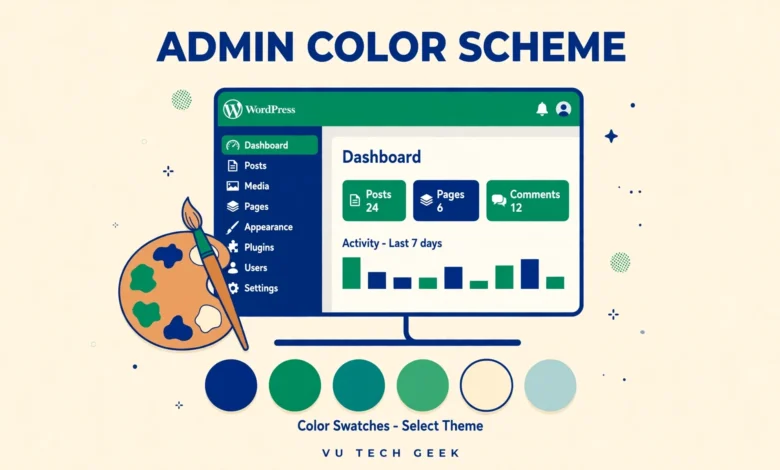
The admin color scheme is the palette WordPress uses for the dashboard only. It colors the left admin menu, the top toolbar, primary buttons, links, and highlights across every admin screen. It does not change your theme, your content, or anything a visitor sees on the front end. It is a personal display setting, stored with your user account, so two users on the same site can each use a different scheme.
WordPress has offered color schemes since version 3.8, and the choice has grown to nine built-in options. The default scheme uses a dark menu with blue highlights, which works well for most people, but a lighter scheme can help in bright rooms, and a darker scheme can ease eye strain during long night sessions. If you manage client sites, a custom scheme in the client brand colors is a small touch that makes your work look polished and professional.
How do I change my own admin color scheme?
Changing your own scheme takes less than a minute and needs no code. Log in to your dashboard, open Users, then Profile, in the left menu. At the top of the page you will see a row of color swatches under the heading Admin Color Scheme. Click any swatch and the whole dashboard restyles at once, so you can preview each scheme live before you save anything.
Click the scheme you like, scroll to the bottom of the page, and click Update Profile to save it. The choice is stored in your user profile, so it follows you to every device you log in from, and it stays in place until you change it again. If you share a login with a team, remember that the scheme belongs to the user account, not the browser, so changing it affects everyone who uses that login. Give each team member their own account instead, which our guide to change a WordPress username without a plugin can help you manage cleanly.
What do the nine built-in color schemes look like?
Default is the classic look, with a dark grey menu, blue highlights, and white content areas. Light flips the menu to a pale grey with dark text, which suits bright offices and users who prefer low contrast sidebars. Modern keeps the dark menu but swaps the blue for a fresh teal accent. Blue uses a deep navy menu with lighter blue highlights and feels close to the old WordPress look.
Coffee is a warm brown scheme with cream text, and it is one of the easiest on the eyes for long sessions. Ectoplasm is a playful purple and green scheme that stands out clearly from the rest. Midnight is the darkest option, with a near black menu and subtle blue accents, and it pairs well with late night work. Ocean is a soft blue green scheme with a calm feel, while Sunrise is a warm red and orange scheme that feels energetic. Try each one for a full editing session rather than a glance, because a scheme that looks good for ten seconds can tire your eyes after an hour.
How do I set one color scheme for all users?
On a client site or a team site you may want every user to see the same scheme, so the dashboard looks consistent in screenshots and training videos. WordPress lets you force a scheme with the get_user_option_admin_color filter. The snippet below forces the Modern scheme for every account, no matter what each user picked in their profile.
add_filter( 'get_user_option_admin_color', 'vutg_force_admin_color_scheme' );
function vutg_force_admin_color_scheme() {
    return 'modern';
}
Add the snippet through the Code Snippets plugin or your child theme functions.php file, and change modern to any other scheme slug, such as light, coffee, midnight, or ocean. The profile page will still show the swatches, but the forced scheme wins on every page load. Remove the snippet to hand the choice back to each user. This is also a good moment to tidy the dashboard itself, and our guide to add custom dashboard widgets in WordPress without a plugin shows you how to shape what users see when they log in.
How do I build a custom admin color scheme for my brand?
A custom scheme uses your brand colors for the menu, toolbar, buttons, and highlights. WordPress provides the wp_admin_css_color function for this, which registers a new scheme from a stylesheet and four base colors. The four colors set the menu background, the highlight color, the notification color, and the action color, in that order. You create a small CSS file for the scheme, register it with the function below, and it appears as a new swatch on every user profile page.
add_action( 'admin_init', 'vutg_register_custom_admin_scheme' );
function vutg_register_custom_admin_scheme() {
    wp_admin_css_color( 'brand', 'Brand', admin_url( 'css/colors/brand/colors.css' ), array( '#23282d', '#0073aa', '#d54e21', '#46b450' ) );
}
Place your colors.css file in the matching folder inside your child theme or a small custom plugin, and replace the four hex values with your brand palette. The first value colors the menu background, the second colors links and buttons, the third colors notifications, and the fourth colors success messages. Test the scheme on a staging site and check every admin screen, because a low contrast pair can make menu text hard to read. The official reference for this function is on developer.wordpress.org, and the color scheme files for the built-in schemes ship inside WordPress itself if you want a working example to copy.
Can I use a plugin to change the admin color scheme?
Yes, if you prefer not to write code. The free Admin Color Schemes plugin adds eight extra schemes to the profile page, including several dark and pastel options, and you pick one exactly as you would a built-in scheme. It is a light plugin with no settings page, so you install it, activate it, and the new swatches appear on your profile at once.
A plugin is the right choice when you only want more options for yourself or your team. Code is the better choice when you want to force one scheme for all users or match a client brand exactly, because a plugin cannot do either of those things. Either way, keep the number of admin plugins low, because every plugin adds load to the dashboard. If you build sites for clients on shared plans, our web hosting guide compares hosts that keep the admin area fast even with extra plugins active.
Why did my color scheme not change?
The most common reason is a forgotten save. Clicking a swatch previews the scheme at once, but the change only sticks when you click Update Profile at the bottom of the page. If you navigate away without saving, WordPress restores your old scheme on the next page load. Always scroll down and save before you leave the profile page.
Other causes are easy to check. A forced scheme from a code snippet overrides the profile choice, so look for a get_user_option_admin_color filter in your snippets or child theme. A browser cache can also show you the old colors, so hard refresh with Ctrl plus F5 or test in a private window. On multisite networks, a network activated plugin can set the scheme for every site, so check the network admin if the change works on one site but not another. For a full tour of the dashboard screens involved, read our guide to the WordPress dashboard explained for beginners.
Does the admin color scheme affect my website visitors?
No. The color scheme only styles the WordPress admin area, which visitors never see unless they have a user account and log in. Your public pages, posts, and shop keep your theme colors exactly as they are. A subscriber who logs in to update a profile will see the admin in their own scheme, but a casual visitor sees nothing different at all.
That separation is useful. You can give your team a dark scheme for comfortable editing while your site keeps a bright public design, and you can brand the admin for a client without touching the front end. Just remember the scheme is per user, so a change you make on your own profile never changes what your client sees on theirs. If you want everyone to see the same branded admin, use the force filter from the earlier section.
Frequently asked questions
How many admin color schemes does WordPress have?
WordPress ships with nine built-in schemes: Default, Light, Modern, Blue, Coffee, Ectoplasm, Midnight, Ocean, and Sunrise. The Admin Color Schemes plugin adds eight more, and you can register a fully custom scheme with the wp_admin_css_color function.
Can I set a different admin color scheme for each user?
Yes, and that is the default behaviour. Each user picks a scheme on their own profile page under Users, then Profile, and the choice is stored with their account. A forced scheme from code overrides this, so remove that snippet if you want users to choose for themselves.
Does changing the admin color scheme change my website design?
No. The scheme only restyles the WordPress dashboard, including the admin menu, toolbar, and buttons. Your theme, your content, and everything visitors see on the front end stay exactly the same.
Why does my admin color scheme keep resetting?
You probably left the profile page without clicking Update Profile, so the preview never saved. A code snippet that forces a scheme can also reset your choice on every page load, and a browser cache can show old colors until you hard refresh. Save the profile, check for a forcing snippet, and test in a private window.
Last updated: November 2026.