You open your website and instead of your homepage you see a short message: 500 Internal Server Error. Nothing else loads, not your posts, not your images, and not even your WordPress dashboard in many cases. The message gives you no clue about what went wrong, which is what makes this error so stressful for site owners. A 500 error simply means the server tried to run your site and hit a problem it could not handle, so it stopped and showed this generic page instead.
The good news is that most 500 errors come from a short list of causes, and you can work through them one by one even if you are not a developer. A broken .htaccess file, a plugin conflict, a theme fault, a low memory limit, or a damaged core file covers almost every case. This guide walks you through nine steps in order, from quick checks to deeper fixes, so you can bring your site back without guessing.
What does the 500 internal server error mean in WordPress?
A 500 error is a server side error, which means the problem sits on your hosting server or inside your WordPress files rather than in your browser. Your browser asked for a page, the server started to build it, and something failed during that process. Because the server does not know exactly what failed, or does not want to show the details to visitors, it returns the generic 500 message instead of a useful explanation.
That vagueness is why the first job is to find the real error behind the message. WordPress keeps an error log when debug mode is on, and your host keeps a server error log too. Both can name the exact file and line that failed, which turns a mystery into a clear repair job. Until you see that detail, treat every fix as a test, change one thing at a time, and check the site after each change.
What should I do first when my site shows a 500 error?
Before you change anything, make a backup of your site. You may not be able to reach the dashboard, so use your hosting control panel or an FTP client to download the files, and export the database from phpMyAdmin. A backup protects you if a fix makes things worse, and it lets you restore the site in minutes instead of rebuilding from scratch.
Next, check whether the error affects the whole site or only one part. Try the homepage, a single post, and the login page at yoursite.com/wp-admin. If only the admin area fails, the cause is often a plugin or a memory limit. If the whole site fails, the cause is more likely a broken .htaccess file or a damaged core file. This quick check tells you where to start and saves you from fixing the wrong thing.
How do I turn on WordPress debug mode to find the real cause?
Debug mode makes WordPress write the real error to a log file instead of hiding it behind the 500 message. Open wp-config.php in your site root with an FTP client or your hosting file manager, and add the lines below just above the line that reads “That is all, stop editing!” Set WP_DEBUG_DISPLAY to false so visitors never see raw errors on the screen.
define( 'WP_DEBUG', true );
define( 'WP_DEBUG_LOG', true );
define( 'WP_DEBUG_DISPLAY', false );
Save the file, then reload the broken page. Open wp-content/debug.log in your file manager and read the last few lines. You will often see a fatal error that names a plugin file, a theme file, or a line that ran out of memory. That name tells you exactly which step to try next. If the log stays empty, the error may come from the server itself, so move on to the .htaccess and PHP version checks below.
How do I fix a broken .htaccess file?
The .htaccess file controls how your server handles URLs, redirects, and permalinks. A single bad line in it, often left by a plugin or a failed edit, can break every page at once. The fastest test is to rename the file. Connect with FTP or open the file manager, find .htaccess in your site root, and rename it to .htaccess_old. Then reload your site.
If the site loads, the old file was the problem. Create a fresh .htaccess file with the default WordPress rules below, or go to Settings, then Permalinks, in your dashboard and click Save Changes, which rebuilds the file for you. If the site still fails, rename the file back, because the cause lies elsewhere. Never delete the old file before you know the new one works.
# BEGIN WordPress
<IfModule mod_rewrite.c>
RewriteEngine On
RewriteBase /
RewriteRule ^index\.php$ - [L]
RewriteCond %{REQUEST_FILENAME} !-f
RewriteCond %{REQUEST_FILENAME} !-d
RewriteRule . /index.php [L]
</IfModule>
# END WordPress
How do I raise the PHP memory limit to 256M?
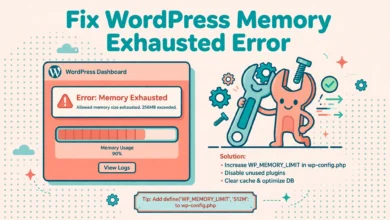
WordPress needs memory to run themes, plugins, and page builders. When it runs out, the server stops the request and returns a 500 error. The default limit on many hosts is 64M or 128M, which is too low for a busy site. Raising it to 256M fixes a large share of 500 errors in under a minute.
define( 'WP_MEMORY_LIMIT', '256M' );Add the line above near the top of wp-config.php, just after the opening PHP tag. If your host uses a different setup, you may need to raise the limit in php.ini or in the hosting control panel instead. After the change, reload the site and check whether the error is gone. If you already raised the limit once and the error returned, read our guide to fix the WordPress memory exhausted error, which covers the deeper causes, and check the Site Health screen for a full report. Our guide to WordPress Site Health check explained shows you how to read it.
How do I find a plugin that causes a 500 error?
Plugins are the most common cause of 500 errors, especially after an update. A plugin can call a function that no longer exists, clash with another plugin, or demand more memory than your plan allows. When the dashboard is unreachable, you can still test plugins with FTP. Open wp-content and rename the plugins folder to plugins_old, then reload the site.
If the site loads, a plugin is the cause. Rename the folder back to plugins, then open it and rename each plugin folder one by one, reloading the site after each rename. When the site loads after you rename one folder, that plugin is the faulty one. Keep it deactivated, check for an update, or replace it. Also clear your cache after the test, because a cached error page can fool you into thinking the fix failed.
How do I test whether my theme is the cause?
A theme can cause a 500 error in the same way, usually after an update or a bad edit to functions.php. Test it by switching to a default theme such as Twenty Twenty-Four. If you can reach the dashboard, go to Appearance, then Themes, and activate the default theme. If you cannot reach the dashboard, rename your theme folder inside wp-content/themes with FTP, which forces WordPress to fall back to a default theme.
If the site loads with the default theme, your theme is the cause. Restore the theme from a backup, or reinstall a fresh copy, and avoid editing theme files directly in future. Use a child theme for custom code, so an update never wipes your changes. If the error stays with the default theme active, the theme is innocent and the cause lies in core files or on the server.
How do I check the PHP version and server error logs?
WordPress needs a modern PHP version to run. An old PHP version can break plugins and themes that use newer code, while a very new version can break old plugins that were never updated. WordPress currently recommends PHP 7.4 or higher, and most hosts let you change the version in the control panel. Check your current version under Tools, then Site Health, then Info, then Server.
Also read the server error log in your hosting control panel. It records every 500 error with a timestamp and often names the exact file that failed. Look for the newest entries that match the time the error first appeared. If the log mentions a file inside a plugin or theme folder, you have your answer. If it mentions a server limit or a permission problem, that detail belongs in the message you send to your host.
How do I reinstall WordPress core files safely?
If none of the steps above worked, a core file may be damaged or missing. You can replace the core files without touching your content, themes, or plugins. Download a fresh copy of WordPress from wordpress.org, unzip it on your computer, and upload everything except the wp-content folder and the wp-config.php file, overwriting the old files on your server.
This step only replaces WordPress itself, so your posts, pages, media, themes, and plugins stay in place. After the upload, reload the site and log in to the dashboard. If an update is available, run it from Dashboard, then Updates, to make sure every core file matches the newest version. Keep the backup you made at the start until the site has run cleanly for a day, just in case.
When should I contact my hosting provider?
Contact your host when the error survives every step above, or when the logs point at the server rather than at WordPress. Server limits, file permission problems, a full disk, or a stopped database server are all host side problems you cannot fix from the dashboard. Good hosts can also raise limits and restore a server side backup for you.
Send them the exact time the error started, the error log entries you found, and the steps you already tried. That list stops them from asking you to repeat the same checks and gets you to a real answer faster. If your host cannot explain the error or fix it, consider moving to a host with stronger WordPress support. Our web hosting guide compares hosts on support quality, speed, and reliability. For more context on server faults, the official documentation on developer.wordpress.org explains how WordPress talks to the server. If a blank page appears instead of the 500 message, our guide to fix the WordPress white screen of death covers that fault too.
Frequently asked questions
Why does my WordPress site show a 500 internal server error after an update?
An update can introduce code that clashes with a plugin, a theme, or your PHP version. It can also leave a half written file if the update was interrupted. Turn on debug mode, check the error log, and deactivate the most recently updated plugin or theme first.
Can a 500 error fix itself?
Rarely. A short server hiccup can clear on its own, but a 500 error that stays for more than a few minutes almost always has a real cause in a file, a plugin, or a limit. Work through the steps in this guide instead of waiting, and check the site after each change.
Will reinstalling WordPress delete my posts?
No, if you do it correctly. Your posts, pages, and media live in the database and the wp-content folder, and a core reinstall only replaces the WordPress files themselves. Never overwrite wp-content or wp-config.php, and keep a backup before you start.
How do I stop 500 errors from coming back?
Keep WordPress, themes, and plugins updated, remove plugins you no longer use, keep the memory limit at 256M, and check Site Health once a month. A host with solid WordPress support also helps, because many repeat 500 errors trace back to server limits.
Last updated: November 2026.