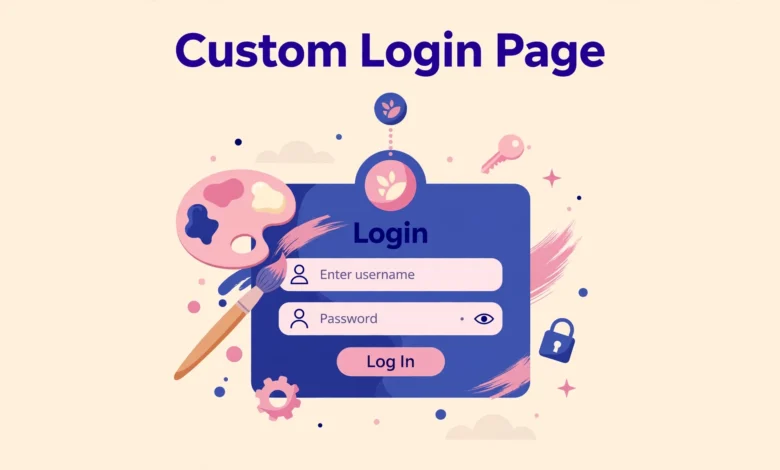
Every WordPress site ships with the same plain login screen: the WordPress logo, a gray background, and a basic form. It works fine, but it looks unfinished the moment you hand a site to a client or invite members to log in. Customizing the login page with your own logo, colors, and background turns a generic screen into a branded experience, and you can do it without installing yet another plugin. A few lines of code added to the right place are all it takes. This guide shows you how to restyle the login page, change the logo link and error messages, and even build a fully custom login page, all without a plugin.
Why Customize the WordPress Login Page?
The default login screen quietly undermines the professional image you built everywhere else on the site. Customizing it pays off in several situations:
- Client projects. When you deliver a site to a client, a branded login screen with their logo looks far more professional than the stock WordPress screen.
- Multi author blogs. Writers who log in regularly get a nicer first impression of the site they contribute to.
- Membership sites and courses. Members judge the quality of a paid product from the very first screen they see.
- White label admin areas. Agencies that hide WordPress branding for clients usually start with the login page.
Since these are purely visual changes, they carry no risk to your content or settings, and every method below is easy to reverse.
What Can You Change on the Login Screen?
WordPress gives you hooks for almost every part of the login page. With a little CSS and a few filters you can change:
- The logo above the form, replacing the WordPress mark with your own image.
- The page background, using a solid color, a gradient, or a full screen image.
- The form itself: rounded corners, shadows, spacing, and input field styles.
- The login button color to match your brand palette.
- Where the logo links to, so it points at your homepage instead of wordpress.org.
- The error messages shown on failed logins, which also has a security benefit.
Let us start with the biggest visual win: the logo and the overall styling.
How Do I Restyle the Login Page with CSS? (Method 1)
WordPress fires the login_enqueue_scripts hook on the login screen, which lets you load your own CSS there. Add this snippet with the Code Snippets plugin, or place it in your child theme’s functions.php. If you have never made one, our guide on creating a WordPress child theme walks you through it. For quick CSS only changes you can also follow our add custom CSS in WordPress guide, but the hook below is the correct approach for the login screen:
add_action( 'login_enqueue_scripts', 'vut_custom_login_styles' );
function vut_custom_login_styles() {
    ?>
    <style type="text/css">
        body.login {
            background-color: #1a1a2e;
        }
        #login h1 a {
            background-image: url('https://vutechgeek.com/wp-content/uploads/my-logo.png');
            background-size: contain;
            background-position: center;
            width: 220px;
            height: 80px;
        }
        #loginform {
            border-radius: 12px;
            box-shadow: 0 8px 24px rgba(0, 0, 0, 0.15);
        }
        #wp-submit {
            background-color: #6c5ce7;
            border-color: #6c5ce7;
            border-radius: 8px;
        }
    </style>
    <?php
}
Replace the logo URL with the address of your own image, ideally a PNG around 440 by 160 pixels so it looks sharp on retina screens. The snippet changes four things at once: a dark branded background, your logo in place of the WordPress mark, a modern card style form, and a brand colored login button. Open wp-login.php in a private window to see the result. Adjust the colors to match your palette until it feels like your site.
How Do I Change Where the Login Logo Links To?
By default the logo links to wordpress.org, which makes no sense on your site. Two small filters fix the link target and the hover text:
add_filter( 'login_headerurl', 'vut_login_logo_url' );
function vut_login_logo_url() {
    return home_url();
}
add_filter( 'login_headertext', 'vut_login_logo_text' );
function vut_login_logo_text() {
    return 'Back to VU Tech Geek';
}
Now clicking the logo takes visitors to your homepage, and the tooltip shows your site name instead of the generic Powered by WordPress text. The login_enqueue_scripts documentation lists everything else this hook can do if you want to load a custom stylesheet file instead of inline CSS.
How Do I Replace the Default Login Error Messages? (Method 2)
WordPress tells an attacker a little too much on a failed login. The default messages distinguish between a wrong username and a wrong password, which helps someone guess valid usernames. The login_errors filter lets you replace all of that with one generic message:
add_filter( 'login_errors', 'vut_generic_login_errors' );
function vut_generic_login_errors() {
    return 'The username or password you entered is incorrect. Please try again.';
}
Every failed attempt now shows the same message, so an attacker cannot tell whether the username or the password was the wrong part. This is a small but real hardening step. Read the login_errors documentation for details. Remember that cosmetic changes are only one layer: real login security comes from measures like limiting login attempts and keeping everything updated, which our guide on WordPress automatic updates explains in depth.
How Do I Build a Fully Custom Login Page? (Method 3)
If restyling is not enough and you want the login form on a normal page with your theme header, footer, and page builder layout, use the wp_login_form() function in a custom page template. Create a file named page-login.php in your child theme with this content:
<?php
/* Template Name: Custom Login */
if ( is_user_logged_in() ) {
    wp_redirect( home_url( '/dashboard/' ) );
    exit;
}
$args = array(
    'redirect'       => home_url(),
    'label_username' => 'Email or Username',
    'label_password' => 'Password',
    'label_remember' => 'Keep me signed in',
    'label_log_in'   => 'Sign In',
);
get_header();
wp_login_form( $args );
get_footer();
Then create a new page in WordPress, assign the Custom Login template, and publish it. Logged in users get redirected away, while everyone else sees your theme wrapped login form. Change the redirect value to send users wherever makes sense after login, such as your account page or dashboard. This method gives you complete design freedom because the form lives inside your normal theme layout.
Where Should I Keep This Code So Updates Do Not Break It?
Never put these snippets in your parent theme’s functions.php. The next theme update will delete the file and your custom login page will silently revert to the default look. You have two safe homes for the code. The first is a child theme, which inherits everything from the parent theme but keeps your changes in separate files that updates never touch. The second is the Code Snippets plugin, which stores each snippet in the database and runs it independently of any theme. Either option works for all three methods above. Pick the child theme if you are already comfortable with one, or Code Snippets if you want the simplest setup with easy on and off toggles per snippet.
Will Customizing the Login Page Slow Down or Weaken My Site?
No. A few lines of CSS and two or three small filters add a negligible amount of code to one page that visitors see only when logging in. It has no measurable effect on your homepage speed or your search rankings. As for security, customizing the look of the login page neither helps nor hurts on its own. The generic error message in Method 2 is a genuine small improvement, but the heavy lifting still comes from strong passwords, limited login attempts, and timely updates. If your whole site feels slow rather than just the login screen, the cause is usually elsewhere, so check our web hosting guide to make sure your server is not the bottleneck. Before any site launch, run through our WordPress website launch checklist to catch issues like this early.
How Do I Test the New Login Page and Revert It?
Always test in a private or incognito window while logged out, since your admin session can mask what visitors actually see. Try a wrong password once to check the error message, click the logo to confirm the link target, and submit a correct login to confirm the redirect works. If anything looks off, deactivate the snippet in Code Snippets or remove the code from your child theme, and the default WordPress login screen returns instantly. Clear your browser cache if the old styling seems stuck.
Frequently Asked Questions
Will customizing the login page slow down my website?
No. The changes load only on the login screen itself, and they amount to a small block of CSS plus a couple of lightweight filters. Your public pages are completely unaffected, so there is no impact on site speed or SEO.
How do I revert to the default WordPress login page?
Deactivate the snippet in the Code Snippets plugin, or delete the code from your child theme’s functions.php file. If you built a custom login page template, just unpublish or delete that page. The stock WordPress login screen comes back immediately.
Does this work with the WooCommerce login form?
Partially. WooCommerce uses the standard wp-login.php screen for the main login, so Methods 1 and 2 apply there automatically. The My Account page, however, uses its own form template, which needs separate styling if you want it to match. The error message filter applies everywhere WordPress handles logins.
Should I use code or a login customizer plugin?
Code is lighter, free forever, and you learn how WordPress hooks work along the way, which helps with every future customization. A customizer plugin is easier if you want a visual preview and drag and drop controls without touching PHP. For most sites the snippets in this guide take five minutes and need no plugin at all.
Last updated: October 2026.