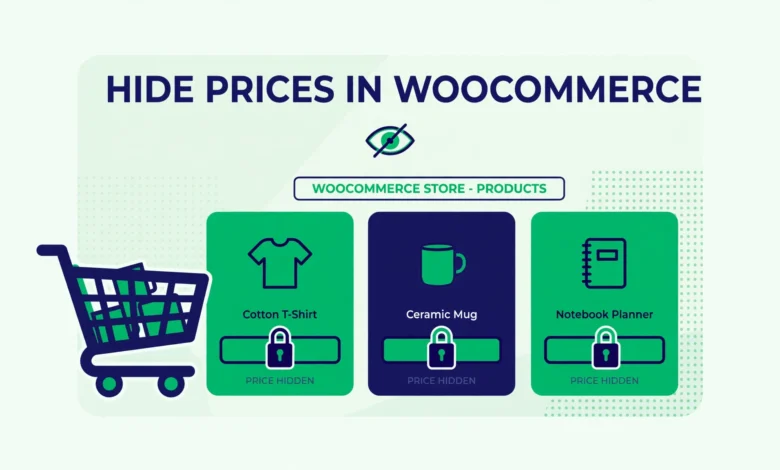
Most online stores show their prices proudly, but some stores have good reasons to keep them hidden. Wholesale shops, member-only stores, and businesses that quote custom pricing often want to hide prices in WooCommerce until the right visitor comes along. Maybe you only want logged-in customers to see pricing, or you want to hide prices in one wholesale category while keeping retail prices visible. Whatever your reason, this guide shows you five easy methods to hide prices in WooCommerce, from simple code snippets to fully price-free catalogs.
Why Would a Store Hide Its Prices?
Hiding prices might sound strange at first, but for many business models it is a smart move. Here are the most common reasons store owners do it.
- Wholesale and B2B stores. If you sell to businesses at trade prices, you do not want retail customers or competitors seeing your wholesale rates.
- Member-only shops. Membership sites, clubs, and private catalogs often require an account before showing any pricing.
- Lead generation. Hiding prices behind a login encourages visitors to create an account, which gives you their email address and turns anonymous traffic into leads.
- Custom quoting. If your prices depend on quantity, configuration, or negotiation, showing a fixed price can do more harm than good. “Request a quote” works better.
- Competitor protection. In some industries, keeping your pricing off public pages stops competitors from undercutting you automatically.
Before we start, one important note. The safest place to add the code snippets in this guide is a child theme’s functions.php file or a code snippets plugin. Never edit your parent theme directly, because updates will erase your changes. If you sell products with options like sizes or colors, our guide to WooCommerce product variations is worth reading first, since variations have their own price display rules.
Method 1: Hide Prices from Guests (Login to See Pricing)
This is the most popular method. Logged-in customers see normal prices, but visitors who are not logged in see a “Login to view pricing” message instead. It is perfect for wholesale stores and member-only catalogs.
Add this snippet to your child theme’s functions.php or to a code snippets plugin. It hooks into the filter WooCommerce uses to build the price HTML and replaces it for guests.
add_filter( 'woocommerce_get_price_html', 'vutechgeek_hide_price_guests', 10, 2 );
function vutechgeek_hide_price_guests( $price, $product ) {
    if ( ! is_user_logged_in() ) {
        $login_url = esc_url( wp_login_url( get_permalink() ) );
        return '<a href="' . $login_url . '">Login to view pricing</a>';
    }
    return $price;
}
After adding the snippet, open your shop page in an incognito window to test it. You should see the login link where prices used to be. Log in, refresh, and the prices should appear normally. This filter covers the shop page, category pages, and single product pages in one go.
Method 2: Remove Price Display Actions (Fully Price-Free Catalog)
Sometimes you want no prices anywhere, not even for logged-in users. This happens with quote-based businesses and catalog-only sites where products exist for browsing but prices are discussed by phone or email. For this, you remove the template actions that print prices.
// Remove prices from shop and archive pages
remove_action( 'woocommerce_after_shop_loop_item_title', 'woocommerce_template_loop_price', 10 );

// Remove prices from single product pages
remove_action( 'woocommerce_single_product_summary', 'woocommerce_template_single_price', 10 );

// Remove prices from variable product price ranges too
add_filter( 'woocommerce_variable_sale_price_html', '__return_empty_string' );
add_filter( 'woocommerce_variable_price_html', '__return_empty_string' );
Note that removing the display does not remove the price from your database. The price still exists on the product and will appear in the cart and at checkout unless you hide it there as well, which we cover in Method 5. If your goal is a catalog with no purchasing at all, combine this with Method 4 to remove the add to cart button too.
Method 3: Hide Prices for One Product Category Only
Many stores sell both retail and wholesale. They want regular customers to see normal prices but want wholesale category prices hidden from guests. This snippet checks the product’s categories and hides the price only when the product belongs to your wholesale category.
First, find the slug of your wholesale category. Go to Products, then Categories in your dashboard, and look at the slug column. Then use this snippet, replacing wholesale with your own category slug.
add_filter( 'woocommerce_get_price_html', 'vutechgeek_hide_price_category', 10, 2 );
function vutechgeek_hide_price_category( $price, $product ) {
    if ( ! is_user_logged_in() && has_term( 'wholesale', 'product_cat', $product->get_id() ) ) {
        return 'Login for wholesale pricing';
    }
    return $price;
}
This gives you the best of both worlds. Retail products behave normally for everyone, while wholesale products protect their pricing until a customer logs in. It pairs well with a wholesale registration form so trade customers can request access.
Method 4: Hide the Add to Cart Button for Guests
Hiding the price is only half the job if guests can still add products to their cart and see the totals there. For a true login-to-buy store, hide the add to cart button for guests and show a custom message or a request-a-quote button instead.
// Hide add to cart on single product pages for guests
add_action( 'wp', 'vutechgeek_hide_cart_button_guests' );
function vutechgeek_hide_cart_button_guests() {
    if ( is_user_logged_in() ) {
        return;
    }
    remove_action( 'woocommerce_after_shop_loop_item', 'woocommerce_template_loop_add_to_cart', 10 );
    remove_action( 'woocommerce_single_product_summary', 'woocommerce_template_single_add_to_cart', 30 );
}

// Show a custom message where the button was
add_action( 'woocommerce_single_product_summary', 'vutechgeek_guest_quote_message', 30 );
function vutechgeek_guest_quote_message() {
    if ( is_user_logged_in() ) {
        return;
    }
    echo '<p class="guest-quote-note">Please <a href="' . esc_url( wp_login_url( get_permalink() ) ) . '">log in</a> to see pricing and order, or <a href="/request-a-quote/">request a quote</a>.</p>';
}
Adjust the request-a-quote link to match your own quote page URL. This pattern is common in B2B stores where every order is negotiated. If you also take cash payments on delivery for logged-in customers, see our tutorial on setting up cash on delivery in WooCommerce to complete your checkout options.
Method 5: Hide Prices in the Cart Widget and Checkout Tables
Even after hiding prices on product pages, prices can still leak through the mini cart widget, the cart page, and checkout order tables. If a guest somehow reaches those pages, your hidden pricing is exposed. A quick CSS addition hides the price columns in these areas.
/* Hide prices for guests in cart and checkout areas */
body.logged-out .woocommerce-mini-cart .amount,
body.logged-out .shop_table .product-price,
body.logged-out .shop_table .product-subtotal {
    display: none;
}
Add this to the Customizer under Additional CSS. The logged-out body class is added by WordPress automatically, so this CSS only affects visitors who are not logged in. Logged-in customers see everything normally. Keep in mind that CSS only hides the display. A determined visitor could still find prices in the page source, so for truly sensitive pricing, the server-side snippet methods above are the real protection.
Important Things to Know Before You Hide Prices
Prices still exist in the cart and checkout unless you hide them there too
The filter in Method 1 only changes what visitors see on product listings. If a guest adds a product to the cart through a direct link or an old bookmark, the cart page will show the totals. Use Methods 4 and 5 together with Method 1 for a complete solution, and test the full journey as a logged-out user in incognito mode before you consider the job done.
Hidden prices do not remove products from Google Shopping
This surprises many store owners. Hiding prices on your site with code does not remove your products from Google Shopping feeds or product schema markup. If you run product ads, Google still needs real prices in your feed. Handle your Merchant Center feed separately, and do not assume hidden on-site prices mean hidden everywhere. For display-only tweaks like this one, you might also like our guide on how to hide related products in WooCommerce.
Always test as a logged-out visitor
It is easy to test while logged in as admin and think everything works. Open an incognito window and walk through your shop, a category page, a product page, and the cart as a guest. Check mobile as well, since mobile layouts sometimes use different templates that your snippets might miss.
For the official documentation on the hooks used in this guide, see the WooCommerce developer documentation, which covers filters like woocommerce_get_price_html and the template actions in detail.
Frequently asked questions
Can I hide WooCommerce prices without a plugin?
Yes. All five methods in this guide use small code snippets that you can add through a child theme or a code snippets plugin. You do not need a dedicated hide-prices plugin unless you want an options page with checkboxes instead of code.
How do I hide prices for guests but show them to logged-in users?
Use the woocommerce_get_price_html filter with an is_user_logged_in check, as shown in Method 1. Guests see a login link, logged-in customers see normal prices. This is the most common setup for wholesale and member-only stores.
Will hiding prices affect my SEO?
Hiding prices with code does not hurt your rankings by itself. Google can still crawl your product pages, titles, and descriptions. Just make sure your product schema still has valid data and that you are not accidentally blocking Googlebot from seeing the same content as logged-out visitors, which could look like cloaking.
Can I hide the add to cart button along with the price?
Yes, and you usually should. Method 4 shows how to remove the add to cart button for guests and replace it with a login prompt or a request-a-quote link. Without this step, guests can still build a cart and see your prices at checkout.
Last updated: October 2026.