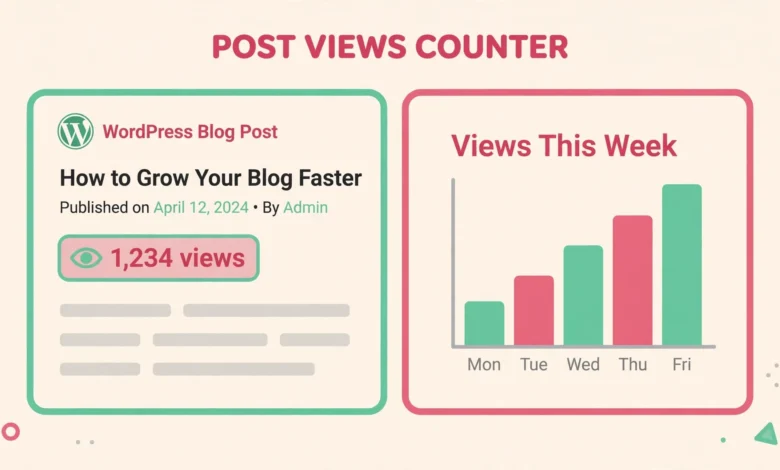
A post views counter shows how many times each post has been read, usually as a small number under the title, such as 1,240 views. It gives visitors social proof, because a post with thousands of views looks worth reading, and it gives you data, because you can see which topics your audience actually reads. WordPress has no built-in view counter, so the count does not exist until you build it yourself.
The good news is that a basic counter needs only a few lines of PHP. You store the count in post meta, add one to it on every visit, and display it wherever you want. This guide builds that counter step by step: the storage functions, the counting hook, the display shortcode, a sortable Views column in the admin posts list, and rules to exclude admin and bot visits. It ends with the honest caching warning that every no plugin counter shares.
One warning up front. Counting views sounds simple, but a view is not a precise thing. A visitor who refreshes the page five times creates five views, a bot that crawls the post creates a view, and a cached page may create no view at all. The counter here is good enough to compare posts and to show social proof, but it is not analytics.
What do you need before you start?
You need a place to put PHP code. The safe place is a child theme functions.php file, so a theme update does not delete your counter. If you have never created one, read our guide to create a WordPress child theme first. The other option is the free Code Snippets plugin, which stores snippets in the database and runs them like functions.php code.
Back up your site before you edit any PHP file. A single typo in functions.php can lock you out of the admin area with a white screen, and a backup is the fastest way back. Our guide to backup the WordPress database without a plugin covers the database side.
Step 1: How do I store the view count?
WordPress stores extra data for a post as post meta, a key and value pair in the database. We use a meta key called post_views, and the value is the number of views. Two small functions handle the storage: one reads the count, and one adds one to it. Add both to your child theme functions.php file.
function vu_get_post_views($post_id) {
$count = get_post_meta($post_id, 'post_views', true);
return $count ? (int) $count : 0;
}
function vu_set_post_views($post_id) {
$count = vu_get_post_views($post_id);
update_post_meta($post_id, 'post_views', $count + 1);
}
The first function reads the stored count and returns zero when no count exists yet, which is the case for every post until its first counted visit. The second function reads the current count, adds one, and saves it back. Nothing here runs on its own yet: these are helper functions, and the next step decides when to call them.
Step 2: How do I count a view on each visit?
Counting happens when a single post page loads. We hook into template_redirect, which runs after WordPress knows which post is being shown but before the page is rendered. The function checks that the page is a single post and that the visitor is not an administrator. If both pass, it calls the storage function from Step 1.
function vu_track_post_views() {
if (!is_single()) {
return;
}
if (current_user_can('manage_options')) {
return;
}
vu_set_post_views(get_the_ID());
}
add_action('template_redirect', 'vu_track_post_views');
The is_single check means only single post pages are counted, not the homepage, category pages, or search results, where a post title appears but nobody has read the post. The current_user_can check means your own visits while logged in as an administrator are not counted, so editing and previewing your own posts does not inflate the numbers.
Test this step before you go further. Open a post while logged out and reload it three times, then check the count with the display method in Step 3. It should read 3, plus any earlier visits. If it reads zero, check that you are logged out, because the admin exclusion is the most common reason a test count stays at zero.
Step 3: How do I display the count on the post?
You can show the count in two places: in the theme template under the post title, or anywhere in the post content with a shortcode. The template method is better for a site wide badge, because it appears on every post automatically. This guide gives you both, starting with the shortcode because it is easier to test.
function vu_post_views_shortcode() {
$views = vu_get_post_views(get_the_ID());
return '<span class="vu-views">' . number_format_i18n($views) . ' views</span>';
}
add_shortcode('post_views', 'vu_post_views_shortcode');
Once the code is saved, add a Shortcode block inside any post and enter [post_views]. The post will show the count where the shortcode sits, for example “1,240 views”. The number_format_i18n function formats the number with commas, so 1240 displays as 1,240.
To show the count in the template instead, add this line to your child theme single.php file, just under the title code: <?php echo ‘<span class=”vu-views”>’ . number_format_i18n(vu_get_post_views(get_the_ID())) . ‘ views</span>’; ?>. If your theme has no single.php file in the child theme, copy it from the parent theme first, then edit the copy. Never edit the parent theme file directly. Style the badge with a little CSS in the Customizer under Additional CSS, using our guide to add custom CSS in WordPress.
Step 4: How do I add a Views column in the admin posts list?
Seeing the count on the front end is useful, but the real value is comparing posts in the admin area. A Views column in the Posts list lets you sort your posts by popularity and spot the winners at a glance. Two hooks add it: one registers the column, and one fills it with the stored count for each post.
function vu_views_admin_column($columns) {
$columns['post_views'] = 'Views';
return $columns;
}
add_filter('manage_posts_columns', 'vu_views_admin_column');
function vu_views_admin_column_content($column, $post_id) {
if ('post_views' === $column) {
echo number_format_i18n(vu_get_post_views($post_id));
}
}
add_action('manage_posts_custom_column', 'vu_views_admin_column_content', 10, 2);
After you save this code, open Posts, then All Posts in the admin area, and a Views column appears on the right side of the list. To make sorting truly numeric, add the sortable registration below, which tells WordPress to order by the post_views meta value as a number.
function vu_views_sortable_column($columns) {
$columns['post_views'] = 'post_views';
return $columns;
}
add_filter('manage_posts_sortable_columns', 'vu_views_sortable_column');
function vu_views_orderby($query) {
if (!is_admin() || !$query->is_main_query()) {
return;
}
if ('post_views' === $query->get('orderby')) {
$query->set('meta_key', 'post_views');
$query->set('orderby', 'meta_value_num');
}
}
add_action('pre_get_posts', 'vu_views_orderby');
With this in place, clicking Views sorts posts from most viewed to least viewed, and clicking again reverses the order. Old posts with no count show zero, which is correct: they simply have no counted visits yet. Use this sorted list when you plan new content. Pair it with our WordPress SEO checklist for beginners so popular posts also rank well.
How do I exclude bots and repeated refreshes?
The admin exclusion in Step 2 handles your own visits, but search engine bots still count. Bots crawl every post, and each crawl adds one to the count. On a small site that adds a handful of views per post, which barely matters. A simple user agent check filters out the common bots by looking at the browser identity string each visitor sends.
function vu_is_bot() {
$agent = isset($_SERVER['HTTP_USER_AGENT']) ? strtolower($_SERVER['HTTP_USER_AGENT']) : '';
$bots = array('bot', 'crawl', 'spider', 'slurp', 'facebookexternalhit');
foreach ($bots as $bot) {
if (false !== strpos($agent, $bot)) {
return true;
}
}
return false;
}
Call this inside the tracking function from Step 2, right after the admin check: if (vu_is_bot()) { return; }. The check is simple and it is not perfect. A bot can send a normal browser identity string and slip through. Treat the result as cleaner data, not perfect data.
Why does caching break view counts?
This is the most important limit in the whole guide. Most WordPress sites use a caching plugin or a host level cache. When a page is cached, the server saves a ready made copy and serves it to the next visitor without running PHP at all. The tracking function in Step 2 is PHP, so on a cached page it never runs, and the visit is never counted.
The fix is to count with AJAX instead of on page load. AJAX is a small JavaScript request that runs in the visitor browser after the cached page has loaded, and it calls a PHP function on the server that adds one to the count. The cached page still loads fast, and the count still updates.
add_action('wp_ajax_vu_count_view', 'vu_ajax_count_view');
add_action('wp_ajax_nopriv_vu_count_view', 'vu_ajax_count_view');
function vu_ajax_count_view() {
$post_id = isset($_POST['post_id']) ? (int) $_POST['post_id'] : 0;
if ($post_id && !current_user_can('manage_options') && !vu_is_bot()) {
vu_set_post_views($post_id);
}
wp_die();
}
The matching JavaScript sends the current post ID to that AJAX handler when the page loads. If the JavaScript route feels like too much code, disable the counter hook in Step 2 and accept undercounting, or switch to a views plugin that handles AJAX counting for you. What you should not do is run a no plugin counter on a cached site and present the numbers as exact. They are a rough ranking, not a traffic report.
When is a plugin the better choice?
The code counter here is free, light, and private, because no data leaves your server. A plugin is better when you need features the code does not offer: a most viewed posts widget, view counts by day or week, a dashboard chart, automatic bot filtering, and AJAX counting that works with your cache out of the box. The cost is another plugin to update and another script on every post page.
Choose based on your site, not on pride in writing code. If you want a badge under the title and a sortable column in the admin area, the code in this guide is enough and will run for years with no maintenance. If you want widgets, charts, and time based reports, install a well maintained views plugin and skip the code. Either way, keep the honest label: view counts are a popularity signal, not analytics. See the official documentation at WordPress.org and the developer reference at developer.wordpress.org, and pair your counter with our WordPress website launch checklist so new posts go live with tracking in place from day one.
Frequently asked questions
Does WordPress count post views by default?
No. WordPress has no built-in view counter, and the Posts list shows no view data until you add it. You need custom code that stores a count in post meta, as in this guide, or a views plugin.
Will my view counts survive a theme change?
Yes. The counts are stored as post meta in the database, not in the theme files, so they survive a theme change. What you will lose is the code that counts and displays them, because that code lives in the child theme functions.php file. Move the code to the new child theme before you switch themes.
Why is my view count stuck at the same number?
Caching is the usual cause. A cached page serves a ready made copy without running the PHP counting function, so visits are not recorded. Switch to the AJAX counting method in this guide, clear the cache, and test while logged out. Admin visits are excluded on purpose, so do not test while logged in as an administrator.
Can I show a list of my most viewed posts?
Yes. Use WP_Query with meta_key set to post_views and orderby set to meta_value_num, then loop through the results and print each post title with its count. That query reads the same post meta the counter stores, so it works as soon as posts have counts. Limit it to five or ten posts so the list stays short.
Last updated: November 2026.