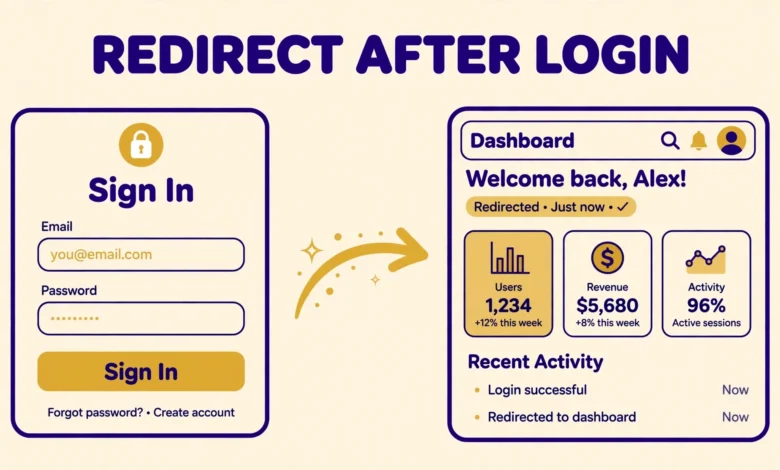
By default, WordPress sends users to the admin dashboard after they log in. That works for site admins, but it is a poor experience for everyone else. A customer should land on their account page, a student should land on their course dashboard, and a member should land on their profile, not on wp-admin. A simple login redirect fixes this, and you do not need a plugin to do it.
In this guide, you will learn how to redirect WordPress users after login without a plugin. You will use the login_redirect filter, set role based redirects, respect the redirect_to parameter, build a custom login form, handle WooCommerce logins, and keep every redirect safe from open redirect attacks.
What Is the Default WordPress Login Redirect Behaviour?
When a user logs in through wp-login.php, WordPress checks the redirect_to value. If no redirect is given, it sends the user to the dashboard. Administrators expect this, because they need wp-admin to manage the site. Subscribers, customers, and members do not need the dashboard at all, and many of them get confused when they land there.
WordPress also respects a redirect_to URL in the login form. If a user tries to visit a protected page while logged out, WordPress sends them to the login screen with a redirect back to that page. Your custom code should respect this where it makes sense.
The right redirect depends on the user. A shop customer belongs on the My Account page, a course student belongs on the course list, and a forum member belongs on their profile. That is why role based redirects are so useful. If you are not sure how roles work, read our guide on WordPress user roles explained before you write role checks.
How Do You Redirect Users After Login with the login_redirect Filter?
The login_redirect filter is the standard way to control where users go after login. WordPress passes three values to your callback: the redirect URL it planned to use, the requested redirect URL from the login form, and the user object. Your callback can return a different URL, and WordPress will use it.
The example below sends every non admin user to the home page after login, while admins still go to the dashboard. The code checks the user object, tests the user capabilities, and returns the right URL. Add it to your child theme functions.php file or a site specific plugin, then test it with a test subscriber account, not with your admin account.
function vtg_login_redirect( $redirect_to, $request, $user ) {
    if ( isset( $user->roles ) && is_array( $user->roles ) ) {
        if ( in_array( 'administrator', $user->roles, true ) ) {
            return $redirect_to;
        }
    }

    return home_url( '/' );
}
add_filter( 'login_redirect', 'vtg_login_redirect', 10, 3 );
Notice the three parameters. The $redirect_to value is the URL WordPress planned to use. The $request value is the redirect URL from the login form, if one was given. The $user value is the WP_User object for the person who just logged in. Always check that $user is valid before you read its roles, because a failed login can pass an error object instead. The official filter reference on developer.wordpress.org documents all three parameters.
Use home_url() or site_url() to build your redirect URLs instead of hard coding a domain. That way the code still works if you move the site to a new domain. If you recently moved your site to HTTPS, our guide on how to redirect HTTP to HTTPS in WordPress without a plugin will help you keep login redirects on the secure version of your URLs.
How Do You Redirect Users by Role?
Role based redirects are the most common use case. Each role gets its own destination, so every user lands somewhere useful. Read the user roles array, test it in order from most specific to most general, and return the matching URL. Put administrators first so they keep the dashboard.
function vtg_role_login_redirect( $redirect_to, $request, $user ) {
    if ( ! isset( $user->roles ) || ! is_array( $user->roles ) ) {
        return $redirect_to;
    }

    if ( in_array( 'administrator', $user->roles, true ) ) {
        return admin_url();
    }

    if ( in_array( 'editor', $user->roles, true ) ) {
        return admin_url();
    }

    if ( in_array( 'customer', $user->roles, true ) ) {
        return home_url( '/my-account/' );
    }

    if ( in_array( 'subscriber', $user->roles, true ) ) {
        return home_url( '/member-dashboard/' );
    }

    return home_url( '/' );
}
add_filter( 'login_redirect', 'vtg_role_login_redirect', 10, 3 );
Change the slugs to match your own pages. If your member dashboard lives at /account/ instead of /member-dashboard/, update that path. If a user has more than one role, the first matching test wins, so order your tests carefully. Test every role with a real test account in a private browser window.
How Do You Use the redirect_to Parameter?
The redirect_to parameter lets a login link carry its own destination. For example, a link to yoursite.com/wp-login.php?redirect_to=/members-only-page/ sends the user back to that page after login. This is useful for protected content, checkout pages, and member areas, because the user returns to the exact page they wanted.
Your login_redirect callback receives the requested URL as $request. A good callback respects it when it is safe and local, and falls back to the role based destination when it is empty. That way, a user who clicked a login link from a course lesson returns to that lesson.
Never trust a redirect_to value blindly. It comes from the URL, so anyone can change it. Always validate it before you return it, as explained in the security section below.
How Do You Redirect from a Custom Login Form?
Many sites use a front end login form instead of wp-login.php. The wp_login_form() function builds that form, and it accepts a redirect argument. Set redirect to the URL where users should land after login, and WordPress will pass it through the normal login flow.
<?php
$args = array(
    'redirect' => home_url( '/member-dashboard/' ),
    'label_username' => 'Username or Email',
    'label_password' => 'Password',
    'label_remember' => 'Remember Me',
    'label_log_in' => 'Log In',
);
wp_login_form( $args );
?>
Place this code in a template file, a shortcode, or a block that accepts PHP through your theme or a code snippets setup. If you also have a login_redirect filter active, the filter runs after the form redirect, so the filter can override it. Decide which one owns the decision: use the form redirect for page specific logins, and use the filter for site wide role based rules. Our guide on how to customize the WordPress login page without a plugin shows how to style wp-login.php with CSS, which pairs well with a custom redirect.
How Do You Redirect WooCommerce Customers After Login?
WooCommerce has its own login flow, and it uses its own filter: woocommerce_login_redirect. The standard login_redirect filter still runs in many cases, but WooCommerce may override it on the My Account page and during checkout. If your customer redirect does not work, add a woocommerce_login_redirect callback as well, and keep both callbacks consistent so customers always land in the same place.
function vtg_wc_login_redirect( $redirect, $user ) {
    return home_url( '/my-account/' );
}
add_filter( 'woocommerce_login_redirect', 'vtg_wc_login_redirect', 10, 2 );
You can also send customers to the shop page, the cart, or a thank you page, depending on your store flow. A common choice is the My Account page, because it shows orders, downloads, and addresses in one place. During checkout, WooCommerce usually returns the customer to checkout after login, and you should not override that. For the full filter reference, see the WooCommerce developer docs on developer.woocommerce.com.
How Do You Keep Login Redirects Safe?
Login redirects are a classic open redirect risk. An open redirect happens when an attacker crafts a login link with a redirect_to value that points to a malicious site. The victim logs in, trusts the site, and is then sent to a fake page that looks like your site and asks for payment details or login credentials. WordPress has built in protection, but your custom code must not undo it.
Follow these rules in every redirect callback. First, never return a user supplied URL without checking it. Second, use wp_validate_redirect() logic to confirm the URL is local. Third, prefer hard coded paths built with home_url() over raw query values. Fourth, keep an allowlist of safe destinations if you accept redirects from links or forms.
- Validate every redirect_to value: confirm the URL belongs to your own domain before you return it.
- Use wp_validate_redirect(): it returns your fallback URL when the given URL is not safe.
- Prefer fixed destinations: role based URLs built with home_url() are safer than open ended parameters.
- Keep an allowlist: if you accept custom destinations, list the allowed paths and reject everything else.
- Log in safely: pair redirects with brute force protection. Our guide on how to limit login attempts in WordPress without a plugin shows a code based way to slow down password guessing.
function vtg_safe_login_redirect( $redirect_to, $request, $user ) {
    if ( ! empty( $request ) ) {
        $safe_url = wp_validate_redirect( $request, home_url( '/' ) );
        return $safe_url;
    }

    return home_url( '/member-dashboard/' );
}
add_filter( 'login_redirect', 'vtg_safe_login_redirect', 10, 3 );
The wp_validate_redirect() function takes the requested URL and a fallback URL. If the requested URL is local and safe, it returns it. If it is external or malformed, it returns the fallback. Use it whenever you respect a redirect_to value, and your login flow stays safe without extra effort.
What If Your Redirect Does Not Work?
If your redirect does not work, check the most common causes in order. First, confirm the code is in an active location. A snippet in an inactive theme or a deactivated plugin does nothing. Second, check for a conflicting plugin. Membership, security, and social login plugins often add their own login_redirect callbacks, and the one with the highest priority wins. Third, clear your browser cache and test in a private window, because a cached login page can hide your change.
Fourth, check the priority and parameter count of your filter. The login_redirect filter needs three accepted arguments, so add_filter must pass 10, 3 as the priority and argument count. If you pass the wrong count, $user will be empty and your role checks will fail silently. Also check your redirect URL for typos. If the redirect works for some users and not others, the cause is usually role order, so review the order of your tests.
Frequently Asked Questions
Can I redirect users after login without a plugin?
Yes. Add a login_redirect filter callback in a child theme functions.php file or a site specific plugin. Check the user roles, return the right URL with home_url(), and test each role with a test account.
How do I redirect different user roles to different pages?
Read the $user roles array in your login_redirect callback and return a different URL for each role. Test administrators first so they keep wp-admin, then handle editors, customers, subscribers, and custom roles in order.
What is the difference between redirect_to and login_redirect?
The redirect_to parameter is a URL passed with a login link or form. The login_redirect filter is PHP code that decides the final destination. The filter can respect redirect_to, override it, or fall back to a role based URL when it is empty.
Is it safe to use the redirect_to parameter?
It is safe only when you validate it. Never return a raw redirect_to value. Pass it through wp_validate_redirect() with a safe fallback URL, or check it against an allowlist of local paths, so attackers cannot send users to an external site.
Last updated: November 2026.