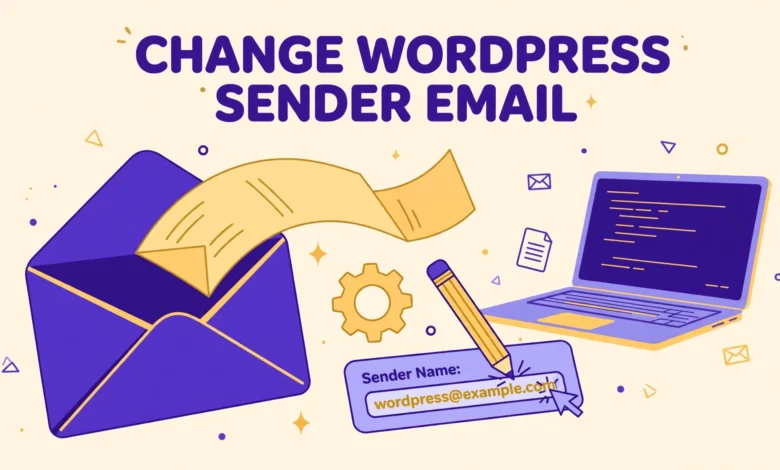
If you run a WordPress site, you have probably seen emails arrive from an address you never chose. Password resets, new user notifications, order confirmations and contact form replies often come from wordpress@yourdomain.com, with the sender name shown simply as WordPress. It looks unprofessional, it confuses your visitors, and it can hurt deliverability. The good news is that you can change both the sender email and the sender name with two small filters, and you do not need a plugin to do it.
This guide shows you the exact code, explains where to put it safely, and warns you about the one mistake that trips up many beginners. Changing the From address is easy. Making sure those emails actually reach the inbox is a different problem, and this guide explains when a simple filter is enough and when SMTP is the real fix.
Before we start, one important note. The code below changes what recipients see in the From field. It does not change how your server sends mail, and it does not prove to receiving servers that you are allowed to send from that address. That distinction matters, and we will come back to it in detail later in this post.
What is the default WordPress sender email?
By default, WordPress sends mail using the wp_mail function, which is a wrapper around the PHP mail function or your configured mail method. When no sender is set, WordPress builds a From address from your site domain. On a site called example.com, the default sender becomes wordpress@example.com, and the sender name becomes WordPress.
That default is fine for a test site, but it looks careless on a real business or blog. Visitors who reply to a notification may get a bounce, because nobody monitors the wordpress@ inbox. Worse, some mail providers treat mail from a generic address with extra suspicion, especially if the address does not match the domain that actually sent the message.
You can change the default with two filters that WordPress provides for exactly this purpose. The wp_mail_from filter controls the email address, and the wp_mail_from_name filter controls the display name. Add both filters, return your chosen values, and every email sent through wp_mail will use them, including password resets, comment notifications, WooCommerce emails and contact form messages.
How do you change the sender email without a plugin?
The code itself is short. You add two filter callbacks that return your preferred email address and your preferred sender name. Here is the complete snippet.
add_filter( 'wp_mail_from', 'vutg_custom_mail_from' );
function vutg_custom_mail_from( $email ) {
    return 'hello@example.com';
}

add_filter( 'wp_mail_from_name', 'vutg_custom_mail_from_name' );
function vutg_custom_mail_from_name( $name ) {
    return 'VU Tech Geek';
}
Replace hello@example.com with a real mailbox on your own domain, and replace VU Tech Geek with the name you want recipients to see. The address should use your own domain, not a free mailbox, because receiving servers check whether the From domain matches the sending server. A matching domain builds trust. A mismatched domain invites spam filtering.
Use a mailbox that actually exists and that you monitor. If a recipient replies to your notification, the reply goes to this address. A noreply address is acceptable for automated mail, but a real monitored inbox is better for password resets and order emails, where a missed reply can mean a lost customer.
Where should you put this code?
Never add this code to your parent theme functions.php file directly if the theme receives updates, because the next theme update will overwrite your change. You have two safe options: a child theme or the Code Snippets plugin. A child theme is the classic approach, and our guide to create a WordPress child theme shows how to set one up correctly.
If you do not have a child theme, the Code Snippets plugin is the easier route. Create a new snippet, paste the code above, set it to run on the front end, and activate it. The snippet survives theme updates, it can be turned off in one click, and you can export it when you move sites. That makes it the best choice for most beginners.
Whichever option you choose, test the change before you trust it. Go to your profile page, request a password reset for your own account, and check the email that arrives. Confirm the From name and address look right, and confirm the reset link works. Also send a test message through your contact form, because form emails sometimes set their own headers, and you want to know which sender your visitors actually see.
Why does changing the From address sometimes hurt deliverability?
Here is the part many tutorials skip. Changing the From address only changes the label on the envelope. It does not change the server that delivers the message, and it does not add authentication. Receiving providers such as Gmail and Outlook check three things: SPF, DKIM and DMARC. These records prove that the server sending the mail is allowed to send for your domain.
If your site sends mail directly from your web host using PHP mail, and your domain has no SPF record that includes that host, receivers may mark the message as spam or reject it outright. Changing the From address to a polished hello@yourdomain.com address can actually make this worse, because now the message claims to come from your domain while the sending server has no proof it is allowed to do so. That mismatch is exactly what spam filters look for.
That is why From spoofing, even innocent spoofing of your own domain, is risky. You are not doing anything wrong by setting your own address, but you must pair it with proper authentication. Check with your host whether your domain has SPF and DKIM records, and add them if they are missing. If your host cannot provide authenticated sending, that is a sign you need SMTP, which brings us to the next section.
When is SMTP the real fix?
If your WordPress emails land in spam, arrive late, or never arrive at all, a From filter will not fix the problem. The real fix is SMTP, which routes your mail through a proper mail server that authenticates correctly. With SMTP, your messages are sent by a server your domain trusts, with valid SPF and DKIM signatures, so receivers treat them as legitimate.
You can use your host email service, Google Workspace, or a transactional mail provider. The setup needs a plugin for the SMTP connection, which is one case where a plugin is genuinely the right tool. Keep your From filters in place, because SMTP plugins usually respect them, and the filters still control the display name your recipients see.
How do you know you need SMTP? If password resets never arrive, if WooCommerce order emails go missing, or if your contact form messages only appear when you check spam, you need it. Our guide on how to fix WordPress not sending emails walks through the diagnosis step by step, from checking wp_mail to testing SMTP. If you manage users on your site, our explainer on WordPress user roles is also worth reading, because notification emails behave differently for each role.
What mistakes should you avoid?
The most common mistake is using an address on a different domain, such as a free Gmail address, as the From value. Receiving servers see a message that claims to come from Gmail but was sent by your web host, and they rightly distrust it. Always use an address on your own domain, and make sure that domain has SPF and DKIM set up.
- Do not use a free mailbox address as the From value on your own domain.
- Do not add the code to a parent theme that will overwrite it on update.
- Do not set a From address for a mailbox that does not exist.
- Do not assume the filter fixes deliverability: test with a real inbox.
- Do not use a different From address for every plugin: keep one consistent sender.
Another mistake is changing the sender in several places at once. Some form plugins and eCommerce plugins have their own From settings that override the filter. If your contact form still shows the old address after you add the filter, check the form plugin settings first. Keep one consistent sender across the whole site so recipients learn to trust it.
Finally, remember that the filter affects every email sent through wp_mail, including admin notifications. That is usually what you want, but test the admin emails too. If your host sends server alerts to the same mailbox, make sure they still arrive and still look right after the change.
How do you test the change properly?
Testing takes five minutes and saves hours of confusion later. Start with a password reset to your own email and check the From name, the From address, and whether the message lands in the inbox or the spam folder. Then submit your contact form with a different email address and check the notification you receive as the site owner.
If you run a store, place a test order and check the order confirmation. If you publish with scheduled posts, our guide on how to schedule WordPress posts is useful, and scheduled post notifications are another email worth testing. For a broader site health review after any mail change, see our WordPress Site Health check explainer and our web hosting guide, because many mail problems turn out to be hosting limits rather than WordPress settings.
If messages land in spam after the change, do not keep tweaking the From address. Check your SPF and DKIM records, confirm your host IP is not on a blocklist, and move to SMTP. The From filter is a presentation fix. Authentication and SMTP are deliverability fixes, and confusing the two is the reason many sites struggle with email for months.
For the official reference on these filters, see the wp_mail_from hook documentation and the wp_mail_from_name hook documentation on developer.wordpress.org.
Frequently asked questions
Can I change the WordPress sender email without a plugin?
Yes. Add the wp_mail_from and wp_mail_from_name filters to a child theme or a Code Snippets snippet. The two filters control the address and the display name for every email sent through wp_mail.
Will changing the sender email fix emails going to spam?
Not by itself. The filter changes only the From label. Spam problems usually come from missing SPF and DKIM records or from sending through PHP mail. SMTP with proper authentication is the fix for deliverability.
Should I use a Gmail address as the WordPress sender?
No. Use an address on your own domain. A Gmail From address sent from your web host fails authentication checks and is more likely to be marked as spam or rejected.
Where is the safest place to add the sender email code?
A child theme functions.php file or a Code Snippets snippet. Both survive theme updates. Never add the code to a parent theme, because the next update will delete it.
Last updated: November 2026.