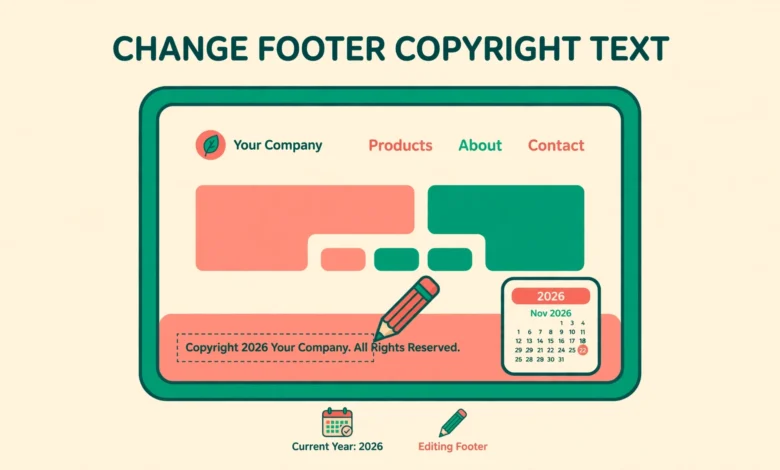
Look at the bottom of your WordPress site and you will probably see a line like “Copyright 2026 My Site. All rights reserved.” Or worse, a line that still shows the year your site was built, or the theme developer name instead of your own. The footer copyright line is small, but every visitor sees it, and an outdated or wrong line makes a site look abandoned.
Changing that line needs no plugin. Depending on your theme, you can edit it in the Customizer, in the Site Editor, directly in the footer.php file of a child theme, or with a small filter snippet. This guide covers all four methods, so you can use whichever one matches your theme, and it ends with a warning about what changing the text does and does not do legally.
Where Does the Footer Copyright Text Come From?
The footer copyright text is not a WordPress core setting. It comes from your theme. Some themes print a default line with the site name and the current year. Some themes let you edit the line in the Customizer. Block themes store the footer as a template part that you edit in the Site Editor. Because the source differs by theme, the right method depends on what your theme offers, so start by checking the Customizer before you touch any code.
One important distinction before you start: the copyright line and the “Powered by WordPress” credit are usually two separate pieces of text. Changing the copyright line does not remove the powered by credit, and removing the credit does not change the copyright line. If your goal is to remove the powered by text, see our guide to remove Powered by WordPress from the footer. This guide focuses on the copyright line itself.
How to Change the Footer Copyright Text in the Customizer
Many classic themes, including popular free themes like Astra, OceanWP, and GeneratePress, include a footer copyright field in the Customizer. This is the easiest method, because it needs no code and the change is visible in the live preview as you type.
- Go to Appearance, then Customize, in the WordPress dashboard.
- Look for a Footer section, sometimes called Footer Builder or Copyright Bar.
- Find the copyright text field and replace the default text with your own.
- Type your site name and the year, for example “Copyright 2026 VU Tech Geek. All rights reserved.”
- Click Publish at the top of the Customizer to save the change.
The exact location of the field varies by theme. In Astra it sits under Footer Builder, then Copyright. In OceanWP it sits under Footer, then Copyright Bar. In GeneratePress it sits under Layout, then Footer. If you cannot find a copyright field in your Customizer, your theme probably does not offer one, so move on to the Site Editor method for a block theme or the footer.php method for a classic theme. Never install a plugin just for this one line of text.
How to Change the Footer Copyright Text in the Site Editor
Block themes such as Twenty Twenty-Four and Twenty Twenty-Five store the footer as a template part, which is a reusable block that appears on every page. You edit it in the Site Editor, and the change applies site wide the moment you save.
- Go to Appearance, then Editor, to open the Site Editor.
- Click Patterns in the left panel, then find the Footer template part and open it.
- Click the copyright paragraph block in the footer to select it.
- Replace the text with your own copyright line and site name.
- Click Save at the top right to apply the change to every page.
The Site Editor method is visual, so you can also change the font size, alignment, or color of the line while you are there. Keep the footer simple, though. A small, quiet copyright line looks professional, while a large, bright one distracts from the content above it. If your footer has other blocks, such as a menu or social icons, be careful not to delete them by accident. If you do, the revision history in the Site Editor lets you restore the previous version. For more on styling the footer area without code, see our guide to add custom CSS in WordPress, which also works for footer text styling.
How to Change the Footer Copyright Text in footer.php
If your theme offers no Customizer field and you do not use a block theme, you can edit the footer.php file directly. This method gives you full control, but it comes with one strict rule: never edit the parent theme. Theme updates overwrite every file in the parent theme, including footer.php, so your change would vanish at the next update. Always work in a child theme, and edit the child theme copy of footer.php instead.
If you do not have a child theme yet, our guide on how to create a WordPress child theme walks you through it. Once the child theme is active, copy footer.php from the parent theme into the child theme folder, then edit the child theme copy. Find the line that prints the copyright text. In many themes it looks like the example below, and you can replace the text inside it with your own.
<?php
// Prints the site name and the current year in the footer.
printf(
    'Copyright %s %s. All rights reserved.',
    date( 'Y' ),
    get_bloginfo( 'name' )
);
?>
This snippet prints the current year automatically, so you will never need to update the year again. The date function with the Y format returns the current year, and get_bloginfo with name returns your site title as set under Settings, then General. Replace the words inside the quotes with your own wording if you prefer a different format, but keep the two placeholders, because they are what make the year and site name dynamic. Save the file, clear your cache, and reload the site to check the footer.
If you cannot find a copyright line in footer.php, your theme may print it from a different file, such as a template part or a function in functions.php. Search the theme files for the word Copyright to find it. The official WordPress theme developer documentation at developer.wordpress.org/themes explains how template files like footer.php fit together.
How to Change the Footer Copyright Text With a Filter
Some themes expose the copyright text through a filter, which is a hook that lets you change a value before WordPress prints it. A filter snippet is the cleanest method when your theme supports it, because you add one small function and never touch a template file. The exact filter name depends on your theme, so check the theme documentation first. Many themes document a footer copyright filter, and some page builder themes use their own hook names.
The example below shows the general pattern. It uses the WordPress date function for a dynamic year and the site name from your settings, so the line stays correct every year without further edits. Add the snippet to your child theme functions.php file or through the free Code Snippets plugin, which is the safer choice because you can disable the snippet with one click if anything goes wrong. Replace the filter name in the first line with the one your theme actually provides, and test the footer after saving.
add_filter( 'my_theme_footer_copyright', 'vutg_footer_copyright' );

function vutg_footer_copyright() {
    // Builds a copyright line with a dynamic year and site name.
    return sprintf(
        'Copyright %s %s. All rights reserved.',
        date( 'Y' ),
        get_bloginfo( 'name' )
    );
}
If the filter name in the example does not match your theme, the snippet will simply do nothing. To find the right filter, search your theme files for the word copyright, or ask the theme developer support forum. The WordPress plugin directory at wordpress.org hosts the Code Snippets plugin mentioned above, which is the recommended way to add small PHP changes without editing theme files. If your site feels slow after editing theme files, check whether the cause is the theme or the server, as our web hosting guide explains.
How to Make the Copyright Year Update Automatically
The single most common footer mistake is a hardcoded year. A site built in 2023 that still shows “Copyright 2023” in 2026 looks abandoned, even if the owner publishes every week. All three code methods in this guide avoid that problem by printing the current year with the PHP date function, so the footer updates itself every January 1 without any action from you.
If you use the Customizer or Site Editor method, there is no automatic year, because you typed the text by hand. In that case, set a yearly reminder to update the year, or switch to a code method for the year part. A popular format is a year range, such as “Copyright 2023 to 2026”, which shows how long the site has existed. Whatever format you choose, check the footer once a year as part of a general site review. Our WordPress site health check guide includes a checklist you can run through at the same time.
Does Changing the Footer Text Change Your Legal Copyright?
No, and this is important to understand. Changing the footer text changes only the words on your site. It does not create, transfer, or remove any legal copyright. In most countries, copyright exists automatically the moment you create original content, whether the footer says so or not. The footer line is a notice, not the legal right itself.
That cuts both ways. Adding “All rights reserved” does not give you extra legal protection beyond what the law already provides. Removing the line does not give anyone permission to copy your content. And changing the year does not extend or shorten the copyright term. So feel free to word the line however you like, keep it accurate and professional, and do not worry that editing it changes your legal position. If you run a business site and need real legal advice about copyright, talk to a lawyer rather than relying on a footer line.
Frequently Asked Questions
How do I change the footer copyright text in WordPress without a plugin?
Use the Customizer footer field if your theme has one, edit the footer template part in the Site Editor if you use a block theme, or edit footer.php in a child theme. You can also use a small filter snippet in a child theme or the Code Snippets plugin. All four methods work without installing a dedicated plugin.
Why does my footer still show the old year after I change it?
The most common cause is caching. Clear your caching plugin cache and your browser cache, then reload the page in a private window. If the old year is still there, check that you edited the active theme and not a different one, and confirm the change saved. If you typed the year by hand in the Customizer, you also need to update it manually every year.
Can I remove the “Powered by WordPress” text from the footer?
Yes, but it is a separate step from changing the copyright line. The powered by credit is usually printed by the theme in a different place from the copyright text. Our guide to removing Powered by WordPress from the footer covers the Customizer, footer.php, and CSS methods for that credit specifically.
Will editing footer.php break my site?
It can, if you edit the parent theme or make a PHP syntax error. Always work in a child theme, keep a backup of the original file, and check the site immediately after saving. A syntax error in footer.php can cause a white screen, so if the site breaks, restore the backup copy of the file and try again. The Code Snippets plugin is safer for small changes because a broken snippet can be disabled from the dashboard.
Last updated: November 2026.