You change your permalink structure, click Save Changes, and suddenly every post and page on your site shows a 404 error. Your homepage still loads and your dashboard still works, but none of your content can be reached. It feels like the whole site just broke, yet the fix is usually one click away.
What Does a 404 Error After Changing Permalinks Mean?
WordPress stores your posts in a database and gives each one a public address called a permalink. When a visitor opens that address, WordPress has to translate the pretty URL back into a database query, and that translation is handled by rewrite rules. On Apache servers those rules live in a small file called .htaccess in your site root folder. When the rules are missing, outdated, or unreadable, WordPress cannot match the URL to any post, so it shows a 404 page instead.
Before you start fixing, check exactly what is broken. If only new posts return 404 while older posts still load, the problem is probably a plugin that changed how new URLs are registered. If every post and page returns 404 but the homepage loads, the rewrite rules are almost certainly missing. If the whole site including the homepage shows 404, the problem may sit at the server level, so check your hosting first. The official WordPress support documentation at wordpress.org explains how permalink rewrite rules work.
How to Fix WordPress Permalinks by Resaving Your Settings
Resaving your permalink settings forces WordPress to flush its rewrite rules and write a fresh set to the .htaccess file. This single action fixes the majority of permalink 404 errors, and it takes less than a minute. You do not need to change anything, and you do not need to install a plugin. You only need to open the settings page and save it again.
- Log in to your WordPress dashboard as an administrator.
- Go to Settings, then Permalinks, from the left sidebar menu.
- Look at the current structure and make sure it is the one you want, for example Post name.
- Scroll to the bottom of the page and click Save Changes, even if you changed nothing.
- Open one of your posts in a new browser tab and confirm it loads instead of showing 404.
If the posts load again, you are done. The resave rebuilt the rewrite rules and the 404 error is gone. If the posts still show 404, do not keep clicking Save Changes, because repeating the same step will not change the result. The next step is to check whether WordPress was actually able to write the rules to your server, which means looking at the .htaccess file itself.
One useful trick when the resave seems to do nothing is to switch the structure to Plain, save, and then switch back to your preferred structure and save again. This forces a full flush of the rewrite rules. If you are still choosing which structure suits your site, our guide to the WordPress permalink structure explains each option, so you can pick once and stop changing it.
How to Rebuild a Missing or Corrupt .htaccess File
The .htaccess file sits in the root folder of your WordPress installation, next to wp-config.php. It is a hidden file, so your file manager may not show it until you enable the option to show hidden files. If the file is missing, empty, or filled with broken rules left behind by a security or caching plugin, WordPress cannot rewrite URLs at all, and every pretty permalink will return 404.
Before you touch the file, download a copy to your computer as a backup. Then open .htaccess in your hosting file manager or through FTP and check whether the WordPress block is present. If the file is missing or damaged, replace its contents with the standard WordPress block below. Keep the exact lines, including the BEGIN and END markers, because WordPress uses those markers to find and update its own section.
# BEGIN WordPress
<IfModule mod_rewrite.c>
RewriteEngine On
RewriteBase /
RewriteRule ^index\.php$ - [L]
RewriteCond %{REQUEST_FILENAME} !-f
RewriteCond %{REQUEST_FILENAME} !-d
RewriteRule . /index.php [L]
</IfModule>
# END WordPress
Save the file, then go back to Settings, then Permalinks, and click Save Changes once more so WordPress confirms the rules. Now test a post, a page, and a category archive. If they all load, the rebuilt file fixed the problem. If the file keeps reverting or WordPress reports that it cannot write to it, check the file permissions. The .htaccess file should normally be writable by WordPress, and our guide to WordPress file permissions in cPanel shows the safe values for .htaccess and the other core files.
Be careful with extra rules added above the WordPress block. Security, caching, and redirect plugins all add their own lines to .htaccess, and a single typo in any of them can break every rewrite on the site. If the 404 started right after you installed or configured such a plugin, look at the lines it added. You can test by temporarily renaming .htaccess and saving permalinks so WordPress creates a clean one. If the posts load, the old file held the bad rule.
How to Find a Plugin or Theme Conflict Causing 404 Errors
Some plugins register their own post types, taxonomies, or custom URL patterns, and when two plugins claim the same URL slug, or a plugin registers its rules badly, WordPress can fail to match the URL and return 404. This often shows up only on certain pages, such as a custom post type archive, a shop page, or a single category, while the rest of the site works fine. That pattern is the clearest sign of a conflict rather than a broken .htaccess file.
- Deactivate all plugins from the Plugins screen, then resave permalinks and test the broken pages.
- If the pages load with plugins off, reactivate the plugins one by one, testing the page after each activation.
- When the 404 returns, the plugin you just activated is the conflict, so leave it off and check for an update or a replacement.
- If the 404 persists with all plugins off, switch to a default theme such as Twenty Twenty-Four and test again.
- If the default theme fixes it, your theme is adding bad rewrite rules, so check its functions or contact the theme author.
Always run this test on a staging copy of your site if you can, because deactivating plugins on a live site can briefly change how it looks for visitors. If you do not have a staging site yet, our guide on how to create a WordPress staging site without a plugin shows a safe way to set one up. Once you find the conflicting plugin, check its settings for a permalink or slug option first, because many conflicts are fixed by changing one slug rather than removing the plugin.
How to Check Your Site URL After Moving or Migrating Your Site
After a migration to a new domain, a new folder, or a move from HTTP to HTTPS, WordPress may still be using the old address in its settings. When the WordPress Address and the Site Address point to the wrong domain or the wrong protocol, links can break and posts can return 404 even though the files and the database moved correctly. This is one of the most common causes of 404 errors right after a site move.
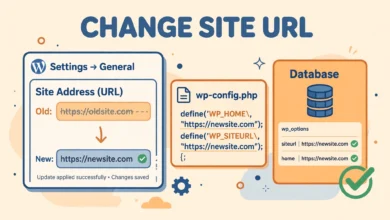
- Go to Settings, then General, and check the WordPress Address (URL) and Site Address (URL) fields.
- Both fields should show your current domain with the correct protocol, usually https://yourdomain.com.
- If either field shows the old domain, an old subfolder, or http instead of https, correct it and click Save Changes.
- Resave your permalinks after changing the URLs, because the rewrite rules are tied to the site address.
- Clear your browser cache and any caching plugin, then test several posts and pages.
If the site will not load at all and you cannot reach the dashboard, you can set the addresses in wp-config.php instead. Add the two lines below above the line that says “That is all, stop editing” in wp-config.php, replacing yourdomain.com with your real domain. Remove the lines again once you can reach Settings, then General, and confirm the fields are correct there.
define( 'WP_HOME', 'https://yourdomain.com' );
define( 'WP_SITEURL', 'https://yourdomain.com' );
Changing the two URL fields does not rewrite the links already stored inside your posts. Old image URLs and internal links in the post content still point to the old address until you update the database. For a full migration cleanup, search and replace the old domain across the database with a tool such as Better Search Replace, and always take a backup first. If your migration also involved an HTTP to HTTPS switch, read our guide on how to redirect HTTP to HTTPS in WordPress without a plugin.
What If Your Site Runs on Nginx Instead of Apache?
Nginx does not use .htaccess files at all, so if your host runs Nginx, resaving permalinks and editing .htaccess will never fix the problem. On Nginx the rewrite rules live in the server configuration file, and only your host or server administrator can change them. This catches many people out, because the WordPress dashboard looks exactly the same on both server types.
On Nginx, WordPress pretty permalinks need a try_files directive in the server block that sends every request that is not a real file or folder to index.php. The rule looks like the one below. If you manage your own server, add it to the server block for your site and reload Nginx. If you use managed hosting, send this rule to your host support team and ask them to add it, because they control the server configuration.
location / {
    try_files $uri $uri/ /index.php?$args;
}
You can find out which server your site uses from your hosting control panel, or by asking your host directly. If you are choosing a host and want one where you can control these settings yourself, our web hosting guide explains what to look for. Once the Nginx rule is in place, resave your permalinks one final time and test your posts.
Frequently Asked Questions
Why do my WordPress posts show 404 after I change the permalink structure?
Changing the structure changes every post URL, and WordPress must rebuild its rewrite rules to match the new pattern. If the rules are not written to .htaccess, or the file is not writable, the old rules stay in place and none of the new URLs match, so WordPress returns 404. Resaving the permalink settings rebuilds the rules and fixes the problem in most cases.
How do I fix WordPress 404 errors without a plugin?
Go to Settings, then Permalinks, and click Save Changes to flush the rewrite rules. If that does not work, open .htaccess in your site root folder and replace it with the standard WordPress block, then save permalinks again.
Can a plugin cause WordPress permalink 404 errors?
Yes, plugins that register custom post types or custom URL patterns can break permalinks, especially when two plugins use the same slug or a plugin writes bad rules to .htaccess. Security and caching plugins can also add broken lines to .htaccess. Deactivate your plugins one by one, resaving permalinks after each change, to find the one causing the conflict.
Do I need to change my permalink structure to fix the 404 error?
No, you do not need to change your structure. The 404 is a rewrite problem, not a structure problem, and keeping your current structure protects your existing links and search rankings. Only change the structure if you have a separate reason to do so, and when you do, set up redirects from the old URLs so visitors and search engines still reach your posts.
Last updated: November 2026.