Every WordPress site carries a database behind it, and that database grows a little with almost everything you do. Every post revision, every spam comment, and every setting left behind by a deleted plugin adds rows to your tables. After a year or two of regular publishing, that growth can slow down backups, bloat your hosting storage, and make your admin area feel sluggish.
The good news is that you can clean a WordPress database without installing another plugin, and doing it by hand gives you more control, because you see exactly what is being deleted before it is gone. This guide explains what makes a database grow, how to back it up first, and how to remove the junk safely with phpMyAdmin SQL queries and WP-CLI commands.
What Causes Database Bloat?
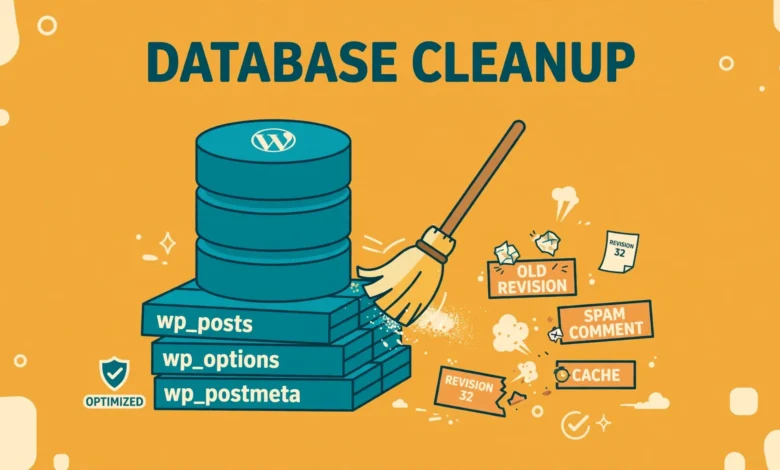
WordPress stores nearly everything in its database: posts, pages, comments, users, settings, and the extra data plugins save. Much of it is useful, but a surprising share is leftover material that serves no purpose once its moment has passed. Each type of junk lives in a different table and needs a different cleanup query.
- Post revisions: WordPress saves a revision every time you update a published post, so a long article can leave dozens of copies in the wp_posts table. Revisions help while you edit, but old ones are dead weight.
- Autosaves and drafts: the editor autosaves your work while you type, and abandoned drafts pile up in the same table. A post you started six months ago and never finished is still taking up rows.
- Expired transients: plugins and themes store temporary data in wp_options as transients, and many never clean up when they expire. Expired transients are the most common source of a swollen wp_options table.
- Spam and trashed comments: spam comments that were never deleted, and comments sitting in the trash, stay in wp_comments along with their metadata in wp_commentmeta. A site with heavy comment spam can collect thousands of these rows.
- Orphaned postmeta: when a post is deleted, its wp_postmeta rows are supposed to go with it, but some plugins leave orphaned meta rows behind that point at post IDs that no longer exist.
- Leftover plugin tables: many plugins create their own tables and leave them behind when you delete the plugin. Over years of trying plugins, those abandoned tables add up.
None of this bloat will break your site on its own. WordPress handles large tables well, and a few thousand extra rows are harmless. The problem appears gradually: backups take longer, queries take longer, and the wp_options table in particular can slow down every page load, because WordPress reads autoloaded options on every single request. If your site feels slower than it used to, a bloated database is a good suspect. Our guide to fixing a slow WordPress admin dashboard covers other causes worth checking alongside the database.
How Do I Back Up Before Cleaning?
Never run a DELETE query on a live database without a backup. A cleanup query touches thousands of rows at once, and a single wrong condition can delete content you wanted to keep. A backup turns a disaster into a five minute restore. This rule applies even if you are confident about the query, because typos happen to everyone.
Take a full database backup before you start. The fastest way is a phpMyAdmin export: open your database, click Export, choose the Quick method and SQL format, and download the file. If you prefer the command line, WP-CLI exports the database with one command. Our guide to backing up a WordPress database without a plugin walks through both methods, including how to restore the backup if a cleanup ever goes wrong.
How to Clean Up With phpMyAdmin SQL Queries
phpMyAdmin is the database tool most hosts provide in cPanel, and it runs SQL queries directly against your WordPress database. Before you run anything, check your table prefix. Most sites use wp_ but some use a custom prefix, so replace wp_ in the queries below with your own prefix if yours is different. You can see the prefix in wp-config.php.
Run the queries one at a time and check the affected row count after each one. If a query reports far more rows than you expected, stop and inspect before continuing.
DELETE FROM wp_posts WHERE post_type = 'revision';
DELETE FROM wp_posts WHERE post_status = 'auto-draft';
DELETE FROM wp_postmeta WHERE post_id NOT IN (SELECT ID FROM wp_posts);
DELETE FROM wp_comments WHERE comment_approved = 'spam';
DELETE FROM wp_comments WHERE comment_approved = 'trash';
DELETE FROM wp_commentmeta WHERE comment_id NOT IN (SELECT comment_ID FROM wp_comments);
DELETE FROM wp_options WHERE option_name LIKE '_transient_timeout_%' AND option_value < UNIX_TIMESTAMP();
DELETE FROM wp_options WHERE option_name LIKE '_transient_%' AND option_name NOT IN (SELECT CONCAT('_transient_timeout_', SUBSTRING(option_name, 12)) FROM wp_options WHERE option_name LIKE '_transient_timeout_%');
Here is what each query does. The first deletes all post revisions, the biggest single win on most blogs. The second removes auto drafts, the half started posts the editor saved. The third deletes orphaned postmeta, rows whose post no longer exists. The next two clear spam and trashed comments, and the one after that removes comment meta belonging to comments that are gone. The final two handle transients: the first deletes expired transient timeouts, and the second deletes expired transient values whose timeout rows have already gone.
One warning: deleting revisions is permanent, and you lose the ability to restore an older version. That is fine for published posts, but finish any important edit first. The same caution applies to trashed posts and comments: check the trash for anything you might want back before you delete it for good.
How to Clean Up With WP-CLI
If your host gives you SSH access, WP-CLI is the cleanest way to tidy a database, because its commands handle the table prefix for you. Connect to your server over SSH, move into your WordPress root directory, and run the commands below. The official WP-CLI command reference on developer.wordpress.org documents every command and flag used here.
wp db export ~/db-backup-before-cleanup.sql
wp post delete $(wp post list --post_type='revision' --format=ids) --force
wp transient delete --expired
wp comment delete $(wp comment list --status=spam --format=ids) --force
wp comment delete $(wp comment list --status=trash --format=ids) --force
wp db optimize
The first command exports a backup, so you are protected before anything is deleted. The second deletes every revision in one pass. The third removes expired transients without touching live ones, which is safer than raw SQL because WP-CLI understands the transient format. The next two clear spam and trashed comments, and the final command optimizes every table, reclaiming the space the deleted rows freed.
What About Leftover Plugin Tables?
Leftover plugin tables are the hardest junk to clean, because WordPress keeps no record of which plugin created a table. In phpMyAdmin, compare the table list against the plugins you currently have installed. Tables named after a plugin you deleted months ago are safe to drop, but only if you are sure. A table named wp_yoast_seo_links on a site that no longer runs Yoast is clearly abandoned, while a table with a vague name deserves a closer look before you touch it.
When in doubt, rename the table instead of dropping it. Add _old to the end of the name, then use the site normally for a week. If nothing breaks, the table was truly abandoned and you can drop it safely. If something does break, rename it back and you have lost nothing. This rename first approach removes all the risk from the decision.
Also check wp_options for orphaned settings. Deleted plugins often leave rows behind with option names that carry the plugin slug. These rows are small, but dozens of them add clutter to a table WordPress reads on every request. Delete them only when the name clearly belongs to a plugin that is gone, and never delete an option whose purpose you cannot identify.
How Do I Optimize the Tables After Deleting?
Deleting rows does not shrink the tables right away. MySQL marks the space as free but keeps it reserved, so the file size stays the same until the table is optimized. Running OPTIMIZE TABLE rebuilds each table and returns the freed space to the server, turning your deletions into real storage savings.
OPTIMIZE TABLE wp_posts, wp_postmeta, wp_comments, wp_commentmeta, wp_options, wp_users, wp_usermeta;Run this in the phpMyAdmin SQL tab after your deletions, or use wp db optimize with WP-CLI. On large tables the step can take a minute or two and the tables are briefly locked, so do it during a quiet period. For most small and medium sites the whole cleanup, backup included, takes under half an hour.
Also check the autoload column in wp_options. Options marked autoload yes load on every page request, so a large autoloaded row from a plugin you no longer use slows down the whole site. Deleting it, or turning off its autoload flag, can make a visible difference to load times. Good hosting helps too, and our web hosting guide explains what to look for in a host that keeps databases fast.
How to Stop the Bloat Coming Back
Cleaning once is satisfying, but the database will grow again unless you limit what WordPress stores. Three settings in wp-config.php do most of the work. Add them above the line that says stop editing.
define( 'WP_POST_REVISIONS', 5 );
define( 'AUTOSAVE_INTERVAL', 300 );
define( 'EMPTY_TRASH_DAYS', 14 );- WP_POST_REVISIONS: limits stored revisions to the most recent five per post. Older revisions are deleted automatically as new ones are saved, so the table stops growing without bound.
- AUTOSAVE_INTERVAL: changes the autosave gap from 60 seconds to 300 seconds, which means far fewer autosave rows while you write. Five minutes between autosaves is plenty.
- EMPTY_TRASH_DAYS: empties the trash automatically after 14 days, so deleted posts, pages, and comments do not sit in the trash forever.
Beyond those settings, build two habits. First, delete plugins properly: deactivate, then delete from the Plugins screen, and check whether the plugin offers a remove data on uninstall option before you delete it. Many well built plugins clean up after themselves if you ask them to. Second, repeat this cleanup every three to six months, because a small regular cleanup beats rescuing a database that has grown unchecked for years. If you run a staging copy, our guide to creating a WordPress staging site without a plugin shows how to test the cleanup there first, which is the safest approach of all.
Frequently Asked Questions
Is it safe to delete post revisions from the WordPress database?
Yes, as long as you back up first and you are not in the middle of editing a post. Deleting revisions only removes old saved versions. The current published version is never touched by the cleanup query, so your live content stays exactly as it is.
How often should I clean my WordPress database?
Every three to six months is enough for most blogs, and once a month for busy sites with many authors or heavy comment traffic. Set the wp-config.php limits in this guide first, and the cleanups get smaller each time.
Can cleaning the database speed up my WordPress site?
It can help, especially when wp_options is swollen with expired transients or oversized autoloaded rows, because WordPress reads those on every request. The gain is usually modest on its own, so treat cleanup as one part of a wider speed routine that also covers caching, image sizes, and hosting quality.
Should I use a plugin instead of SQL queries?
A cleanup plugin is fine if you prefer a button to a query, but it is not required. The manual method deletes exactly the same rows, and you see each query before it runs. Whichever route you pick, back up first, because no tool can undo a delete.
Last updated: November 2026.