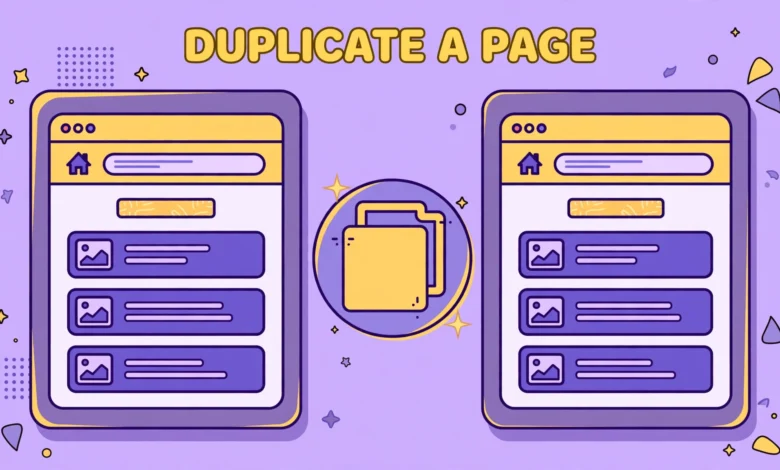
WordPress has no built in Duplicate button for pages or posts, which surprises almost every beginner. You design a landing page you love, then you need a second version of it, and the only obvious path is rebuilding the whole layout from scratch. Fortunately you do not need a plugin to copy a page. The block editor already gives you two reliable copy methods, and both take under two minutes once you know where to click.
This guide covers both methods step by step, explains exactly what does not get copied, and shows how to finish the copy properly so it looks and behaves like the original. It also covers the duplicate content trap that catches people who publish copies unchanged, and the point at which a dedicated duplicate plugin genuinely becomes worth installing.
What Is the Copy All Blocks Method?
The Copy All Blocks method copies every block on a page in one action, including headings, paragraphs, images, buttons, columns, and lists, with their formatting intact. It is the fastest method for most pages, and it works entirely inside the editor with no code involved.
Follow these steps:
- Open the original page in the block editor
- Click the three dot menu at the top right of the editor
- Choose Copy all blocks from the menu
- Create a new page and give it a working title
- Click once inside the empty editor, then paste with Ctrl+V on Windows or Cmd+V on Mac
- Check that every block arrived, especially columns, galleries, and embedded content
- Save the new page as a draft before changing anything else
Pasting into an empty editor recreates the full block structure, not just plain text. Columns stay columns, image blocks keep their alignment and captions, and button blocks keep their links and styles. If a block shows a validation warning after pasting, click the block, choose Attempt Block Recovery, and in most cases WordPress repairs it without losing content.
One practical tip: paste into a completely empty editor. If the new page already contains a default paragraph block, click inside it and paste there, or delete it first. Pasting into the middle of existing content can nest your copied blocks inside a paragraph block, which produces a messy result that is harder to clean up than starting fresh.
What Is the Code Editor Copy Method?
The Code Editor method copies the raw block markup instead of the rendered blocks. It is useful when the visual copy method misbehaves, for example when a complex layout pastes incorrectly, or when you want to copy content between two sites, or into a text file as a backup.
Follow these steps:
- Open the original page in the block editor
- Click the three dot menu at the top right and switch to the Code Editor
- Select all with Ctrl+A on Windows or Cmd+A on Mac, then copy
- Open a new page and switch it to the Code Editor as well
- Delete any default markup, paste your copied code, then switch back to the Visual Editor
- Confirm every block converted correctly and save as a draft
The advantage of this method is precision. You copy exactly what WordPress stored, including block attributes like colors, font sizes, and spacing that the visual method occasionally drops on complicated layouts. The disadvantage is readability: the code view is dense HTML comments and markup, so finding one specific block to edit is harder than in the visual view.
The Code Editor method also makes a handy backup. Paste the copied markup into a plain text file and save it with the page name. If a future edit breaks the page, you can restore the whole layout by pasting that file back into the Code Editor, which is far faster than rebuilding. For the official editor reference, the documentation at WordPress.org describes how blocks and block markup work.
What Does Not Get Copied?
Both methods copy the content inside the editor, and nothing outside it. That distinction catches almost everyone the first time, because the copy looks complete in the editor while several important settings are still missing. Check each of these on the new page:
- Featured image: set it again from the Page settings sidebar, using the same image from the media library
- Categories and tags: for posts, recheck the categories and retype the tags in the sidebar
- Page template and parent page: rechoose the template and the parent under Page Attributes
- Slug and permalink: WordPress generates a new slug from your new title, so edit it to what you actually want
- SEO title and meta description: rewrite these for the new page instead of copying the original text
- Excerpt: if the original had a custom excerpt, write a fresh one for the copy
- Discussion settings and custom fields: recheck comments settings and any custom field values
The SEO settings deserve special attention. Copying the original meta title and description word for word creates two pages competing for the same search terms, which helps neither page. Treat the copy as a new page from the SEO side: new title, new description, and new focus keyword, even when the body content starts out similar. Our guide to WordPress internal linking strategy also helps here, because linking the new page sensibly from related posts tells search engines where it fits.
How Is Duplicating a Post Different From Duplicating a Page?
The copy steps are identical for posts and pages, but the missing settings differ. Posts carry categories, tags, and often a different template, while pages carry parent relationships and sometimes a custom template for landing pages or sales pages. A copied post therefore needs its categories and tags rechecked, while a copied page needs its parent and template rechecked.
Posts also appear in archives, feeds, and related post sections, which makes duplicate content more visible for posts than for standalone pages. If you duplicate a post as a starting point for a new article, rewrite the introduction and the conclusion first, then work through the body. That way even an accidental early publish looks like a distinct article rather than a clone. For a broader pre-publish routine, our WordPress website launch checklist covers the checks worth running before anything goes live.
One more difference: post dates. A copied post gets a fresh publish date when you publish it, which is usually what you want. But if you copy an older post to refresh it, consider whether updating the original post is smarter than publishing a near duplicate. Search engines and readers both prefer one strong updated article over two similar ones, and updating keeps the original comments and social shares intact.
How Do You Avoid Duplicate Content SEO Problems?
Duplicate content is not a penalty in the formal sense, but it causes real problems: search engines may rank the wrong version, split ranking signals between two similar pages, or ignore the newer page entirely. The fix is simple discipline, applied every time you duplicate anything:
- Keep every copy as a draft until it is genuinely different from the original
- Rewrite the title, introduction, and at least the main examples before publishing
- Change the slug so it reflects the new topic, not the old one
- Write a unique meta description instead of reusing the original
- Never publish two pages that target the same keyword with the same content
- Delete test copies you no longer need instead of leaving them as drafts forever
Templates and landing page frameworks are the legitimate exception. If you duplicate a sales page layout and then replace all the copy, images, and offers, the shared structure is fine because the content is new. Search engines judge content, not layout. Problems only arise when the words stay the same, so rewrite thoroughly and the structure can stay.
If you already published a duplicate by accident, do not panic. Edit it into a genuinely different article, or redirect it to the original page if the copy serves no purpose. A quick redirect is better than leaving two near identical live pages competing with each other.
When Is a Duplicate Plugin Actually Worth It?
For occasional copies, the manual methods win. They need no installation, no updates, and no compatibility checks. But a plugin earns its place when duplication becomes routine. Consider one if you duplicate pages daily, if you run a team where several people need one click duplication, or if you need copies that include featured images, categories, and custom fields automatically.
A good duplicate plugin copies the settings the manual methods miss: featured image, categories, tags, template, custom fields, and menu order, all in one click. That saves real time at volume. At low volume, installing and maintaining a plugin to save two minutes a month is a poor trade, especially since every plugin adds update and security overhead to your site.
Whichever route you choose, keep the habit of reviewing the copy before publishing. A plugin that copies everything still cannot rewrite your SEO title or check your categories for you. The manual review step is what turns a fast copy into a proper new page, and it takes less than five minutes. For related editor skills, our guide to adding a table in WordPress without a plugin and our WordPress categories vs tags guide cover two settings that copies most often get wrong.
Frequently Asked Questions
Can I duplicate a WordPress page without a plugin?
Yes. Open the page, use Copy all blocks from the editor menu, paste into a new page, and save as a draft. The Code Editor copy method works as a backup when the visual method struggles with complex layouts.
Does copying blocks also copy the featured image?
No. The featured image, categories, tags, template, slug, and SEO settings live outside the editor content, so none of them copy over. Set each one again on the new page before publishing.
Will a duplicated page hurt my SEO?
Only if you publish it unchanged. Keep copies as drafts, rewrite the title, introduction, and key examples, write a unique meta description, and use a different slug. A rewritten copy is a normal new page, not a duplicate content problem.
Can I duplicate a page from one WordPress site to another?
Yes, with the Code Editor method. Copy the raw block markup from the first site and paste it into the Code Editor of a page on the second site. Images will still point to the original site media library unless you re-upload them, so check every image and either upload local copies or accept hotlinked images.
Last updated: October 2026.