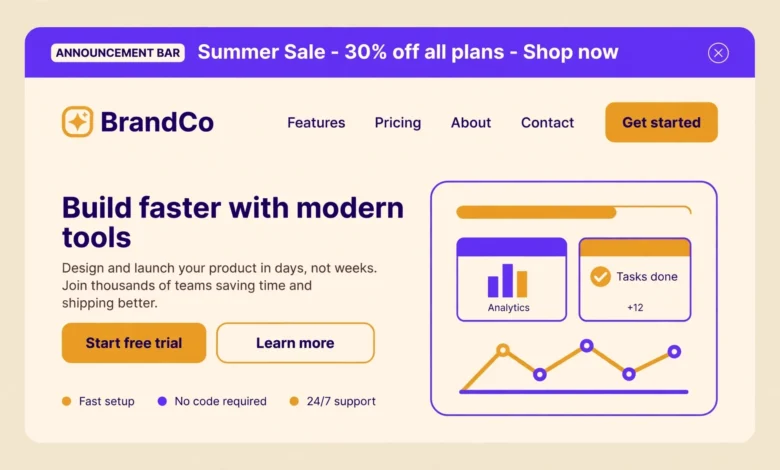
An announcement bar is a thin strip at the very top of your site that carries one short message. Stores use it for a sale or free shipping offer, bloggers use it for a new course or a newsletter signup, and event sites use it for a date reminder. Visitors see it before anything else on the page.
Most sites need a bar only sometimes, for a sale week or a launch, and then need it gone again. A plugin can add one quickly, but it also adds another settings screen, another update to track, and extra code on every page. The methods here use tools you already have, your theme settings, WooCommerce, the block editor, or a short snippet, and they cost nothing.
This guide gives you four methods. Method 1 uses the theme Customizer top bar in themes such as Astra or Blocksy. Method 2 uses the built-in WooCommerce store notice. Method 3 uses a Group block in the header of a block theme. Method 4 adds a bar with code, using the wp_body_open hook and a dismiss button that remembers the visitor with a cookie. Pick the method that matches your theme and your comfort with code.
What do you need before you start?
Write the message before you build the bar. Keep it under ten words, with one clear action, for example “Summer sale: 20 percent off all plans” with a link to the sale page. A bar with two messages, three links, and a long sentence gets ignored, because visitors read the top of a page in about one second.
Also decide whether visitors can close the bar, and whether the bar should stay visible while they scroll. A closable bar is friendlier than one that cannot be closed. If you plan to use the code method, you need a child theme for the PHP change, so read our guide to create a WordPress child theme first, because a theme update will erase edits made to the parent theme.
Method 1: How do I add an announcement bar with the theme Customizer?
Method 1 is the fastest option if your theme has a header builder. Astra, Blocksy, Kadence, and OceanWP all include a top bar area above the header, and you can turn it on without touching code. Open Appearance, then Customize, then Header, and look for a top section or above header area. Add your message as text, add a link to the sale page, set the background colour to match your brand, and publish. The bar then appears on every page.
The limit is plain. Only themes with a header builder offer this setting, and many free themes do not. The built-in top bar also has few options, usually one line of text and one link, with no scheduling and no dismiss button. If your theme has no top bar setting, use Method 3 for a block theme or Method 4 for the code version. A bar on certain pages only needs a plugin.
Method 2: How do I use the WooCommerce store notice?
WooCommerce has a built-in store notice, and many store owners never notice it. Open Appearance, then Customize, then WooCommerce, then Store Notice, tick the box, and type your message. The notice appears across the site, usually at the top, and visitors can dismiss it.
This method has two clear limits. First, it needs WooCommerce active, so it is no use on a blog or a business site without a store. Second, it is a plain text notice with almost no design control, and its position depends on your theme. Some themes show it at the bottom of the screen instead of the top. For a store that wants a simple notice with no extra plugin, this is the easiest method. For brand colours, a button, and a fixed position, use Method 4 instead.
Method 3: How do I add an announcement bar in a block theme?
Block themes such as Twenty Twenty-Four let you edit the header directly in the Site Editor, and that makes an announcement bar easy. Open Appearance, then Editor, then Patterns, then Header, and open your header template part. Add a Group block at the very top, set its background colour, and add a Paragraph block with your message and a link inside the group. Set the group to full width, save, and the bar appears on every page that uses that header.
This only works in a block theme. Classic themes such as Astra or GeneratePress have no Site Editor header, so Method 3 does not apply to them. A block theme bar also has no built-in dismiss button and no scheduling, so a visitor sees the same message on every visit until you remove it. For a short launch message that is fine. For a bar that should disappear after a visitor closes it, use the code in Method 4. If you are still planning your site, our WordPress website launch checklist helps you place items such as this bar before launch day.
Method 4: How do I add an announcement bar with code and a dismiss button?
Method 4 works on almost any modern theme and gives you full control. It uses the wp_body_open hook, which WordPress fires right after the opening body tag, so the bar prints at the very top of the page. Add the PHP below to your child theme functions.php file. It checks for a cookie first, and prints nothing if the visitor already closed the bar.
function vu_announcement_bar() {
if ( isset( $_COOKIE['vu_bar_closed'] ) ) {
return;
}
echo '<div class="vu-bar">Summer sale: 20% off all plans. <a href="/sale/">Shop now</a> <button id="vu-bar-close" aria-label="Dismiss announcement">x</button></div>';
}
add_action( 'wp_body_open', 'vu_announcement_bar' );
Next add the CSS and the JavaScript. The CSS gives the bar a dark background, white text, and centred content. The JavaScript hides the bar on click and saves a cookie named vu_bar_closed for one day, which is 86400 seconds. Change 86400 to 604800 to hide it for seven days instead.
<style>.vu-bar{background:#111827;color:#fff;text-align:center;padding:10px 16px;font-size:15px}.vu-bar a{color:#fbbf24;text-decoration:underline}.vu-bar button{background:none;border:0;color:#fff;font-size:18px;cursor:pointer;margin-left:12px}</style>
<script>document.getElementById("vu-bar-close").addEventListener("click",function(){document.querySelector(".vu-bar").style.display="none";document.cookie="vu_bar_closed=1; max-age=86400; path=/";});</script>
Add the CSS in the Customizer under Additional CSS, using our guide to add custom CSS in WordPress, and add the JavaScript as a footer snippet with Code Snippets. One honest warning: the wp_body_open hook needs theme support, and almost every theme updated since 2019 has it, but a very old theme may not. If the bar never appears, switch the hook to wp_footer and add position fixed with top zero to the CSS.
Should the bar be fixed or static?
A static bar scrolls away with the page, which is the simplest behaviour and the best choice for most sites. A fixed bar stays at the top while the visitor scrolls, so the message and its link stay visible the whole time. That suits a short sale, but it takes up space on every scroll, and on a phone it can cover part of the header.
If you choose fixed, add padding to the top of the body so the bar does not cover your header. Add position fixed with top zero, left zero, and right zero to the bar CSS, and add a matching padding-top to the body, usually about 40 pixels. Test it on desktop and on a phone, because a fixed bar that covers the menu is worse than no bar at all. Our guide to a sticky header in WordPress without a plugin explains how fixed elements behave at the page top.
How do I hide the bar on mobile?
Phone screens are narrow, so a long announcement wraps into three lines and pushes your content down. You have two options. Hide the bar on phones with a media query, so only desktop visitors see it, or shorten the message on mobile by hiding only the extra words and keeping the short offer and the link.
@media (max-width:600px){.vu-bar{display:none}}Hiding the bar on mobile is honest only if the message is not essential. If the bar carries a delivery warning or a closing notice, mobile visitors need it too, so shorten the text instead of hiding it. Test the result on a real phone, because a desktop preview does not show how much space the bar takes. A floating element such as a chat button needs the same mobile check, as shown in our guide to add a WhatsApp chat button in WordPress.
How do I test the bar and fix common problems?
- Open the site while logged out and confirm the bar appears at the top.
- Click the close button and confirm the bar disappears at once.
- Reload the page and confirm the bar stays hidden for a full day.
- Clear cookies for the site and confirm the bar appears again.
- Open the site on a phone and confirm the bar fits without covering the menu.
If the bar never appears, check three things. First, confirm the code is saved and active, and test while logged out, because an admin view can hide a caching problem. Second, check that your theme supports wp_body_open, or switch to the wp_footer fallback in Method 4. Third, clear the cookie named vu_bar_closed, because an earlier test click may have hidden the bar for a full day. If the bar appears but the close button does nothing, check the browser console for a JavaScript error, and confirm the button id in the JavaScript matches the button id in the PHP.
When is a plugin the better choice?
The methods here are free, light, and fast, and they suit one simple message very well. A plugin is the honest better choice when you need scheduling, so the bar starts and ends on set dates, when you need different bars on different pages, when you want a countdown inside the bar, or when a client must change the text without code. If you only need one message for one sale, the code method is enough, and you keep the site lighter. For hosting speed, which affects how fast the bar code loads, see our web hosting guide, and for the official WordPress documentation, visit WordPress.org and the developer guides at developer.wordpress.org.
Frequently asked questions
Can I add an announcement bar in WordPress without a plugin?
Yes. Use your theme Customizer top bar if your theme has one, the WooCommerce store notice if you run a store, a Group block in the header if you use a block theme, or the wp_body_open code from Method 4. All four work without any plugin.
Why is my announcement bar not showing?
The usual causes are a missing wp_body_open hook in an old theme, a caching plugin serving an old page, or a cookie from an earlier test that already hid the bar. Clear the site cookies and the cache, test while logged out, and if the bar still never appears, switch the hook to wp_footer as described in Method 4.
How do I change the announcement bar text?
Change it where you created it. For the Customizer bar, edit the text in the header settings. For the WooCommerce notice, edit it under Customize, then WooCommerce, then Store Notice. For the block theme bar, edit the Paragraph block in the Site Editor. For the code method, edit the message in the echo line in functions.php, then clear the cache.
Does an announcement bar hurt SEO or speed?
No, a single small bar has no real effect on SEO or speed. It adds a few lines of HTML and almost no page weight. What can hurt is a fixed bar without body padding, because it covers content and creates layout shift, and a bar with three messages, because visitors ignore it and it pushes your main heading down. Keep one short message and test the page on a phone.
Last updated: November 2026.