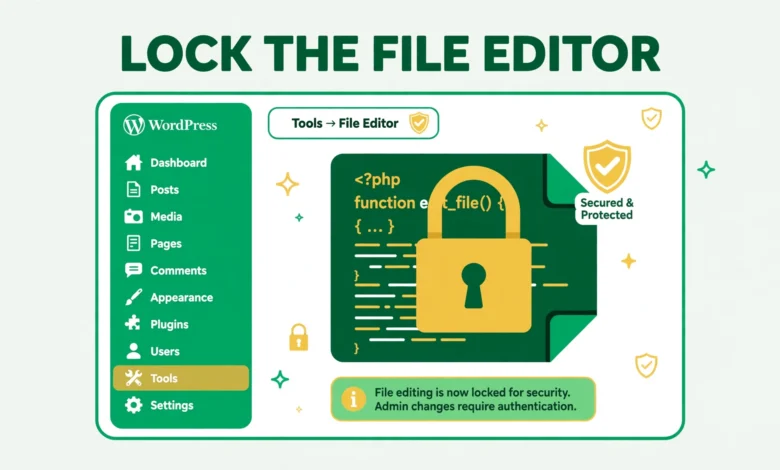
WordPress ships with a built-in code editor that lets you change your theme and plugin files from inside the dashboard. It sounds convenient, but it is one of the biggest security risks on a WordPress site. If an attacker ever gains access to an admin account, that editor hands them the ability to run any code they want on your server.
The fix is a single line of code in your wp-config.php file. Adding define( ‘DISALLOW_FILE_EDIT’, true ); removes both editors from the dashboard completely, and it takes less than five minutes. Your site keeps working exactly as before, but the most dangerous door in the admin area is closed for good.
This guide explains what the file editors do, why they are risky, how to disable them safely, and how to edit your files afterwards. You will also learn about the stricter DISALLOW_FILE_MODS option, how to re-enable editing if you ever need it, and what this setting does not protect against.
What Are the Theme File Editor and Plugin File Editor?
The Theme File Editor lives under Appearance > Theme File Editor in the dashboard. It lists the files of your active theme, such as functions.php, header.php, and style.css, and lets you edit them in a code box and save the changes. The Plugin File Editor lives under Plugins > Plugin File Editor, and it does the same for the files of your installed plugins.
Both editors were added to WordPress years ago, when many site owners had no other way to change a file. They write directly to the files on your server, so a saved change takes effect immediately, with no upload step and no review. That immediacy is exactly what makes them dangerous.
Most site owners never use these editors. Theme changes are usually made in the Customizer or in a child theme, and plugin files should never be edited at all, because the next plugin update overwrites the change. The editors sit unused in the menu, waiting for the one day an attacker finds them useful.
Why Are the Built-in File Editors a Security Risk?
An admin account in WordPress can already do a lot, but the file editor turns admin access into full server access. Anyone who can open the Theme File Editor can add malicious code to functions.php, and that code runs on every page load. From there, an attacker can create new admin users, steal data, send spam, or redirect your visitors to scam pages.
Admin accounts get compromised more often than people think. Weak passwords, passwords reused from other sites, and phishing emails all lead to stolen logins. That is why limiting login attempts matters so much, and our guide on how to limit login attempts in WordPress without a plugin shows how to block brute force attacks on the login page. But even strong login protection cannot help if an admin account itself is stolen, which is where DISALLOW_FILE_EDIT comes in.
The editor is also a risk for honest mistakes. A single typo in functions.php can break your whole site with a white screen, and because the editor has no undo button, recovering from that mistake means reaching for FTP while the site is down. Editing files through SFTP with a proper editor and a backup is safer in every way.
Security plugins and hardening guides have recommended disabling these editors for years, and many managed WordPress hosts disable them by default. If your host has already done it, you will find the menu items missing, which is a good sign. If they are still there, the steps below will remove them.
How to Disable File Editing in WordPress
The change goes in wp-config.php, the configuration file in the root folder of your WordPress installation. It holds your database details and other core settings, so back it up before you touch it. Download a copy to your computer, or ask your host to take a backup, so you can restore it if anything goes wrong.
- Download a backup copy of wp-config.php to your computer first.
- Open wp-config.php with SFTP or your host file manager.
- Find the comment line that reads /* That’s all, stop editing! Happy publishing. */ near the end of the file.
- Add the line below directly above that comment line.
- Save the file and upload it back to your server if you edited it locally.
define( 'DISALLOW_FILE_EDIT', true );Placement matters. The line must go above the stop editing comment, because WordPress stops reading the configuration file at that point for some settings, and lines placed below it may not take effect. If you add the line at the very bottom of the file, the editors will stay visible, and you will wonder why nothing changed.
Do not edit wp-config.php from inside the WordPress dashboard, because the file editor you are about to disable is the wrong tool for the job, and a mistake there can lock you out. Use SFTP with a client like FileZilla, or the file manager in your hosting control panel. Both let you download the file, edit it safely, and restore your backup if needed.
How to Verify the Editors Are Gone
After saving wp-config.php, refresh your WordPress dashboard. The Theme File Editor link should be gone from the Appearance menu, and the Plugin File Editor link should be gone from the Plugins menu. If you visit the old editor URLs directly, WordPress will show an error saying you do not have permission to access the page.
If the menus are still there, the most likely cause is placement. Open wp-config.php again and check that the define line sits above the stop editing comment, with no typos in the constant name. Also clear any server cache or caching plugin, since a cached dashboard page can show stale menu items for a few minutes. For general hardening background, the official WordPress hardening guide lists this setting among its recommended steps.
What Is DISALLOW_FILE_MODS?
DISALLOW_FILE_EDIT has a stricter sibling called DISALLOW_FILE_MODS. While DISALLOW_FILE_EDIT only removes the file editors, DISALLOW_FILE_MODS also blocks installing, updating, and deleting themes and plugins from the dashboard. With it turned on, the Add New buttons disappear, and update notices become read only.
That stricter option suits sites that are managed entirely by a developer or a deployment workflow. If every change goes through version control or SFTP anyway, blocking dashboard installs removes another way a compromised admin account can add malicious code. For a normal site owner who installs plugins from the dashboard, it is too restrictive, because every plugin update would need manual work.
You can enable it the same way, with a line in wp-config.php above the stop editing comment:
define( 'DISALLOW_FILE_MODS', true );Do not enable DISALLOW_FILE_MODS unless you are sure you want it. On a site that relies on dashboard updates, it will confuse the owner the first time a plugin update fails to run. Start with DISALLOW_FILE_EDIT, which is safe for every site, and consider the stricter option only if you manage updates yourself.
How to Edit Theme and Plugin Files Safely Afterwards
Disabling the editors does not mean you can never edit a file again. It only means you must edit files properly, with tools that protect you from mistakes. The best option is SFTP. Connect with a client like FileZilla, download the file, edit it in a code editor on your computer, and upload it back. A good code editor highlights syntax errors before you save, which the dashboard editor never did.
Your host file manager is a good alternative if you do not want to install an SFTP client. Most control panels include a file manager with a built-in text editor, and it works from any browser. Either way, keep a backup of every file you change, so a bad edit takes seconds to undo instead of hours.
For theme changes, use a child theme so updates never overwrite your work. For small tweaks, the Customizer and the Additional CSS panel cover most needs without touching a file at all. And if you ever need to debug a problem, turn on WordPress debug mode instead of editing files blindly. Our guide on how to enable WordPress debug mode shows how to log errors to a file you can read safely.
How to Re-enable File Editing
There may be a day when you genuinely need the dashboard editor, for example when you are travelling and only have a phone. Re-enabling it is simple. Open wp-config.php over SFTP, find the define line, and delete it or comment it out by adding two slashes at the start of the line. Save the file, and the editor menus will return.
// define( 'DISALLOW_FILE_EDIT', true );Treat re-enabling as a temporary step. Make the edit you need, then remove the comment marks or restore the line, so the editors are disabled again. Leaving them on because you might need them one day defeats the purpose of the whole exercise.
What DISALLOW_FILE_EDIT Does Not Protect Against
It is important to be honest about the limits of this setting. DISALLOW_FILE_EDIT removes the editors, but a compromised admin account can still install a malicious plugin from the dashboard, because plugin installation is a separate capability. It can also change settings, add users, and edit content. The setting closes one door, not every door, which is why it belongs in a wider security routine rather than standing alone.
That routine should include strong unique passwords for every admin, two factor authentication, and login attempt limiting. It should also include keeping WordPress, themes, and plugins updated, because outdated code is the most common way attackers get in at all. Hiding your WordPress version number is another small step that makes automated attacks harder, and our guide on how to remove the WordPress version number explains how to do it.
Think of DISALLOW_FILE_EDIT as one layer of defence. No single setting makes a site secure, but each layer makes an attack harder and slower, and attackers prefer easy targets. A site with disabled file editing, limited login attempts, and updated software is a much harder target than a default installation.
Frequently Asked Questions
Will disabling file editing break my site?
No, it will not break anything. The setting only removes the Theme File Editor and Plugin File Editor menus from the dashboard. Your theme, plugins, posts, and settings all keep working exactly as before, and visitors will notice no difference at all.
Can I still update themes and plugins with DISALLOW_FILE_EDIT on?
Yes, updates still work normally. DISALLOW_FILE_EDIT only blocks editing file contents in the dashboard. Installing and updating themes and plugins from the dashboard still works. Only the stricter DISALLOW_FILE_MODS setting blocks installs and updates.
Where exactly do I add the line in wp-config.php?
Add it directly above the comment line that reads /* That’s all, stop editing! Happy publishing. */ near the end of the file. Lines placed below that comment may not take effect, so placement matters. Always back up wp-config.php before you edit it.
How do I edit theme files after disabling the editor?
Use SFTP or your host file manager to download the file, edit it in a proper code editor, and upload it back. That workflow is safer than the dashboard editor, because a good code editor catches syntax errors before you save, and you keep a backup copy of every file you change.
Last updated: November 2026.